Basic Operations 39
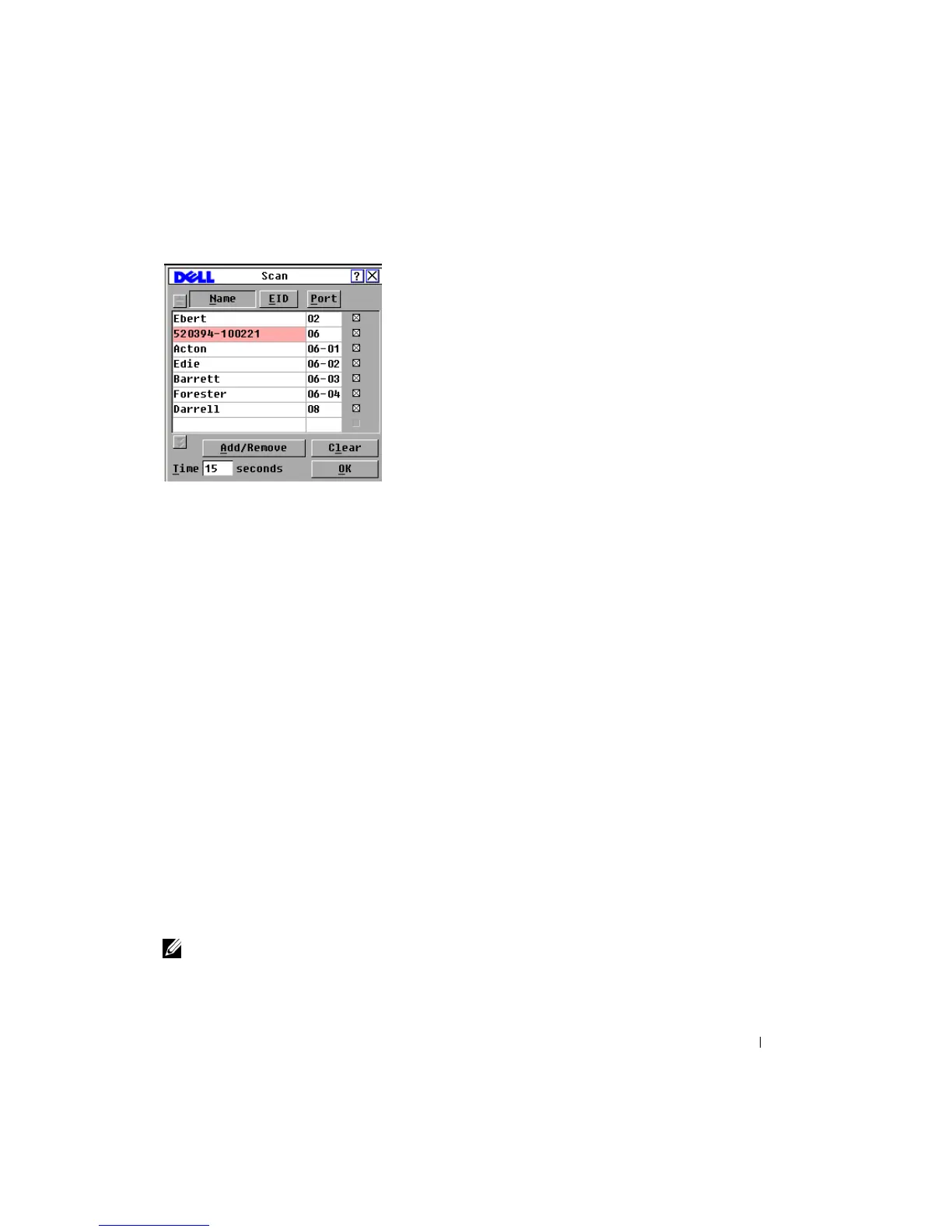
Figure 3-11. Scan Dialog Box
3 The dialog box contains a list of all devices attached to your appliance. Click the checkbox
next to the devices you wish to scan.
or
Double-click on a device name or port.
or
Press <Alt> and the number of the device you wish to scan. You can select up to 16
devices from the entire list.
4 In the Time box, type the number of seconds (from 3 to 99) of desired time before the scan
moves to the next device in the sequence.
5 Click OK.
To remove a device from the scan list:
1 In the Scan dialog box, select the device to be removed.
or
Double-click on the device name or port.
or
Click the Clear button to remove all devices from the scan list.
2 Click OK.
To start the scan mode:
1 If the OSCAR
®
interface is not open, press <Print Screen>. The Main dialog box appears.
2 Click Commands. The Commands dialog box displays.
3 Select Scan Enable in the Commands dialog box.
4 Click X to close the Commands dialog box.
NOTE: Scanning begins when the Main dialog box or flag is displayed. Scanning is inhibited in any other
OSCAR
®
interface dialog box.




 To Next Page