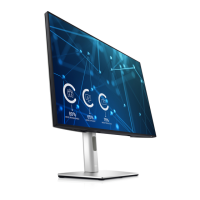
Using the On-Screen Display (OSD) Menu
Accessing the Menu System
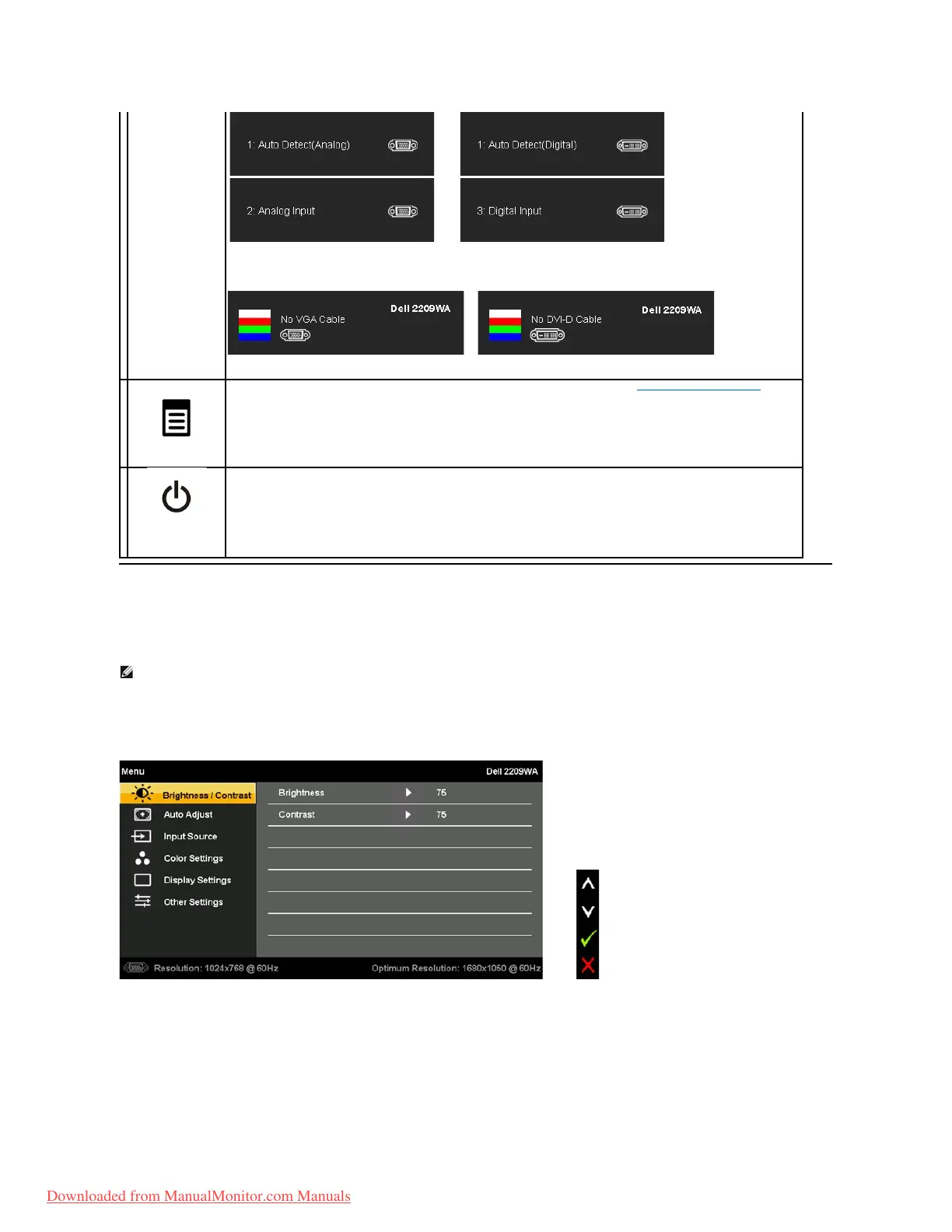
1. Push the MENU button to launch the OSD menu and display the main menu.
Main Menu for Analog (VGA) Input
or
Main Menu for digital (DVI) Input
If either VGA or DVI-D input is selected and both VGA and DVI-
D cables are not connected, a floating dialog box as shown below
Use the MENU button to launch the on-screen display (OSD) and select the OSD Menu. See Accessing the Menu System.
Power
(withpowerlight
indicator)
Use the Power button to turn the monitor on and off.
The Blue LED indicates the monitor is on and fully functional. An amber LED indicates DPMS power save mode.
NOTE: IfyouchangethesettingsandtheneitherproceedtoanothermenuorexittheOSDmenu,themonitorautomaticallysavesthosechanges.The
changes are also saved if you change the settings and then wait for the OSD menu to disappear.
Downloaded from ManualMonitor.com Manuals


 To Next Page