Back to Contents Page
Setting Up the Monitor
Dell™2709WFlatPanelMonitorUser's Guide
Connecting the Monitor
Organizing Your Cables
Attaching the Soundbar (optional)
Connecting Your Monitor
To connect your monitor to the computer perform the following steps/instructions:
l Turnoffyourcomputeranddisconnectthepowercable.
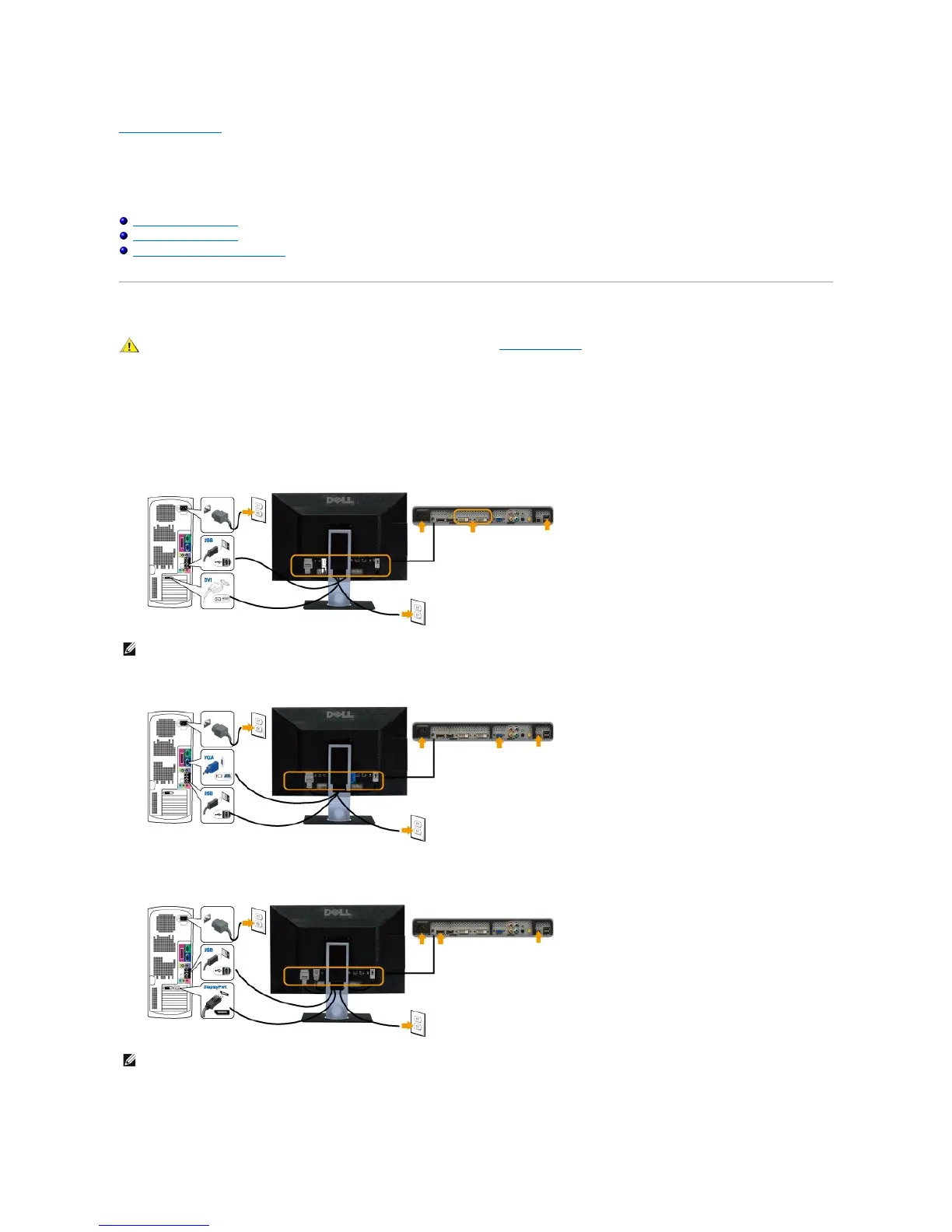
l Connect either the white (digital DVI-D) display connector cable, the blue (analog VGA) display connector cable, or the black DisplayPort cable to the
correspondingvideoportonthebackofyourcomputer.Donotuseall the cables on the same computer. Use all the cables only when they are
connectedtodifferentcomputerswithappropriatevideosystems.
Connecting the White DVI Cable
Connecting the Blue VGA Cable
Connecting the Black DisplayPort Cable
After you have completed connecting the DVI/VGA/DisplayPort cable, follow the procedure below to complete setting up your monitor:
l Plugthepowercablesforyourcomputerandmonitorintoanearbyoutlet.







 To Next Page