NOTE: AUTO ADJUST is only available when you are using the analog (VGA) connector.
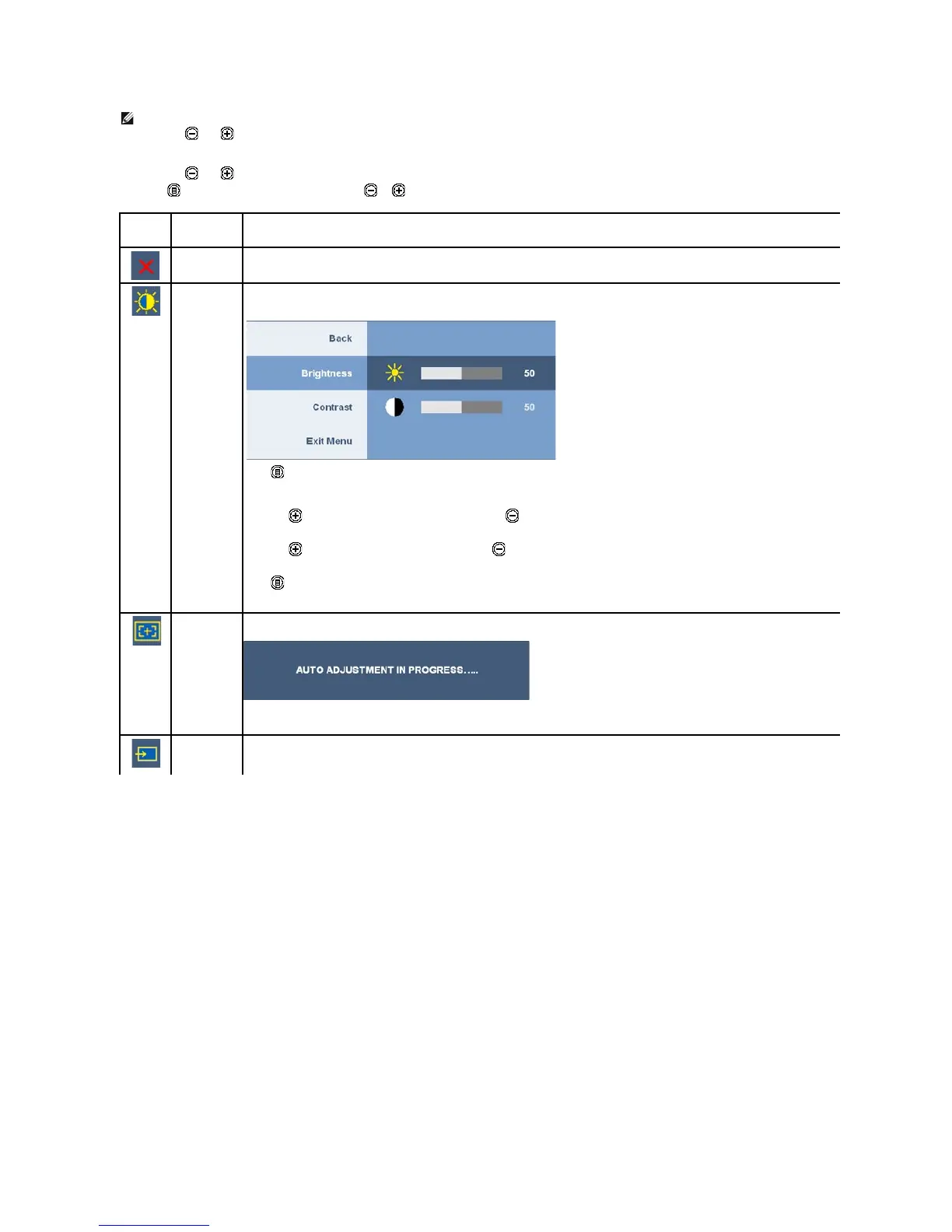
Push the and buttons to move between the setting options. As you move from one icon to another, the option name is highlighted. See
the following table for a complete list of all the options available for the monitor.
Push the MENU button once to activate the highlighted option.
Push the and buttons to select the desired parameter.
Push toentertheslidebarandthenusethe or button, according to the indicators on the menu, to make your changes.
Select the "back" option to return to the main menu or "exit" to exit the OSD menu.
Select to exit the main menu.
Use this menu to activate Brightness/Contrast adjustment.
Push to go back to the main menu.
Brightness adjusts the luminance of the backlight.
Push the buttontoincreasebrightnessandpushthe button to decrease brightness (min 0 ~ max 100).
Adjust Brightness first, and then adjust Contrast only if further adjustment is necessary.
Push the button to increase contrast and push the button to decrease contrast (min 0 ~ max 100).
The Contrast function adjusts the degree of difference between darkness and lightness on the monitor screen.
Push toexittheOSDmainmenu.
Even though your computer recognizes your monitor on startup, the Auto Adjustment function optimizes the display settings for use
with your particular setup.
NOTE:Inmostcases,AutoAdjustproducesthebestimageforyourconfiguration.
NOTE: AUTO ADJUST option is only available when you are using the analog (VGA) connector.
Use the INPUT SOURCE menu to select between different video signals that may be connected to your monitor.




 To Next Page