Using the On-Screen Display (OSD) Menu
Accessing the Menu System
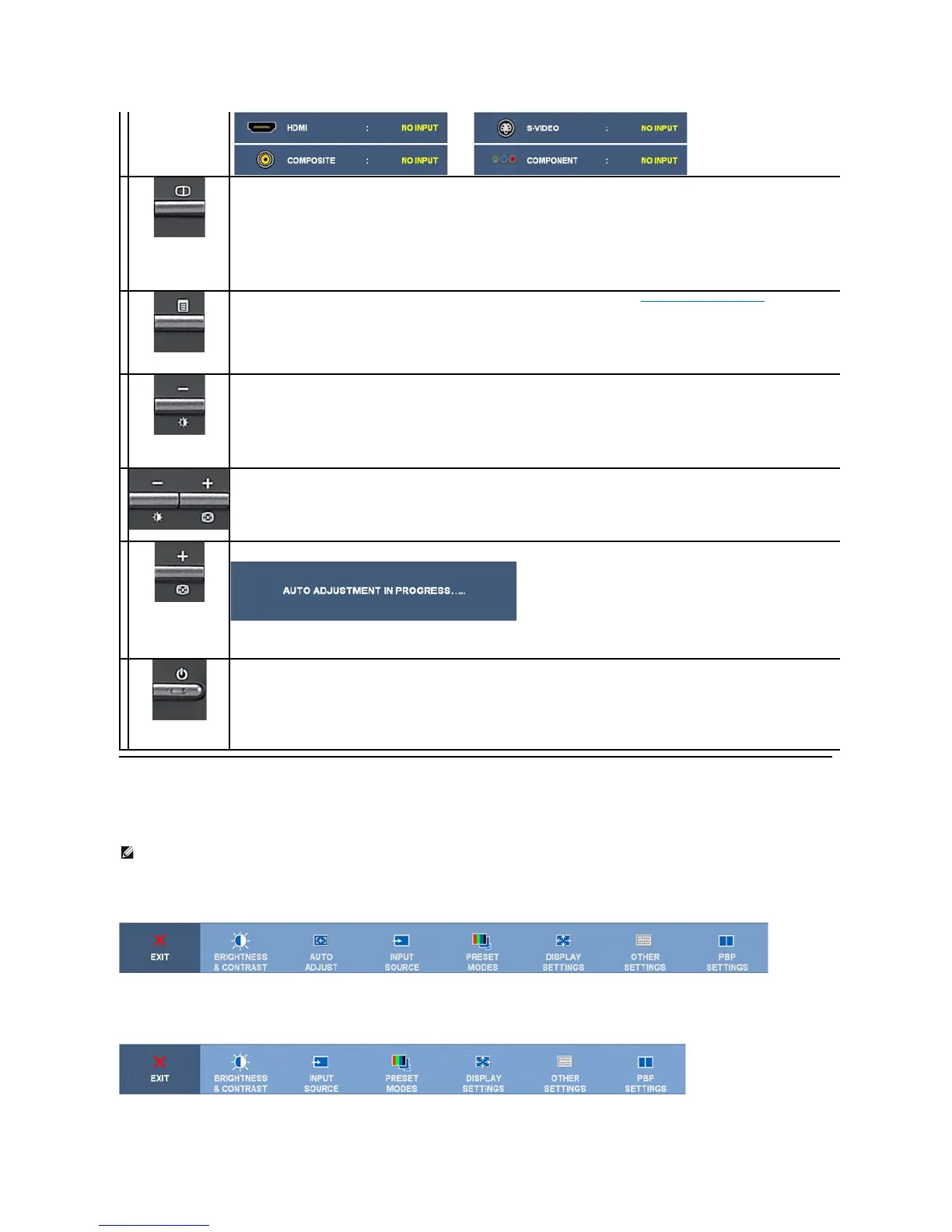
Main Menu for Analog (VGA) Input
or
Main Menu for non Analog (non VGA) Input
Picture by Picture
(PBP) Select
UsethisbuttontoactivatePicturebyPicture(PBP)modeadjustment.
Use the MENU button to launch the on-screen display (OSD) and select the OSD Menu. See Accessing the Menu System.
Use this button for direct access to the "Brightness" and "Contrast" control menu.
Use these buttons to navigate and adjust the slider-bar (decrease/increase ranges) controls in the OSD.
Use this button to activate automatic setup and adjust menu. The following dialog appears on a black screen as the monitor self-
to the current input:
Auto Adjustment allows the monitor to self-adjust to the incoming video signal. After using Auto Adjustment, you can further tune your
monitor by using the Pixel Clock (Coarse) and Phase (Fine) controls under DISPLAY SETTINGS.
NOTE: Auto Adjust does not occur if you press the button while there are no active video input signals or attached cables.
Power button
(withpowerlight
indicator)
Use the Power button to turn the monitor on and off.
The blue LED indicates the monitor is on and fully functional. An amber LED indicates DPMS power save mode.
NOTE: IfyouchangethesettingsandtheneitherproceedtoanothermenuorexittheOSDmenu,themonitorautomaticallysavesthose
changes.ThechangesarealsosavedifyouchangethesettingsandthenwaitfortheOSDmenutodisappear.
Push the MENU button to launch the OSD menu and display the main menu.




 To Next Page