EasyManua.ls Logo

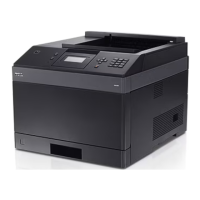
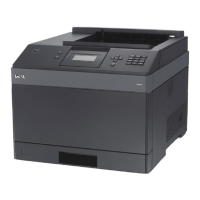
Dell 5330dn - User Manual

Dell 5330dn
127 pages
Print Icon
To Next Page IconTo Next Page
Loading...
™5330dn Mono Laser Printer User's Guide
Dell™5330dn Mono Laser Printer User's Guide
Click the links on the left for information on the features, options, and operation of your printer. For information on other documentation included with your
printer, see "Finding Information".
To order replacement toner cartridges or supplies from Dell:
1. Double-click the Dell Toner Reorder Program icon on your desktop. (Windows only)
OR
2. Order Dell printer supplies at www.dell.com/supplies or by phone.
Contacting Dell

Information in this document is subject to change without notice.
2008 Dell Inc. All rights reserved.
Reproduction in any manner whatsoever without the written permission of Dell Inc. is strictly forbidden.
Trademarks used in this text: Dell, the DELL logo and Dell Toner Management System are trademarks of Dell Inc.; Microsoft, Windows, and Windows Vista are
either trademarks or registered trademarks of Microsoft Corporation; Macintosh, MacOS, EtherTalk and TrueType are trademarks of Apple Inc., registered in the
NOTE: If you do not have an active Internet connection, you can find contact information on your purchase invoice, packing slip, bill, or Dell product
catalog. Dell provides several online and telephone-based support and service options. Availability varies by country and product, and some services
may not be available in your area. To contact Dell for sales, technical support, or customer service issues:
1. Visit www.support.dell.com.
2. Verify your country or region in the choose A Country/Region drop-down menu at the bottom of the page.
3. Click Contact Us on the left side of the page.
4. Select the appropriate service or support link based on your need.
5. Choose the method of contacting Dell that is convenient for you.
NOTE: A NOTE indicates important information that helps you make better use of your printerprinter.
NOTICE: A NOTICE indicates either potential damage to hardware or loss of data and tells you how to avoid the problem.
CAUTION: A CAUTION indicates a potential for property damage, personal injury, or death.
U.S. and other countries; Linux is a trademark or registered trademark of Linus Torvalds in the United States and other countries; The Common UNIX Printing
System, CUPS, and the CUPS logo are the trademarks of Easy Software Products; ENERGY STAR is a registered trademark of the U.S. Environmental Protection
Agency. As an ENERGY STAR Partner, Dell Inc. has determined that this product meets the ENERGY STAR guidelines for energy efficiency.
PCL is US registered trademark of Hewlett-Packard Company.
Sun, Sun Microsystems, Solaris, and the Solaris
logo are trademarks or registered trademarks of Sun Microsystems, Inc. in the U.S. and other countries, and are
under license.
SUSE is a registered trademark of Novell, Inc. in the United States and other countries.
Red Hat is a registered trademark of Red Hat, Inc. in the United States and other countires.
Adobe and PhotoShop are registered trademarks of Adobe Systems Incorporated.
Other trademarks and trade names may be used in this document to refer to either the entities claiming the marks and names of their products. Dell Inc.
disclaims any proprietary interest in trademarks and trade names other than its own.
Downloaded from ManualsPrinter.com Manuals

Table of Contents

Other manuals for Dell 5330dn

Questions and Answers

  • J
    jessicacolemanSep 9, 2025
    How to resolve 'Low Heat/ Low heat Error Power Cycle' on Dell Printer?
    • U
      umaxwellSep 9, 2025
      To resolve a 'Low Heat/ Low heat Error Power Cycle' error on your Dell Printer, unplug the power cord and plug it back in. If the problem persists, see the fuser error flow chart.
  • S
    stevenvalenzuelaSep 7, 2025
    How to resolve 'Open Heat Open Heat Error Power Cycle' on Dell 5330dn?
    • J
      Jeanne LivingstonSep 8, 2025
      To resolve an 'Open Heat Open Heat Error Power Cycle' error, unplug the power cord and plug it back in. If the problem persists, see the fuser error flow chart.
  • H
    halenathanAug 22, 2025
    What to do if Dell 5330dn has paper feed jam (tray 1)?
    • J
      Janice James MDAug 22, 2025
      If your Dell Printer experiences a Paper Feed Jam (tray 1), open paper tray 1. Gently pull the jammed paper straight out. Make sure all paper is correctly aligned in tray 1.
  • D
    Donna JacksonSep 5, 2025
    What does 'Standard Bin Full/ Standard Bin is 90% Full' mean on my Dell 5330dn Printer?
    • A
      Anthony WaltonSep 5, 2025
      This message indicates that the output tray is either full or nearing capacity. The output tray can hold up to 250 sheets of plain paper. Remove the paper from the output tray, and the printer will resume printing.
  • B
    Bryan JohnsonSep 4, 2025
    What to do if my Dell 5330dn displays 'HCF Empty Load [Size][Type]'?
    • T
      Tammy MayerSep 4, 2025
      If your Dell Printer displays a 'HCF Empty Load [Size][Type]' message, load paper in the HCF.
  • C
    Collin HendersonSep 2, 2025
    What to do if my Dell 5330dn Printer displays 'HCF Open HCF Open Close Door'?
    • R
      Robert LopezSep 3, 2025
      If your Dell Printer displays a 'HCF Open HCF Open Close Door' message, close the HCF until it locks into place.
  • J
    Joshua AndersonSep 1, 2025
    What to do if my Dell 5330dn Printer displays 'Tray [x] Open Tray [x] Open Close Tray [x]'?
    • O
      Olivia KelleySep 1, 2025
      If your Dell Printer displays a 'Tray [x] Open Tray [x] Open Close Tray [x]' message, close the tray until it locks into place.
  • J
    John RomeroAug 31, 2025
    What to do if my Dell 5330dn displays 'Close Fuser Door'?
    • V
      Vicki ClarkAug 31, 2025
      If your Dell Printer displays a 'Close Fuser Door' message, open the rear door and close the fuser door until it locks into place.
  • H
    hharrisAug 30, 2025
    What to do if my Dell 5330dn Printer displays 'Close Bin1 Door'?
    • R
      Richard WilliamsAug 30, 2025
      If your Dell Printer displays a 'Close Bin1 Door' message, close the door until it locks into place.
  • S
    sgravesAug 28, 2025
    What to do if my Dell 5330dn Printer displays 'Close Rear Door'?
    • A
      Angel BaileyAug 28, 2025
      If your Dell Printer displays a 'Close Rear Door' message, close the door until it locks into place.

Summary

Unpacking Your Printer

Loading Print Media in the Paper Tray

Instructions for loading paper into the standard and optional trays.

Using the Multi-purpose Feeder

Guide for using the MP Feeder for various media types.

Changing the size of the paper in the paper tray

Guide to adjusting paper guides for different paper sizes.

Setting up Your Printer

Connecting the Printer Cable

Steps for connecting the printer via USB, Parallel, or Network.

Powering On the Printer

Procedures for turning the printer on and initial system status.

Installing Printer Software

Installing Software in Windows

Steps to install printer drivers and utilities on Windows OS.

Installing Dell Software for Network Printing

Procedures for setting up the printer on a network.

Paper Handling and Specifications

Print Media Guidelines

Recommendations for selecting and caring for print media.

Paper Specifications

Details on supported paper types, sizes, and weights.

Guidelines for Using Paper

Advice to avoid print quality issues and paper jams.

Printer Operations

Printing a Document

General steps for printing documents from applications.

Printer Settings

Accessing and configuring printer properties and preferences.

Printer Maintenance

Maintaining the Toner Cartridge

Steps for storing, checking, redistributing, and replacing toner.

Replacing the Fuser unit

Instructions for replacing the printer's fuser unit.

Troubleshooting

Clearing Jams in the Paper Tray

Step-by-step guide to remove paper jams from various locations.

Printing Quality Problems

Diagnosing and resolving issues like faded print, specks, and streaks.

Dell 5330dn Specifications

General IconGeneral
Print TechnologyLaser
Print Speed (Black)35 ppm
Print Resolution1200 x 1200 dpi
Standard Paper Capacity250 sheets
Operating System CompatibilityWindows, Mac, Linux
Duplex PrintingYes
Paper Capacity250 sheets
Processor600 MHz
ConnectivityUSB, Ethernet
Maximum Paper SizeA4

Related product manuals