EasyManua.ls Logo

Dell AC411 - User Manual

Dell AC411
19 pages
Print Icon
To Next Page IconTo Next Page
Loading...
What is the DELL AC411 Speaker and how does it work
Table of Contents
1. Overview
2. How to Connect the Dell AC411 Speaker to the Dell computer
3. How to pair the Bluetooth code
4. Trouble shooting Dell AC411 Speaker
1. Overview 1.1 Product over view
1.2 Product Labels
1.3 Product Spec
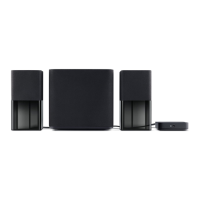
DELL AC411 Speaker
1.1 Product over view

Other manuals for Dell AC411

Questions and Answers

  • M
    michaelmedinaJul 26, 2025
    What to do if Dell AC411 power-status light is on but they are not working in bluetooth mode?
    • R
      Richard MorrisonJul 26, 2025
      If the power-status light is on but your Dell speakers are not working in Bluetooth mode, first ensure that Bluetooth is enabled on your device. Next, check that the Bluetooth LED is blinking blue on the remote control. If the issue persists, try pairing the speaker with your computer again.
  • J
    James LeblancJul 30, 2025
    What to do if Dell Speakers volume is too low?
    • D
      David SanchezJul 30, 2025
      If the volume from your Dell speakers is too low, first ensure that there are no obstructions between you and the speakers. Then, increase the volume level on the remote control, your Bluetooth device, the operating system, and the application program you are using. If the problem persists, test the speakers with another audio source, such as a portable music player, to rule out any source-specific issues.
  • S
    Scott Wright MDAug 4, 2025
    What to do if my Dell AC411 Speakers only have sound from one side?
    • H
      Hailey EscobarAug 4, 2025
      If sound is only audible from one of your Dell speakers, start by removing any obstructions between the speakers and yourself. Ensure the Aux-in cable is firmly connected to the audio source. In the Windows volume control, slide the audio balance to the midpoint. Additionally, clean and reseat all the cables. As a test, try the speakers with another audio source, for example, a portable music player.
  • W
    William VegaAug 7, 2025
    Why is the sound distorted on my Dell Speakers in AUX-in mode?
    • P
      Peter LewisAug 7, 2025
      Distorted sound in AUX-in mode can occur due to several reasons. First, make sure there are no obstructions between you and the speakers. Ensure the Aux-in cable is securely connected to both the woofer and your computer. Try setting the volume control on the remote to fifty percent and also decrease the volume in the application you are using. Cleaning and reseating all cables can also help. Test the speakers with another audio source, like a portable music player, and check that no loose objects are touching the speaker. Also make sure that the RC-in cable is connected firmly to the woofer and the remote control, and the headset is connected firmly to the remote control.
  • E
    Elizabeth CastroAug 12, 2025
    Why is the sound distorted on my Dell AC411 Speakers in Bluetooth mode?
    • B
      Bryan LopezAug 12, 2025
      If you are experiencing distorted sound in Bluetooth mode with your Dell speakers, try the following: Ensure there are no obstructions between the speakers and yourself. Set the volume control on the remote to fifty percent. Clean and reseat all the cables. Test the speakers with another audio source, such as a portable music player. Additionally, try reducing the bass using the remote control and ensure that no loose objects are touching the speaker.
  • J
    Johnny DyerAug 16, 2025
    What to do if Dell AC411 power-status light is on but they are not working in Aux-in mode?
    • L
      Lori ReedAug 16, 2025
      If the power-status light is on, but your Dell speakers are not working in Aux-in mode, ensure that the Aux-in cable is connected to the Aux-in port and that the Bluetooth LED is turned off. If it still doesn't work, try reseating the Aux-in cable.
  • W
    William SnowAug 20, 2025
    How to troubleshoot Dell Speakers if powered on but the power-status light is off?
    • M
      mscottAug 20, 2025
      If your Dell speakers are powered on but the power-status light is off, first check if the wall socket is working by connecting the speakers to a different wall socket. Also, ensure that the power adapter is properly connected to the speakers. If neither of these steps works, the power adapter may have failed and needs to be replaced.

Summary

Product Overview and Specifications

Product Overview

General introduction to the DELL AC411 Speaker and its capabilities.

Product Specifications

Detailed technical specifications of the DELL AC411 Speaker, including dimensions and electrical properties.

Connection and Pairing

Wired Connection Guide

Instructions for connecting the Dell AC411 Speaker to a Dell computer using cables.

Bluetooth Pairing Instructions

Step-by-step guide for pairing the speaker with Bluetooth-enabled devices.

Troubleshooting Common Issues

Common Symptoms and Power Issues

Addresses common symptoms like missing items and power-related problems.

Audio and Connectivity Troubleshooting

Solutions for AUX-in, Bluetooth mode, and Windows detection issues.

Sound Quality Problems

Troubleshooting for distorted sound, unbalanced output, and weak volume.

Buzzing Noise and Headphone Issues

Solutions for buzzing noise and no sound/distortion with headphones.

Compliance and Safety Information

Regulatory Compliance

Information on FCC and Industry Canada compliance for the device.

Safety Precautions

Important safety warnings, including battery handling and disposal.

Dell AC411 Specifications

General IconGeneral
BrandDell
ModelAC411
CategorySpeakers
LanguageEnglish

Related product manuals