• Ensure no loose objects are
Other audio source
is used.
Confirm that the USB cable or
in plug is completely
inserted into the jack of the
Decrease the volume of the
Turn the volume level to a
lower setting by rotating the
clockwise.
• Clean and re-s
Turn off the sound processing
of the audio source.
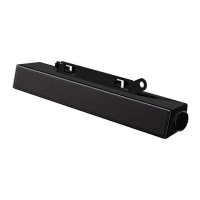
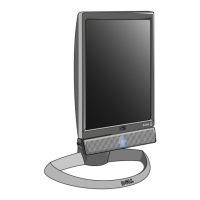
• Ensure that the sound bar
attached on the monitor.
•
Ensure no loose objects are
Sound is coming
from only one side
of the sound
user.
• Confirm that the audio line-
in
plug is completely inserted into
the jack of the sound bar
Set all Windows audio balance
midpoints.
• Clean and re-seat all
Troubleshoot the computer's
sound card.
• Test the sound bar
using
another audio source (for



 To Next Page