EasyManua.ls Logo

Dell Alienware AW520H - User Manual

Dell Alienware AW520H
24 pages
Print Icon
To Next Page IconTo Next Page
Loading...
Alienware
Wired Gaming Headset
AW520H
User’s Guide
Regulatory Model: AW520H
Question and Answer IconNeed help?

Do you have a question about the Dell Alienware AW520H and is the answer not in the manual?

Summary

Notes, Cautions and Warnings

Definitions of Usage Indicators

Defines notes, cautions, and warnings for product usage.

Whats in the box

Headset Features

Headset Components Overview

Identifies and describes the main components of the headset.

Accessories

Connecting the Headset

System Requirements for Connection

Lists the devices and operating systems compatible with the headset.

Connecting via USB-A

Instructions for connecting the headset using the USB-A connector.

Connecting via 3.5 mm Audio Adapter

Configuring Audio Settings

Alienware Command Center (AWCC)

Installing AWCC

Steps to install the Alienware Command Center software.

Installing AWCC via Windows Update

Installing AWCC from Dell Support

Activate Dolby Atmos for Headphones

Updating the firmware

Manual Firmware Update

Procedure for manually updating the headset firmware.

Using the headset

Adjusting Headset Fit

Guide on how to adjust the headband and microphone for optimal fit.

Using features on the headset

Adjusting Volume Control

Instructions on how to adjust the volume using the control wheel.

Muting and Unmuting Microphone

Replacing Ear Pads

Regulatory information

Troubleshooting

Specifications

Warranty information

Safety information

Summary

Notes, Cautions and Warnings

Definitions of Usage Indicators

Defines notes, cautions, and warnings for product usage.

Whats in the box

Headset Features

Headset Components Overview

Identifies and describes the main components of the headset.

Accessories

Connecting the Headset

System Requirements for Connection

Lists the devices and operating systems compatible with the headset.

Connecting via USB-A

Instructions for connecting the headset using the USB-A connector.

Connecting via 3.5 mm Audio Adapter

Configuring Audio Settings

Alienware Command Center (AWCC)

Installing AWCC

Steps to install the Alienware Command Center software.

Installing AWCC via Windows Update

Installing AWCC from Dell Support

Activate Dolby Atmos for Headphones

Updating the firmware

Manual Firmware Update

Procedure for manually updating the headset firmware.

Using the headset

Adjusting Headset Fit

Guide on how to adjust the headband and microphone for optimal fit.

Using features on the headset

Adjusting Volume Control

Instructions on how to adjust the volume using the control wheel.

Muting and Unmuting Microphone

Replacing Ear Pads

Regulatory information

Troubleshooting

Specifications

Warranty information

Safety information

Overview

This document serves as the user's guide for the Alienware Wired Gaming Headset AW520H, a device designed to enhance the gaming and audio experience on various platforms. The headset is compatible with PlayStation®, Xbox, Switch, and mobile devices via a 3.5 mm audio port, and with Microsoft Windows 10 or 11 (64-bit) computers via a USB port.

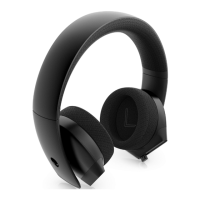
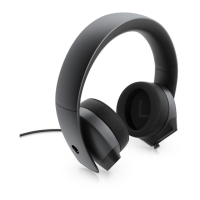
The Alienware AW520H headset is a wired gaming headset that connects to your device either through a USB-A connector or a 3.5 mm audio adapter. When connected via USB-A, the headset leverages the Alienware Command Center (AWCC) for advanced customization and features. The AWCC application provides a unified interface to transform your Windows computer into an enhanced gaming environment, allowing users to personalize lighting colors and animations through the FX menu, and to manage firmware updates and reset device settings to factory defaults via the Settings tab. It's important to note that the Alienhead LED on the headset is disabled when connected using the 3.5 mm audio adapter.

For optimal audio performance, the headset supports Dolby Atmos for Headphones, which is automatically activated when connected to Microsoft Windows 10 and 11. If the Dolby Access app is not pre-installed, users can download it from the Microsoft Store, connect the headset, and the app will detect the device to activate Dolby Atmos.

Usage Features:

The headset offers several user-friendly features to enhance the audio experience:

  • Volume Controls: The headset includes a volume control wheel, typically located on one of the earcups, allowing users to easily increase or decrease the volume by scrolling up or down.
  • Microphone Mute/Unmute: The AW520H features a retractable microphone. When the microphone is pulled out, users can mute or unmute it by pressing a dedicated microphone-mute button. A microphone-mute LED indicator lights up in red when the microphone is muted, providing a clear visual cue.
  • Adjusting the Headset: To achieve an optimal fit, users can shift the headband and ear pads. The elastic band can be moved up and down to find the best fit for different head sizes. When using the microphone, it should be positioned approximately two centimeters away from the mouth for clear audio capture.
  • Configuring on Computer: For use with a computer, the headset needs to be selected as the default playback and recording device in Windows Audio Settings. This involves right-clicking the speaker icon on the taskbar, selecting "Sounds," navigating to the "Playback" tab to set "AW520H" as the default playback and communication device, and then going to the "Recording" tab to set "Alienware AW520H" as the default recording device. Users can also adjust microphone and PC sound volumes accordingly. In the "Communications" tab, it is recommended to select "Do nothing" to prevent Windows from automatically adjusting volumes during communication activity.

Maintenance Features:

The Alienware AW520H is designed with user maintenance in mind, particularly concerning the ear pads:

  • Replacing the Ear Pads: The ear pads are replaceable, which can extend the life of the headset and improve hygiene. To remove an ear pad, hold it firmly and twist it towards the back of the headset, then gently pull it out. It's important to note that the left and right ear pads are distinct. To replace an ear pad, align the arrow marks on the ear pad with those on the headset and fit it into place.
  • Firmware Updates: For best performance, it is recommended to keep the headset firmware updated to the latest version. This can be done manually by downloading the AW520H Headset FW update tool from the Dell support website, connecting the headset to the computer via USB, and running the update tool. A CAUTION is provided against disconnecting the USB cable, closing AWCC software, or shutting down the computer during a firmware update, as this could damage the headset.
  • Regulatory Information: Important regulatory information is conveniently located beneath the ear pad on the right ear cup. Users can remove the right ear pad to access this information.

Troubleshooting:

The guide also provides solutions for common issues:

  • No Sound: Check if the audio player is active, ensure computer and media player volumes are not muted, verify "AW520H" is set as the default playback device, and test the headset on another computer.
  • Microphone Issues: Ensure the microphone is positioned correctly (approx. 2 cm from mouth), check if it's muted, verify "AW520H" is set as the default recording device, and confirm proper connection of the 3.5 mm audio adapter if used.
  • Abnormal Sound: Check for obstructions and adjust volume levels to see if the sound changes.
  • Headset LEDs Not Lighting Up: Ensure the headset is connected to the computer, AWCC is open, and LEDs are enabled. Note that the Alienhead LED is disabled with the 3.5 mm audio adapter.
  • Background Noise: Position the microphone correctly and eliminate direct airflow.
  • Microphone Mute Not Working (3.5 mm adapter): Ensure the audio plug is fully inserted into both the headset and computer.
  • AWCC Not Recognizing Headset: Ensure the headset is connected via USB cable (AWCC does not work with 3.5 mm adapter) and reinstall AWCC if necessary.

Safety Information:

Users are advised to keep the volume at optimal levels and avoid listening at high volumes for prolonged periods to prevent potential hearing damage due to high sound pressure.

Dell Alienware AW520H Specifications

General IconGeneral
MicrophonesUnidirectional with AI noise reduction
Speaker40 mm Dynamic PureSound speaker (Hi-Fi)
Speaker maximum input power30 mW
Speaker frequency range20Hz – 40kHz
Operating temperature5°C to 40°C (41°F to 104°F)
Storage temperature-5°C to 45°C (23°F to 113°F)
Operating humidity5% to 90% relative humidity
Weight and Dimensions IconWeight and Dimensions
Headset weight (without cable)297 g
Headset dimensionsLength: 184.81 mm (7.28 inches) Width: 110.55 mm (4.35 inches) Height: 214.81 mm (8.46 inches)

Related product manuals