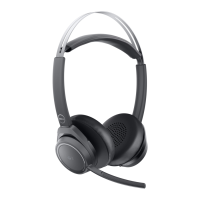
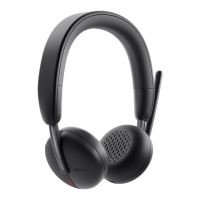
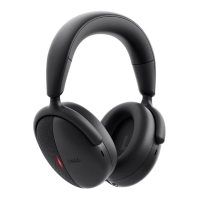
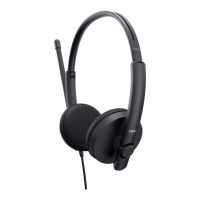
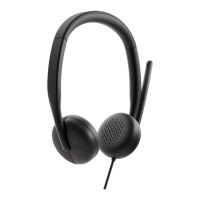
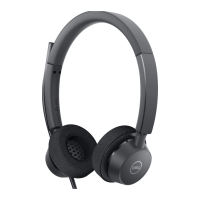
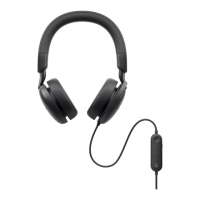
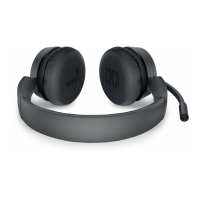
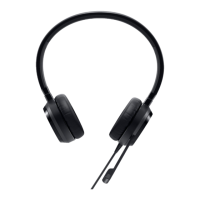
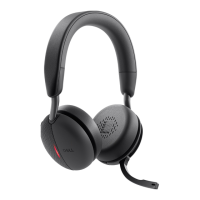
The Dell Pro Wireless ANC Headset WL5024 is a versatile audio device designed for professional use, offering both wireless and wired connectivity options, active noise cancellation (ANC), and features optimized for communication and multimedia.
Function Description
The WL5024 headset serves as a personal audio device for listening to music, participating in calls, and interacting with virtual assistants. It features a discrete boom microphone for clear voice pickup during calls and a busy light LED to indicate when the user is on a call, minimizing interruptions. The headset supports Bluetooth connectivity for wireless pairing with computers and mobile devices, as well as a USB-C Wireless Audio Receiver for a dedicated wireless connection to a computer. An included USB-A adapter allows for broader compatibility with USB-A ports. The active noise cancellation (ANC) feature helps to reduce ambient noise, enhancing focus during calls or when listening to audio in noisy environments. The headset also integrates with Microsoft Teams, providing dedicated controls for call management within the application. Power management includes automatic sleep mode after a period of inactivity to conserve battery life.
Usage Features
The headset offers intuitive controls for ease of use. To power on or off, users press and hold the power button for 1 second, accompanied by voice prompts. For Bluetooth pairing, holding the power button for 3 seconds initiates pairing mode, indicated by a blinking blue power LED and a "Bluetooth pairing" voice prompt. The headset can be paired through the Windows Settings app by selecting "Dell WL5024 Headset" or via Swift Pair on supported computers. For a dedicated wireless connection, the USB-C Wireless Audio Receiver can be plugged directly into a USB-C port or into a USB-A port using the provided adapter. The receiver's LED indicates connection status.
Adjusting the headband ensures a comfortable fit, with ear cups that can be rotated for optimal positioning over the ears. The discrete boom microphone is designed to be worn on the left side. Flipping the boom mic arm down unmutes the microphone, while flipping it up mutes it, with corresponding "mic unmute" and "mic mute" voice commands. The microphone automatically mutes or unmutes when flipped down 100 degrees or more, with a full deployment angle of 130 degrees. It's important not to rotate the boom microphone beyond ±130° to prevent damage. Sidetone effect, where users hear their own voice, can be adjusted or disabled through the Dell Peripheral Manager.
Dedicated buttons provide control over various functions:
- Call control/multimedia button: Single press to play/pause music, long press for voice assistant.
- Volume control buttons (+/-): Single press for step-by-step volume adjustment, press and hold for continuous adjustment. Voice prompts indicate maximum or minimum volume.
- Microphone mute button: Single press to mute or unmute the microphone. The USB-C Wireless Audio Receiver LED displays red when muted during a call and green when unmuted.
- ANC button: Single press to toggle ANC on, off, or to Transparency mode, with voice prompts confirming the status.
- Microsoft Teams button: Single press to evoke/open Teams notifications or answer a Teams call. Double press to end a Teams call. Long press for 2 seconds to reject a Teams call. Long press to raise hand during Teams call.
When running the Microsoft Teams application, the headset's busy light turns red during a call and blinks red when receiving an incoming call. The USB-C Wireless Audio Receiver LED displays purple when Teams is running and blue when it's not. If the boom microphone is rotated up, the mute button will not unmute the microphone. The effectiveness of ANC depends on environmental noise, music type, user hearing sensitivity, and proper headset fit to ensure good earcup sealing and minimize external noise leakage.
The Dell Peripheral Manager application enhances the user experience by allowing customization of audio and device settings, including Audio Mode, Microphone, Sidetone, Audio Output, and Busy Light. This software can be downloaded from Dell's support website if not automatically prompted upon device connection.
Maintenance Features
Charging the headset is straightforward: connect the USB-C charging cable to a computer. The Power LED and Busy light LED illuminate white during charging and turn off when fully charged. A full charge takes approximately 2.5 hours. The headset provides voice prompts for battery status (high, medium, low) when powered on. Battery life varies depending on ANC and busy light usage, offering up to 34 hours of talk time (ANC & busy light off) or 20 hours (ANC & busy light on), and up to 78 hours of listening time (ANC off) or 50 hours (ANC on).
Replacing the ear cushions is a simple process. To remove, gently pull the ear cushion from the middle front of the earpiece. For replacement, align the notch on the ear cushion with the corresponding point at the middle back of the ear cup and press gently. It is crucial to ensure that the R (right) and L (left) markings on the ear cushions are correctly positioned during replacement.
Regulatory labels and Product Part Identification (PPID) are located under the ear cushions of both ear cups. Users can remove the ear cushions to access this information.
Troubleshooting guidance is provided for common issues:
- Headset not turning on: Ensure the headset is charged and connected to the computer.
- Cannot hear caller: Check headset volume, computer volume settings, and ensure the headset is selected as the default audio device.
- Callers cannot hear me: Unmute the microphone by flipping down the boom arm and tapping the mute button, ensure proper microphone alignment, and verify headset selection as the default audio device in sound settings.
- Audio distortion/echo: Lower the headset's listening volume.
- Headset not detected/connected: Ensure proper connection, reestablish connection, and check audio settings.
- ANC not working: Verify ANC status by pressing the ANC button and ensure no objects are obstructing the ear cup.
- Microphone mute status issues with Windows control panel: Use the dedicated mute button on the headset for Teams and Zoom, as HID Telephony controls may conflict with Windows mute settings.
- Low sound level: Close the system control panel before listening to music/audio, as it may temporarily switch the headset to call mode.
- Media key/volume control not working: Ensure media is actively playing in the background.
- Headset button not working: Check connection mode (audio receiver or Bluetooth) and connect via audio receiver if buttons are unresponsive with Bluetooth.
- Dell Pair notification not opening: Ensure Windows 10 (version 19041) or later, Bluetooth 5.0 or later, Bluetooth is enabled, the device supports Dell Pair detection, is within range, has sufficient battery, and firmware is updated. Power cycle the Bluetooth device.
- Dell Pair pairing error: Remove the Bluetooth device from the computer, bring it closer, and ensure it's in pairing mode with the LED blinking.
- Multiple devices with (?) in Device Manager: These are proprietary Bluetooth features for Android/iOS phones not used by Windows, hence no drivers are loaded.
Safety information emphasizes using only designated products and accessories, avoiding disassembly, and discontinuing use if the device overheats or is damaged. It also provides detailed advice on safe listening practices to prevent hearing damage, including adjusting volume to a medium level, limiting exposure to high volumes, and seeking medical advice if discomfort occurs. When driving, users are reminded to adhere to local laws regarding mobile phones and headsets and prioritize safe driving. Battery safety guidelines include not attempting to open or replace built-in batteries, and not exposing batteries to fire or temperatures above 45°C (104°F). The equipment is designed for use in residential, commercial, and non-congested industrial areas, complying with Class B electromagnetic compatibility.


 To Next Page
 General