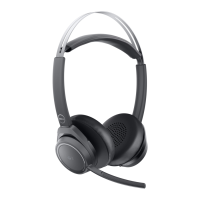
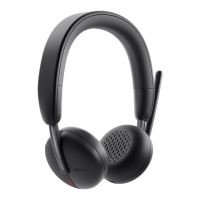
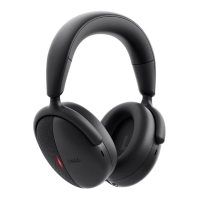
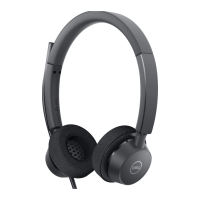
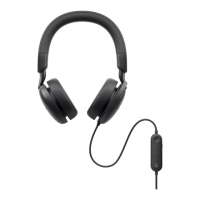
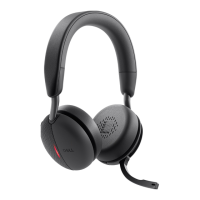
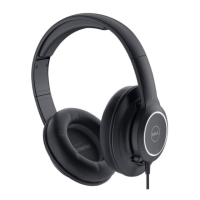
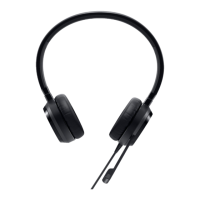
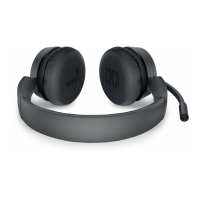
The Dell Pro Wireless Headset WL5022 is a lightweight, on-ear audio device designed for seamless connectivity to computers and mobile devices, offering high-quality audio and hands-free communication. It comes with a USB cable, a Quick Start Guide, and Safety, Environmental, Regulatory, and Warranty Information. An optional charge stand is available for convenient charging.
Function Description
The headset provides wireless audio connectivity via Bluetooth, allowing users to make and receive calls, listen to music, and interact with voice assistants. It features on-ear controls for managing various functions, including power, volume, call handling, and media playback. The included USB Bluetooth adapter is pre-paired for easy connection to a PC, and the headset can also be paired with mobile devices.
The WL5022 supports integration with softphones like Microsoft Teams and Skype for Business, enabling call control functionalities such as answer, end, and mute. For optimal performance with softphones, users may need to install Plantronics Hub for Windows/Mac, which allows for customization of headset settings, language changes, firmware updates, and feature management.
The headset includes an online indicator, which flashes red to inform others when the user is on a call. This feature can be managed through settings in Plantronics Hub. For situations where Bluetooth density issues might affect audio quality during softphone calls, the headset can be used in a corded mode by connecting it directly to a computer via the provided USB cable and powering it off. In this mode, the headset's battery also charges.
Usage Features
- Power On/Off: The headset is powered on or off by sliding a dedicated switch.
- Volume Adjustment: Volume can be adjusted by tapping the Volume up (+) or down (-) buttons on the headset.
- Call Management: Users can make, take, or end calls using the Call button. For Microsoft Teams, a single tap interacts with the application. For Skype for Business, pressing and holding the Call button for 2 seconds activates interaction. The target softphone can be set via Plantronics Hub.
- Media Playback: The headset supports playing and pausing audio by tapping the Call button. Track selection is managed by double-tapping (next track) or triple-tapping (previous track) the Call button. Fast-forwarding is achieved by double-tapping and holding the Call button, while rewinding is done by triple-tapping and holding. Note that media control functionality may vary by application and might not work with web-based apps.
- Voice Assistant: Pressing and holding the Call button for 2 seconds activates the phone's default voice assistant (Siri, Google Assistant, Cortana), enabling voice dialing, search, and other smartphone voice controls.
- Wearing Comfort: The microphone boom can be rotated to either the right or left side and gently bent to be approximately two finger-widths from the corner of the mouth. For true stereo sound, it is recommended to wear the boom on the right side.
- Multi-Device Pairing: The headset can pair with up to 8 devices but maintains only two active connections simultaneously, including the Bluetooth USB adapter.
- DeepSleep Mode: To conserve battery, the headset automatically enters DeepSleep mode if left powered on but out of range of a paired phone or USB adapter for more than 7 days. To exit DeepSleep mode, users simply press the Call control button.
- Language Selection: The headset language can be changed wirelessly using Plantronics Hub software. This can be done either when the headset is paired to a smartphone (via Plantronics Hub for iOS/Android) or connected to a computer via a USB adapter or cable (via Plantronics Hub for Windows/Mac).
- Tile Integration: With the Tile app enabled on a mobile device, users can locate a lost headset by ringing it, viewing its location on a map, or leveraging the Tile community for assistance. This feature requires pairing the headset to a mobile device, updating the Plantronics Hub mobile app, and enabling Tile within the app.
Maintenance Features
- Charging: The headset can be charged using the micro USB cable or an optional charge stand. Charging takes approximately 90 minutes for a full charge, indicated by flashing LEDs that turn off once complete. The micro USB cable and charge stand can be plugged into a computer or a wall charger's USB port.
- Battery Status Check: Battery status can be checked in three ways: via the Plantronics Hub home screen (iOS/Android), by clicking the Plantronics Hub headset icon in the system tray or menu bar (Windows/Mac), or by sliding and releasing the Power switch away from the off position to hear a voice alert or observe the headset LEDs. The LEDs indicate charging status (complete, high, medium, low, critical). To ensure accurate talk time alerts, it is recommended to fully deplete and then recharge the battery.
- Firmware Updates: Keeping the headset's firmware up-to-date is crucial for improved performance and new features. Firmware updates can be performed using Plantronics Hub for Windows/Mac or iOS/Android. During an update, it is important to remove the headset from the ear, avoid using it, disconnect it from other devices, refrain from starting a second update, avoid streaming media, and not answer or place calls. For smartphone users, enabling "Do Not Disturb" during updates is recommended to prevent interruptions.
- Headset Recovery: In cases of failed over-the-air firmware updates or an unresponsive headset, a recovery process is available. This involves downloading and installing Plantronics Hub for Windows/Mac, connecting the headset to the computer via USB, and then using the "Firmware Updates & Recovery" option in Plantronics Hub, providing the Product ID (PID) for recovery. The PID can be found through the Plantronics Hub app's headset recovery instructions or home screen.


 To Next Page
 General