Connect and pair
Connect to PC
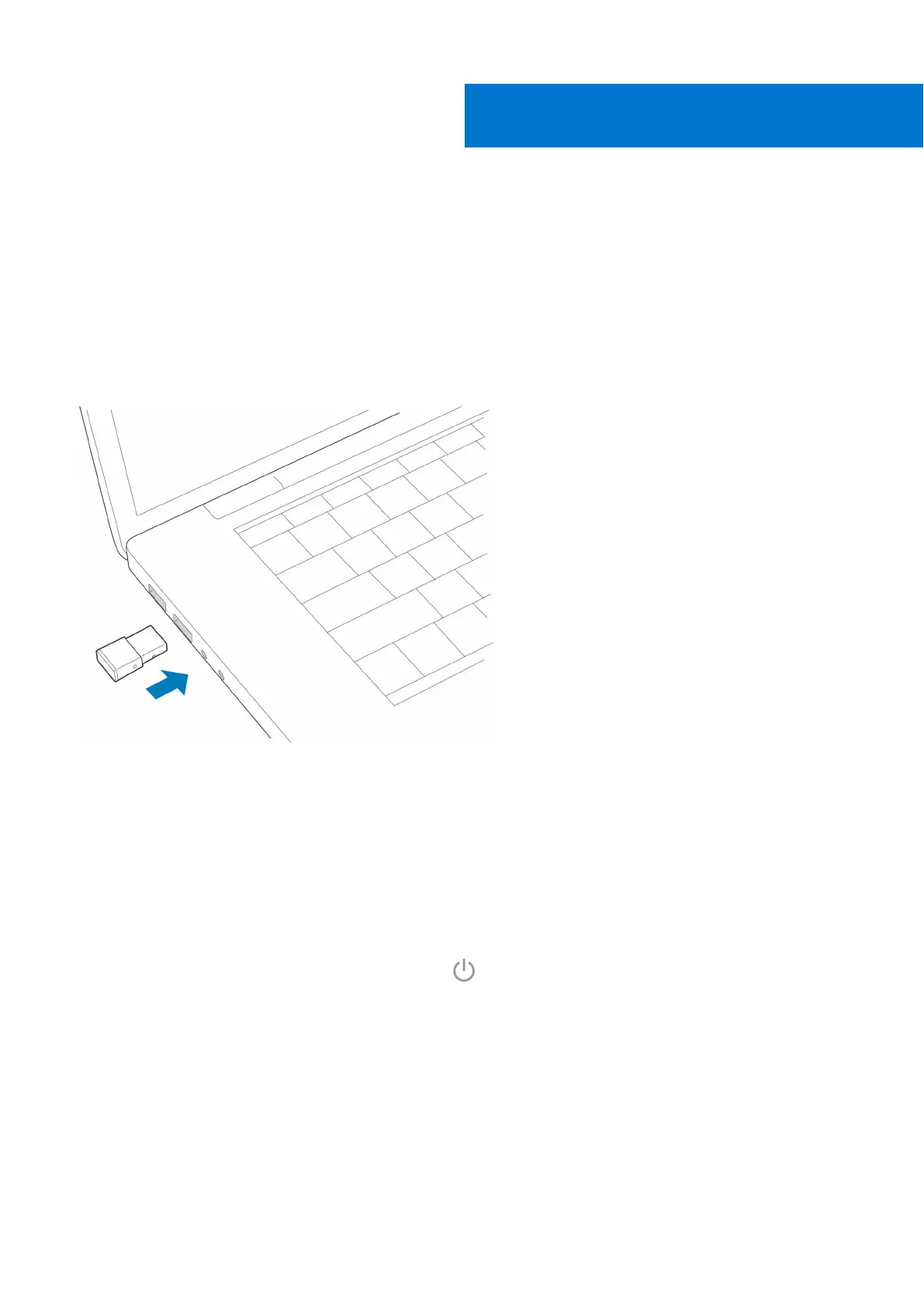
Your Bluetooth USB adapter comes pre-paired to your headset.
Steps
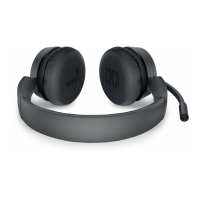
1. Turn on your headset and insert the Bluetooth USB adapter into your laptop or PC.
2. The USB adapter LED flashes and then turns solid to indicate the headset is connected to the USB adapter. If you are
wearing your headset you hear “PC connected” to indicate the connection has been established. When on a call, the LED on
the USB adapter flashes blue. When not on a call the LED is solid.
3. OPTIONAL Load Plantronics Hub for Windows/Mac by visiting poly.com/software or visit www.dell.com/support. This
allows you to customize your headset behavior through advanced settings and options.
Pair to mobile device
Steps
1. To put your headset in pair mode, slide and hold the Power
switch away from the off position until you hear "pairing" and
the headset LEDs flash red and blue.
4
Connect and pair 9


 To Next Page