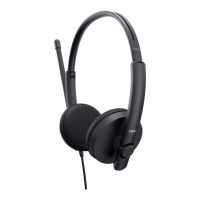
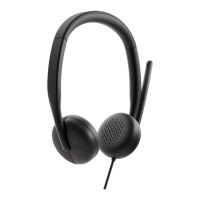
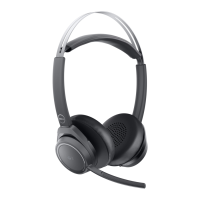
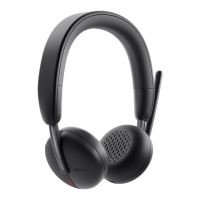
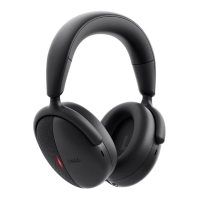
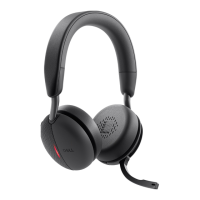
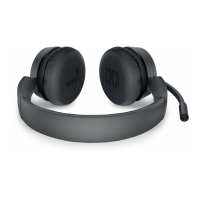
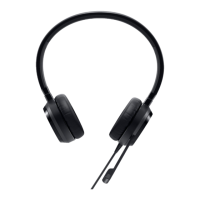
This document serves as the user's guide for the Dell Pro Wired ANC Headset WH5024, a device designed for audio communication and listening, featuring Active Noise Cancellation (ANC). The headset is identified by its regulatory model HS2402.
The primary function of the Dell Pro Wired ANC Headset WH5024 is to provide high-quality audio for calls and music, while also offering noise cancellation capabilities to enhance focus and clarity in various environments. It is a wired headset, connecting to a computer via a USB-C port, with an included USB-A adapter for alternative connectivity. This ensures broad compatibility with different computer setups.
Usage Features:
The headset is equipped with several intuitive controls and indicators to facilitate ease of use. An overview of the headset reveals a discrete boom microphone, which is designed to be worn on the left side. The microphone's position is crucial for its functionality; flipping the boom mic arm down to 100 degrees or over (up to a full deployment angle of 130 degrees) unmutes the microphone, while flipping it up mutes it. Voice commands, "mic unmute" and "mic mute," confirm the status of the microphone, providing clear audio feedback to the user. It's important to note that the microphone cannot be muted or unmuted if the boom mic is not flipped down, emphasizing the physical interaction required for this function. A caution is provided against rotating the boom microphone over the 130-degree limit to prevent damage.
The headset also features a busy light LED, which indicates when the user is on a call, helping to signal availability to others in the vicinity. This is particularly useful in open office environments or shared workspaces. Other controls include a microphone mute button with an LED indicator, volume control buttons (both for step-by-step and continuous adjustment), an ANC button, and a call control button. A dedicated Microsoft Teams button with an LED is also present, indicating integration with the Microsoft Teams application.
The ANC button allows users to toggle Active Noise Cancellation on or off, or activate a Transparency mode, with voice prompts confirming the selected status. ANC is described as an "Augmented Hearing experience," with its effectiveness depending on environmental noise, music type, user sensitivity, and proper earcup sealing. Users are advised to ensure the headset is worn correctly to achieve optimal ANC performance by minimizing external noise leakages.
The headset's integration with Microsoft Teams is a significant feature. When connected to a computer with the Teams application running, the Teams button on the headset blinks once and then goes static white. If Teams is not running, the button blinks ten times and then goes dark. During a Teams call, the busy light turns red, and the Teams button displays white light. For incoming Teams notifications, the Teams icon blinks white, accompanied by a voice prompt. Answering a Teams call causes the busy light to blink red, then turn solid red during the call, with the Teams button displaying white light. Ending a call turns off the busy light and keeps the Teams button white. Rejecting a call or raising a hand during a call also has specific busy light and Teams button behaviors, providing clear visual cues for call management. A crucial note for Teams users is that if the boom microphone is rotated up, the mute button will not unmute the microphone, reinforcing the importance of the boom mic's physical position for mute/unmute functionality.
Volume control is straightforward, with single presses of the '+' or '-' buttons adjusting volume in steps. Pressing and holding these buttons allows for continuous volume adjustment. Double beeps indicate when the volume reaches its maximum or minimum levels.
The Dell Peripheral Manager application enhances the headset's functionality by allowing users to customize audio and device settings. This includes options for Audio Mode, Microphone, Sidetone, Audio Output, and Busy Light. The application is designed to automatically prompt for installation upon first connection to a Windows OS computer. If the prompt doesn't appear, users can manually check for updates via Windows Update or download the application from Dell's support website. The sidetone effect, which can occur when rubbing or scratching the microphone during a call, can be adjusted or disabled through this manager.
Maintenance Features:
The headset is designed with user-replaceable ear cushions, which is a practical maintenance feature. The removal process involves holding the headset earpiece and gently pulling the ear cushion from the middle front. For replacement, users need to align a notch on the ear cushion with a corresponding point at the middle back of the ear cup and press it gently. It is important to ensure that the 'R' (right) and 'L' (left) markings on the ear cushions are correctly positioned when replacing them, ensuring proper fit and audio orientation.
The regulatory label and Product Part Identification (PPID) are located under the ear cushion of both ear cups. This information is accessible by removing the ear cushions, which is useful for regulatory compliance checks or product identification purposes.
Troubleshooting guidance is provided for common issues. If a user cannot hear the caller, solutions include adjusting the headset's volume, checking computer audio settings, and ensuring the headset is selected as the default audio device. If callers cannot hear the user, solutions involve unmuting the microphone (both by flipping down the boom and tapping the mute button), ensuring proper microphone alignment, and checking audio settings. For audio distortion or echoes, lowering the listen volume is recommended. Issues with the ANC feature not working suggest verifying the ANC status via the ANC button and ensuring no objects obstruct the ear cup. For problems with microphone mute/unmute functionality when using Windows system control panel settings with applications like Teams and Zoom, users are advised to use the dedicated mute button on the headset, as the headset's mute button supports Human Interface Device (HID) Telephony, which is more reliable than Windows mute settings for these applications. If sound appears quieter when opening the system control panel for audio devices, closing the control panel is recommended, as the headset temporarily switches to call mode, affecting music volume.
The headset is designed for durability and comfort, with adjustable headbands that can be lengthened or shortened to fit comfortably. The ear cups can also be adjusted by +90 degrees and -20 degrees, allowing users to position the cushions over the center of their ears for optimal fit and sound quality.
Safety information emphasizes the importance of using only Dell-supplied chargers and accessories, avoiding disassembly, and discontinuing use if the device overheats or is damaged. It also provides extensive guidance on hearing protection, recommending users to decrease audio volume before use, avoid increasing volume to drown out noise, limit high-volume usage, and decrease volume if it interferes with speech. The document also advises checking local laws regarding headset use while driving.
The product comes with a 3-year limited hardware warranty, which follows the system warranty if purchased together with a Dell system. Specific terms and conditions for sale and warranty information are provided for U.S., European, Middle Eastern, African, and non-U.S. customers, directing them to www.dell.com for full details. The device also complies with various regulatory standards for electromagnetic compatibility and hazardous substances.


 To Next Page
 General