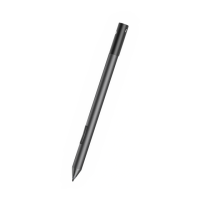
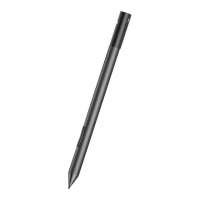
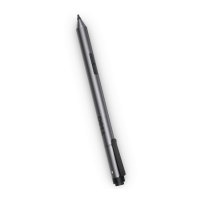
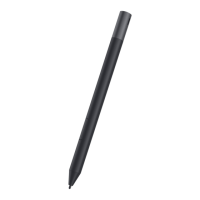
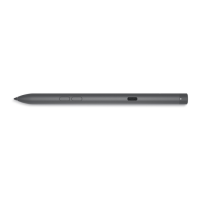
The Dell Premier Rechargeable Active Pen (PN7522W) is a versatile input device designed to enhance interaction with compatible Dell laptops and tablets. It functions as a digital pen, allowing users to write, draw, and select objects on a touchscreen with precision and ease. The pen is rechargeable and integrates various features to streamline workflow and improve user experience.
Function Description
The core function of the PN7522W is to provide a natural and intuitive way to interact with touchscreens, mimicking the feel of a traditional pen or pencil. It enables precise input for tasks such as note-taking, sketching, annotating documents, and navigating user interfaces. The pen's tip acts as the primary input point, allowing for direct interaction with the screen.
Beyond basic input, the PN7522W incorporates several buttons that offer expanded functionality, customizable through the Dell Peripheral Manager (DPeM) software. These buttons are strategically placed for easy access during use. The pen also features an LED indicator that communicates various states, such as Bluetooth pairing status, charging status, firmware updates, and battery level.
A notable feature of the PN7522W is its integration with Tile technology, which helps users locate the pen if it is misplaced. This functionality is accessible through the Tile application on Android or Apple iOS devices, providing an added layer of convenience and peace of mind.
Usage Features
The PN7522W is designed for ease of use and seamless integration with compatible Dell systems.
- Activation and Charging: The pen is activated by connecting it to a laptop or tablet via a USB-C to USB-C cable. This initial connection also initiates the charging process and facilitates automatic Bluetooth pairing if the pen is not yet paired. The USB-C port on the pen allows for convenient recharging.
- Bluetooth Pairing: While automatic pairing occurs upon initial connection, the pen also supports manual Bluetooth pairing. This involves pressing and holding the top button for three seconds to enable pairing mode, indicated by a blinking blue LED. Users can then connect the pen through their device's Bluetooth settings. Once paired, the pen and device automatically connect when within Bluetooth range and enabled.
- Ergonomic Design: The pen is designed to be held like a traditional writing instrument, promoting a comfortable grip for extended use. Users are encouraged to adjust their grip to easily access the barrel buttons without accidentally pressing them during drawing or positioning.
- Customizable Buttons: The PN7522W features a top barrel button and a bottom barrel button, both of which can be reprogrammed using Dell Peripheral Manager.
- The bottom barrel button is typically used for erasing, allowing users to quickly correct mistakes on the screen.
- The top barrel button serves multiple purposes after pairing:
- A single press launches the pen menu.
- A double press takes a screenshot.
- A long press (1.5 seconds) launches Sticky Notes.
- Pressing and holding or pressing twice in succession can wake a Bluetooth-paired laptop from sleep (available on computers supporting Modern Standby mode).
- In Microsoft PowerPoint's Presentation mode, these buttons can be configured to advance to the next slide (press and hold) or return to the previous slide (press twice quickly), provided DPeM is installed.
- LED Indicator Feedback: The LED indicator provides clear visual cues for various operational states:
- Blue: Blinking indicates Bluetooth pairing mode is enabled; solid for three seconds confirms successful Bluetooth pairing.
- White: Blinking signifies a firmware update is in progress; solid indicates the pen is charging.
- Amber: Blinking indicates a low pen battery.
- Green: Blinking indicates Tile is locating the pen.
- Dell Peripheral Manager (DPeM): This software is crucial for unlocking the full potential of the PN7522W. DPeM allows users to customize button functions, adjust pressure sensitivity, and manage other pen settings. It is typically installed automatically during the initial pen setup, but manual installation is also possible if needed.
- Tile Integration: The pen's built-in Tile technology allows users to locate it using the Tile app on their smartphone. To enable Tile pairing mode, users press and hold both the top and bottom barrel buttons simultaneously. This feature is particularly useful for preventing loss and quickly finding a misplaced pen within a certain range.
Maintenance Features
Maintaining the PN7522W involves simple steps to ensure its longevity and optimal performance.
- Charging: The pen is rechargeable via its USB-C port. Regular charging ensures the pen is always ready for use. The LED indicator will show a solid white light when charging and blink amber when the battery is low, prompting the user to recharge.
- Nib Replacement: The pen nib is a consumable part that may wear out or become damaged over time. The PN7522W comes with a nib remover and replacement nibs, allowing users to easily replace a worn nib to maintain precise input. The manual provides visual guidance on how to perform this replacement.
- Cleaning: It is recommended to avoid exposing the pen to alcohol or solvent solutions, including hand sanitizers, as these can damage the pen's skin or body. For cleaning, gentle methods should be used to preserve the pen's materials and finish.
- Storage: Proper storage within recommended temperature and humidity ranges helps prevent damage to the pen's body and internal components. Avoiding extreme conditions contributes to the pen's overall durability.
- Firmware Updates: The pen's firmware can be updated, indicated by a blinking white LED. Keeping the firmware updated ensures the pen benefits from the latest improvements and bug fixes, maintaining optimal performance and compatibility.
- Troubleshooting: The user guide includes a troubleshooting section to address common issues such as buttons not working, pairing problems, or the Tile app failing to locate the pen. This section provides solutions like checking battery levels, updating drivers, or ensuring proper pairing procedures are followed.
- Warranty and Support: Dell-branded products, including the PN7522W, typically come with a limited hardware warranty. Users can access Dell's support resources, including online help, user manuals, and technical blogs, for further assistance with any issues or questions regarding the pen.



 To Next Page
 General