EasyManua.ls Logo

Dell Active Pen - User Manual

Dell Active Pen
19 pages
Print Icon
To Next Page IconTo Next Page
Loading...
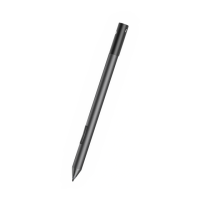
Dell Active Pen
PN557W
User’s Guide
Regulatory Model: PN556W
June 2020
Rev. A02

Questions and Answers

  • J
    Jennifer WalshAug 16, 2025
    How to fix Dell Active Pen Accessories pen pairing issues?
    • M
      melendezlisaAug 16, 2025
      If you are unable to pair your Dell Accessories pen with your device, it may be due to an unsupported device, as the Dell Active Pen works only with Dell devices. Alternatively, the Bluetooth driver on your device may be outdated, so try installing the latest Bluetooth driver for your device.
  • E
    Edward CruzAug 19, 2025
    What to do if Dell Active Pen Accessories pen shows as Not Connected?
    • G
      Gregory HubbardAug 19, 2025
      If your Dell Accessories pen shows as 'Not Connected' under the Bluetooth devices list, it might not be paired correctly with your device. Try installing the latest Bluetooth driver for your device. Also, remove the pen from your Bluetooth list and pair it again.
  • B
    Belinda ZavalaAug 21, 2025
    How to connect my Dell Tablet Accessories pen with Dell Peripheral Manager (DPeM)?
    • R
      Randall DiazAug 21, 2025
      If your Dell Tablet Accessories pen cannot connect with the Dell Peripheral Manager (DPeM), it might be because the DPeM pairing was not successful. To resolve this, launch DPeM, click the '+' mark in the top right corner, and then click on the Pen mark. Tap the screen with the pen tip to connect the pen with DPeM.
  • K
    khansonAug 25, 2025
    What to do if pressing the top button on my Dell Active Pen Accessories pen doesn't open OneNote?
    • A
      Austin ScottAug 26, 2025
      If pressing the top button on your Dell Accessories pen once does not open OneNote, it could be due to several reasons. First, ensure that OneNote is installed on your device. Second, make sure the pen is paired with your device. Third, the coin-cell batteries may be out of charge, so try changing them. Finally, if you've recently replaced the coin-cell batteries, remove the pen from the list of Bluetooth devices and re-pair it with your device.
  • A
    Angela Daugherty PhDAug 28, 2025
    Why Dell Active Pen Accessories pen Bluetooth-pairing light does not turn on?
    • E
      Emily GilbertAug 28, 2025
      If the Bluetooth-pairing light on your Dell Accessories pen does not turn on, the coin-cell batteries may be out of charge. Change the coin-cell batteries.
  • J
    Johnathan MoralesAug 31, 2025
    Why the default functions for the barrel buttons on my Dell Active Pen pen aren't working?
    • F
      fordwilliamAug 31, 2025
      If the default functions for the barrel buttons on your Dell Accessories pen do not work, the functions may not be supported by the application you are using. Test the barrel buttons in OneNote or another application that supports these features.
  • M
    Morgan BakerSep 3, 2025
    Why Dell Active Pen pen doesn't wake up my computer?
    • B
      Beth MonroeSep 3, 2025
      If pressing and holding the top button or pressing the top button twice in succession does not wake up your computer or tablet from connected standby, your computer or tablet may not support the connected standby feature. Ensure to use this feature on computers and tablets that support the connected standby feature. Search PN557W on Dell website for a list of supported devices.
  • J
    Jeffery ThompsonSep 6, 2025
    Why don't the default functions for the barrel buttons work on my Dell Tablet Accessories?
    • D
      darrenclarkSep 6, 2025
      If the default functions for the barrel buttons on your Dell Tablet Accessories do not work, it's possible that the default function has been changed or overwritten. Open the Dell Peripheral Manager (DPeM) to check the current function assignment of the barrel buttons and reconfigure them if needed.
  • L
    leejosephSep 9, 2025
    What to do if my Dell Tablet Accessories pen cannot write or draw?
    • C
      caseygriffinSep 9, 2025
      If your Dell Tablet Pen cannot write or draw, there are a couple of potential reasons. First, ensure that your laptop is a supported Dell model, as the pen is designed to work only with compatible devices. Second, check the AAAA battery; if it's fully drained, replace it with a new one.
  • S
    sherrydunlapSep 12, 2025
    Why is the skin peeling off my Dell Tablet Accessories pen?
    • S
      sarah04Sep 12, 2025
      If your Dell Tablet Accessories pen skin is peeling off, it could be due to a couple of reasons. Avoid using alcohol-based cleaners or sanitizers directly on the pen, as these liquids may damage the skin. Also, unsuitable storage, operating temperature, and humidity conditions may affect the pen body. Check the pen's specifications for more information on appropriate stocking and operating conditions.

Summary

Whats in the Box

Contents in the Box

Lists the items included with the Dell Active Pen.

Noting Down the PPID Number

Instructions on how to record the PPID for warranty purposes.

Features

Features and Functionality of the Product

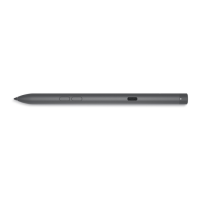
Details the function of each part of the Dell Active Pen.

Setting Up Your Dell Active Pen

Installing Batteries

General overview of battery types used in the pen.

Installing the AAAA Battery

Step-by-step guide for inserting the AAAA battery.

Removing the AAAA Battery

Step-by-step guide for removing the AAAA battery.

Installing the Coin-Cell Batteries

Step-by-step guide for installing coin-cell batteries.

Removing the Coin-Cell Battery Holder

Instructions for removing the coin-cell battery holder.

Pairing with a Bluetooth Device

Guide on how to pair the pen with a Bluetooth device.

Active Pen Control Panel

Installing Active Pen Control Panel

Steps to download and install the control panel software.

Using Active Pen Control Panel

Explains how to use the control panel to customize pen features.

Holding the Dell Active Pen

Using the Dell Active Pen Hand Position

Demonstrates the correct way to hold the pen for optimal use.

Specifications

Dell Active Pen Specifications

Lists the technical specifications of the Dell Active Pen.

Troubleshooting

Dell Active Pen Troubleshooting

Provides solutions for common problems with the pen.

Statutory Information

Warranty

Outlines the limited warranty and return policies for the Dell Active Pen.

Regulatory Statement

FCC Notices and Other Regulatory Information

Provides FCC compliance information and other regulatory notices.

Getting Help and Contacting Dell

Contacting Dell

Information on how to contact Dell for support and services.

Self-Help Resources

Lists online resources for product information and support.

Dell Active Pen Specifications

General IconGeneral
Pressure Sensitivity4096 levels
Battery TypeAAAA battery
Battery LifeUp to 12 months
Palm RejectionYes
Tilt SupportYes
Buttons2 buttons
ConnectivityBluetooth
Device TypeStylus
TechnologyWacom AES

Related product manuals