Features
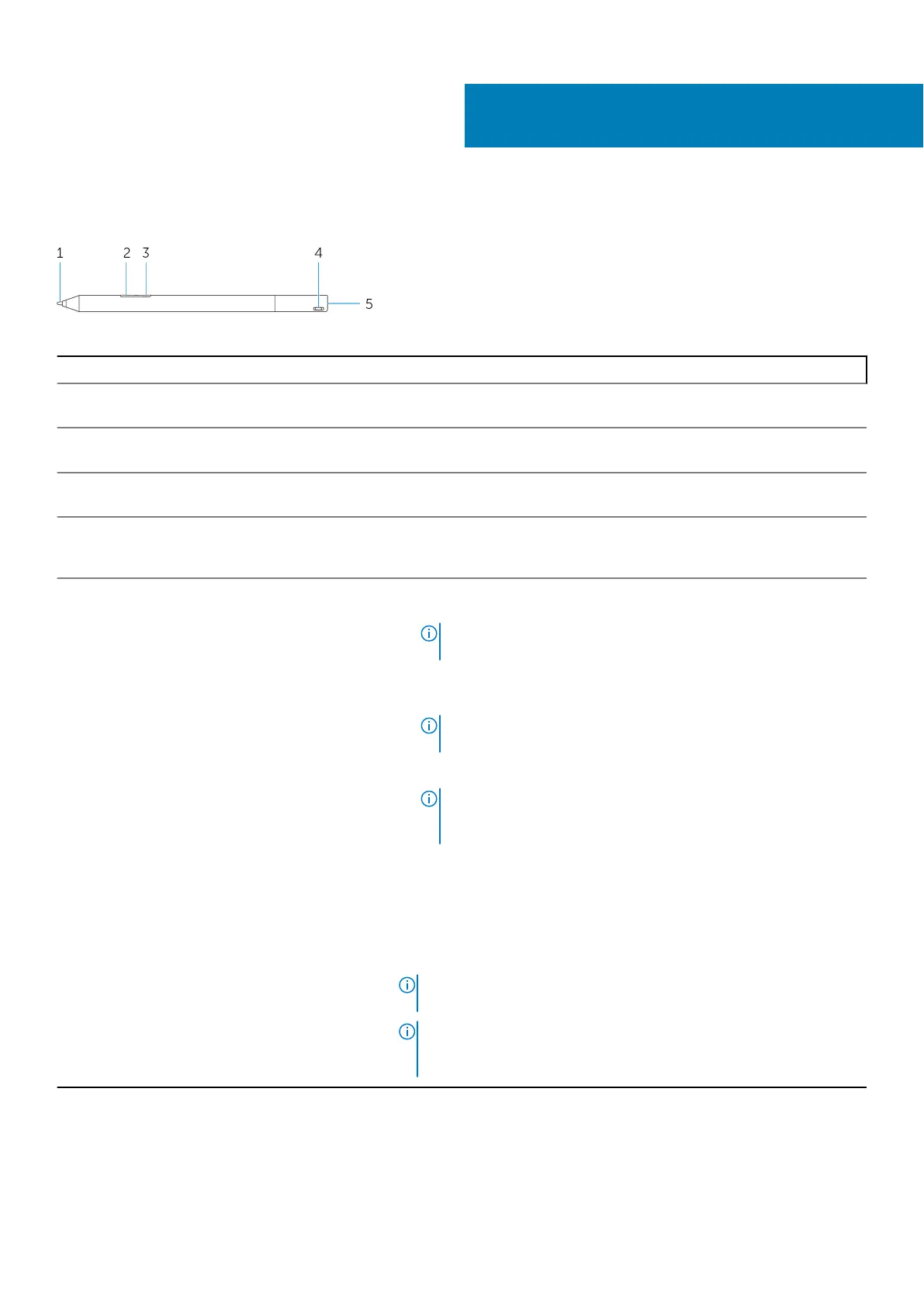
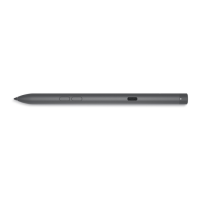
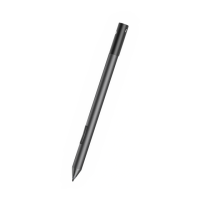
Table 1. Features and functionality of the product
Feature Functionality
1 Tip Move the tip over a touch screen to move the pointer. Enables you to write,
draw, and select objects.
2 Bottom barrel button Press and hold this button and move the tip over the area you want to erase.
To change the functionality of this button, see Active Pen Control Panel.
3 Top barrel button Press this button to open the context menu or perform a right-click. To change
the functionality of this button, see Active Pen Control Panel.
4 Bluetooth-pairing light Blinking white light indicates the pairing mode is enabled. A solid white light
indicates the pairing is complete. For information on pairing the pen with a
Bluetooth device, see Pairing with a Bluetooth device.
5 Top button
• Press and hold for 3.5 seconds to enable pairing mode.
• Press and release to open OneNote.
NOTE: This feature works even when your device screen is
locked.
• Press twice in succession to capture a screenshot.
• Press and hold or press twice in succession to wake up your computer or
tablet from connected standby mode.
NOTE: This feature is only available on devices that support
connected standby feature.
• In presentation mode, press and hold to go to the next slide and press
twice at short intervals to go to the previous slide.
NOTE: This feature is only available after installing the Active
Pen Control Panel. For instructions on installing the Active Pen
Control Panel, see Installing Active Pen Control Panel.
The new Active Pen Control Panel enables the top button to be programmed
to launch specific applications listed in the content menu, the default
applications launched from the top button are:
• Single Press — Launch OneNote
• Double Press — Screen Sketch
• Long Press — Launch Cortana
NOTE: These functions are available only in Windows 10 and
Windows 10 Anniversary.
NOTE: These functions are available only after installing the Active
Pen Control Panel. For instructions on installing the Active Pen
Control Panel, see Installing Active Pen Control Panel.
2
Features 5



 To Next Page