Troubleshooting
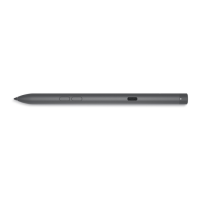
NOTE: You can use Dell Active Pen only with selected Dell computers and tablets. For a list of supported devices, see
www.dell.com.
Table 6. Dell Active Pen troubleshooting
Problems Possible causes Possible solutions
Pen does not work. • Batteries are installed incorrectly. • Ensure the batteries are correctly
installed. For more information, see
Installing batteries.
• Batteries are out of charge.
• Replace the batteries. For more
information, see Installing batteries.
Pen does not write and the barrel buttons
do not work.
AAAA battery is either incorrectly installed
or out of charge.
Replace the AAAA battery. For more
information, see Installing the AAAA battery.
Default functions for the barrel buttons do
not work.
Functions not supported by application. Test the barrel buttons in OneNote or
another application that supports these
features.
Pressing the top button once does not open
OneNote.
• OneNote is not installed. • Ensure OneNote is installed on your
device.
• Pen is not paired with your device.
• Ensure the pen is paired with your
device. For more information, see
Pairing with a Bluetooth device.
• Coin-cell batteries may be out of
charge.
• Change the coin-cell batteries. For more
information, see Installing coin-cell
batteries.
• Coin-cell batteries were replaced and
the pen was not paired again with your
device.
• Remove the pen from the list of
Bluetooth devices and re-pair it with
your device. For more information, see
Pairing with a Bluetooth device.
Pressing the top button twice in succession
does not capture screenshot.
Windows update KB2968599 is not installed
on your device.
Install the Windows update KB2968599
from the Microsoft website.
Unable to pair the pen with your device. • Unsupported device. • Dell Active Pen works only with Dell
devices.
• Bluetooth driver on your device is
outdated.
• Install the latest Bluetooth driver for
your device.
Pen shows as Not Connected under
Bluetooth devices list.
Pen is not paired correctly with your device. • Install the latest Bluetooth driver for
your device.
• Remove the pen from your Bluetooth
list and pair it again. For more
information on pairing the pen with your
device, see Pairing with a Bluetooth
device.
7
Troubleshooting 15



 To Next Page