Dell Peripheral Manager
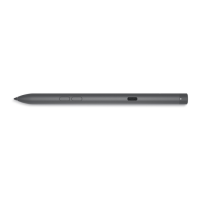
Use Dell Peripheral Manager (DPeM) to customize the pen buttons, change pressure sensitivity, and so on. The latest version of
DPeM is automatically installed on your laptop or tablet when you set up your pen. The installation may take approximately 20
minutes to complete. If DPeM is not installed automatically, perform the following steps:
1. Ensure that you have the latest Windows and Driver updates installed on your laptop or tablet.
NOTE: See the Knowledge Base article Windows Update: FAQ for information about installing the latest version of
Windows and updates.
NOTE: Use the SupportAssist application to update the drivers on your laptop, browse to SupportAssist for PCs and
tablets.
NOTE: For more information about manually updating drivers, see How do I download and install a driver? section of
Dell Knowledge base article Drivers and Downloads FAQs.
2. Install DPeM.
a. Browse to the Dell Peripheral Manager download page.
b. Tap or click Download.
c. Once the DPeM installer is downloaded, tap or click the installer to start the installation, and then follow the on-screen
instructions.
4
10 Dell Peripheral Manager



 To Next Page