EasyManua.ls Logo

Dell Axim - User Manual

Dell Axim
30 pages
Print Icon
To Next Page IconTo Next Page
Loading...
Axim
Wireless Keyboard Owner’s Manual Page 1
Axim
Executive Keyboard
with Bluetooth
®
Wireless Technology
Owner’s Manual
For
Windows Mobile
2003
Keyboard Driver:
Stowaway 3.02
Question and Answer IconNeed help?

Do you have a question about the Dell Axim and is the answer not in the manual?

Summary

Installing and Configuring the Keyboard

Before You Begin

Preparation steps before installing the Axim Wireless Keyboard software for Windows Mobile 2003.

Installing the Software

Steps to connect, back up, and install the keyboard software from the CD.

Configuring the Keyboard to Your Pocket PC Device

Enabling Bluetooth Keyboard

Steps to enable and select the Bluetooth wireless keyboard option in the software.

Configuring the Keyboard to Your Pocket PC Device

Initiating New Connection and Scanning

Process of initiating a new Bluetooth connection and scanning for the keyboard.

Making Keyboard Discoverable

How to make the keyboard discoverable and attempt to connect it.

Configuring the Keyboard to Your Pocket PC Device

Selecting and Connecting Keyboard

Selecting the keyboard from a list and choosing connection type: secure or unsecured.

Troubleshooting Connection Issues

Comparing IDs for multiple devices and troubleshooting connection failures.

Configuring the Keyboard to Your Pocket PC Device

Secure Connection Passkey Entry

Entering a passkey for secure connection via the Pocket PC and keyboard.

Passkey Entry Troubleshooting

Steps to take if the passkey is entered incorrectly.

Confirming Secure Connection

Message indicating a successful secure keyboard connection.

Configuring the Keyboard to Your Pocket PC Device

Bluetooth Status Page Overview

Understanding the Bluetooth Status Page for connection state and testing.

Keyboard Battery Status Indicators

Explains the different states of keyboard battery: Normal, Low, Critical.

Low;Critical Battery Notifications

How the device notifies users about low or critical battery levels.

Configuring the Keyboard to Your Pocket PC Device

Checking Bluetooth Stack Version

How to find the version of the installed Bluetooth stack on the device.

Selecting Correct Bluetooth Stack

How to choose the correct Bluetooth component if multiple are found.

Handling Bluetooth Detection Errors

Troubleshooting error messages when no Bluetooth stack is detected.

Reconnecting the Axim Wireless Keyboard

Reasons for Connection Loss

Explains why the Bluetooth connection might break: cover closed, idle, power off, out of range.

Restoring Connection After Loss

Steps to reestablish connection after it has been lost.

Breaking the Keyboard Bond

How to break the Bluetooth bond between keyboard and Pocket PC.

Reconnecting in Unsecured Mode

Settings for Automatic Reconnection

How to configure Bluetooth settings for automatic reconnection in Unsecured mode.

Unsecured vs. Secured Connection

Explains the difference and implications of unsecured connections.

Customizing Your Keyboard

Input Method Toolbar Overview

Explains the icons and functions of the Input Method Toolbar.

Accessing Keyboard Control Panel

How to access the Keyboard Control Panel from the toolbar.

Keyboard Control Panel

Config Tab Options

Settings in the Config tab: Enable/Disable, Caps Lock, Today screen icon, repeat rate/delay.

Hot-Key and BT Tab Functionality

Assigning applications to hot-keys and accessing BT functions.

Disabling the Axim Wireless Keyboard

Steps to disable the keyboard driver and its implications.

Keyboard Status Light

Understanding Keyboard Status Lights

Explains the meaning of different keyboard LED light patterns: discovery, connected, battery low.

Secure Connection Overview

Secure Connection Establishment

How a secure connection is established through pairing and Link Keys.

Benefits of Secure Connection

Explains encryption and 1:1 relationship for secure connections.

Using the Axim Wireless keyboard

Cursor and Text Navigation

Key combinations for moving the cursor and selecting text.

On-Screen Button and Editing Shortcuts

On-Screen Buttons and Editing

Shortcuts for activating on-screen buttons and editing text functions.

Launching and Navigating Applications

Application Launch and Navigation

Key combinations to launch specific applications and toggle between programs.

Menu and Toolbar Navigation

Navigating Menus and Toolbars

How to navigate program menu bars, submenus, and toolbars using keyboard commands.

Other Keyboard Shortcuts

Input Method, Control Panel, and Power Off

Shortcuts to manage input method, control panel, and turn off the device.

International and Extended Character Set

Accented Characters

Shortcuts for characters with acute, circumflex, dieresis, and grave accents.

Special Characters and Symbols

Shortcuts for special characters like cedilla, Æ, Œ, and various symbols.

International and Extended Character Set

Fractions and Mathematical Symbols

Shortcuts for common fractions and mathematical symbols like plus-minus and division.

Brackets and Other Symbols

Shortcuts for brackets, tilde, and other special characters.

Frequently Asked Questions

Troubleshooting Keyboard Issues

Steps for reconnecting, typing not registering, and Bluetooth radio auto-on.

Control Panel Tabs and Other Topics

Explanation of Serial/IR tabs and other FAQs.

Frequently Asked Questions

Unsupported Bluetooth Component Error

Troubleshooting error messages about unsupported Bluetooth components.

Connection Lost After Idle Period

What to do if the connection drops after a period of inactivity.

Uninstalling the Keyboard Driver

Step-by-step guide on how to uninstall the Axim Wireless Keyboard driver.

Legal Notices

Trademarks and Licensed Software

Lists trademarks and details on the licensing terms and copyright protection for the software.

Customer Support Information

Guidance on how to obtain customer assistance and support.

Important Battery and Device Usage Notes

Battery Handling and Safety

Precautions and guidelines for handling, replacing, and disposing of batteries.

Ergonomic Typing and RF Energy

Advice on posture, avoiding injury while typing, and RF energy usage notes.

Regulatory Notices

Electromagnetic Interference (EMI)

Information about EMI and how to correct interference with radio communications.

Wireless Regulatory Information

Details on compliance with wireless regulations and unauthorized modifications.

FCC Notices (U.S. Only)

Electromagnetic Environment Classification

Explains Class A and Class B classifications for electromagnetic environments.

Class B Compliance Details

Information on Class B compliance with FCC Rules and interference mitigation.

FCC Identification Information

Model and Company Identification

Provides model number and company contact information for FCC compliance.

IC Notice (Canada Only)

Canadian Regulatory Compliance

Information on Industry Canada (IC) compliance and potential voiding of authority.

CE Notice (European Union)

CE Marking and Technical Standards

Explains the CE symbol and the technical standards it indicates for the Dell keyboard.

EN 55022 Compliance (Czech Republic)

Specific compliance information for the Czech Republic related to EN 55022.

Europe - CE Declaration of Conformity

Declaration of Conformity (Multiple Languages)

Formal declarations of conformity to EU directives in various languages.

Europe - CE Declaration of Conformity

French Restricted Frequency Band

Information about restricted frequency bands and maximum authorized power in France.

Features and Technical Specifications Summary

Key Features Overview

Summary of the keyboard's main features and design aspects.

Physical Dimensions and Weight

Details on the keyboard's dimensions (open/closed) and weight.

Operating Temperature and Battery Life

Information on operating temperature range and typical battery life estimates.

RF Technical Specifications

Technical details regarding RF output power, Bluetooth protocol, and frequency range.

Summary

Installing and Configuring the Keyboard

Before You Begin

Preparation steps before installing the Axim Wireless Keyboard software for Windows Mobile 2003.

Installing the Software

Steps to connect, back up, and install the keyboard software from the CD.

Configuring the Keyboard to Your Pocket PC Device

Enabling Bluetooth Keyboard

Steps to enable and select the Bluetooth wireless keyboard option in the software.

Configuring the Keyboard to Your Pocket PC Device

Initiating New Connection and Scanning

Process of initiating a new Bluetooth connection and scanning for the keyboard.

Making Keyboard Discoverable

How to make the keyboard discoverable and attempt to connect it.

Configuring the Keyboard to Your Pocket PC Device

Selecting and Connecting Keyboard

Selecting the keyboard from a list and choosing connection type: secure or unsecured.

Troubleshooting Connection Issues

Comparing IDs for multiple devices and troubleshooting connection failures.

Configuring the Keyboard to Your Pocket PC Device

Secure Connection Passkey Entry

Entering a passkey for secure connection via the Pocket PC and keyboard.

Passkey Entry Troubleshooting

Steps to take if the passkey is entered incorrectly.

Confirming Secure Connection

Message indicating a successful secure keyboard connection.

Configuring the Keyboard to Your Pocket PC Device

Bluetooth Status Page Overview

Understanding the Bluetooth Status Page for connection state and testing.

Keyboard Battery Status Indicators

Explains the different states of keyboard battery: Normal, Low, Critical.

Low;Critical Battery Notifications

How the device notifies users about low or critical battery levels.

Configuring the Keyboard to Your Pocket PC Device

Checking Bluetooth Stack Version

How to find the version of the installed Bluetooth stack on the device.

Selecting Correct Bluetooth Stack

How to choose the correct Bluetooth component if multiple are found.

Handling Bluetooth Detection Errors

Troubleshooting error messages when no Bluetooth stack is detected.

Reconnecting the Axim Wireless Keyboard

Reasons for Connection Loss

Explains why the Bluetooth connection might break: cover closed, idle, power off, out of range.

Restoring Connection After Loss

Steps to reestablish connection after it has been lost.

Breaking the Keyboard Bond

How to break the Bluetooth bond between keyboard and Pocket PC.

Reconnecting in Unsecured Mode

Settings for Automatic Reconnection

How to configure Bluetooth settings for automatic reconnection in Unsecured mode.

Unsecured vs. Secured Connection

Explains the difference and implications of unsecured connections.

Customizing Your Keyboard

Input Method Toolbar Overview

Explains the icons and functions of the Input Method Toolbar.

Accessing Keyboard Control Panel

How to access the Keyboard Control Panel from the toolbar.

Keyboard Control Panel

Config Tab Options

Settings in the Config tab: Enable/Disable, Caps Lock, Today screen icon, repeat rate/delay.

Hot-Key and BT Tab Functionality

Assigning applications to hot-keys and accessing BT functions.

Disabling the Axim Wireless Keyboard

Steps to disable the keyboard driver and its implications.

Keyboard Status Light

Understanding Keyboard Status Lights

Explains the meaning of different keyboard LED light patterns: discovery, connected, battery low.

Secure Connection Overview

Secure Connection Establishment

How a secure connection is established through pairing and Link Keys.

Benefits of Secure Connection

Explains encryption and 1:1 relationship for secure connections.

Using the Axim Wireless keyboard

Cursor and Text Navigation

Key combinations for moving the cursor and selecting text.

On-Screen Button and Editing Shortcuts

On-Screen Buttons and Editing

Shortcuts for activating on-screen buttons and editing text functions.

Launching and Navigating Applications

Application Launch and Navigation

Key combinations to launch specific applications and toggle between programs.

Menu and Toolbar Navigation

Navigating Menus and Toolbars

How to navigate program menu bars, submenus, and toolbars using keyboard commands.

Other Keyboard Shortcuts

Input Method, Control Panel, and Power Off

Shortcuts to manage input method, control panel, and turn off the device.

International and Extended Character Set

Accented Characters

Shortcuts for characters with acute, circumflex, dieresis, and grave accents.

Special Characters and Symbols

Shortcuts for special characters like cedilla, Æ, Œ, and various symbols.

International and Extended Character Set

Fractions and Mathematical Symbols

Shortcuts for common fractions and mathematical symbols like plus-minus and division.

Brackets and Other Symbols

Shortcuts for brackets, tilde, and other special characters.

Frequently Asked Questions

Troubleshooting Keyboard Issues

Steps for reconnecting, typing not registering, and Bluetooth radio auto-on.

Control Panel Tabs and Other Topics

Explanation of Serial/IR tabs and other FAQs.

Frequently Asked Questions

Unsupported Bluetooth Component Error

Troubleshooting error messages about unsupported Bluetooth components.

Connection Lost After Idle Period

What to do if the connection drops after a period of inactivity.

Uninstalling the Keyboard Driver

Step-by-step guide on how to uninstall the Axim Wireless Keyboard driver.

Legal Notices

Trademarks and Licensed Software

Lists trademarks and details on the licensing terms and copyright protection for the software.

Customer Support Information

Guidance on how to obtain customer assistance and support.

Important Battery and Device Usage Notes

Battery Handling and Safety

Precautions and guidelines for handling, replacing, and disposing of batteries.

Ergonomic Typing and RF Energy

Advice on posture, avoiding injury while typing, and RF energy usage notes.

Regulatory Notices

Electromagnetic Interference (EMI)

Information about EMI and how to correct interference with radio communications.

Wireless Regulatory Information

Details on compliance with wireless regulations and unauthorized modifications.

FCC Notices (U.S. Only)

Electromagnetic Environment Classification

Explains Class A and Class B classifications for electromagnetic environments.

Class B Compliance Details

Information on Class B compliance with FCC Rules and interference mitigation.

FCC Identification Information

Model and Company Identification

Provides model number and company contact information for FCC compliance.

IC Notice (Canada Only)

Canadian Regulatory Compliance

Information on Industry Canada (IC) compliance and potential voiding of authority.

CE Notice (European Union)

CE Marking and Technical Standards

Explains the CE symbol and the technical standards it indicates for the Dell keyboard.

EN 55022 Compliance (Czech Republic)

Specific compliance information for the Czech Republic related to EN 55022.

Europe - CE Declaration of Conformity

Declaration of Conformity (Multiple Languages)

Formal declarations of conformity to EU directives in various languages.

Europe - CE Declaration of Conformity

French Restricted Frequency Band

Information about restricted frequency bands and maximum authorized power in France.

Features and Technical Specifications Summary

Key Features Overview

Summary of the keyboard's main features and design aspects.

Physical Dimensions and Weight

Details on the keyboard's dimensions (open/closed) and weight.

Operating Temperature and Battery Life

Information on operating temperature range and typical battery life estimates.

RF Technical Specifications

Technical details regarding RF output power, Bluetooth protocol, and frequency range.

Overview

This document describes the Axim™ Executive Keyboard with Bluetooth® Wireless Technology, an owner's manual for Windows Mobile™ 2003.

Function Description

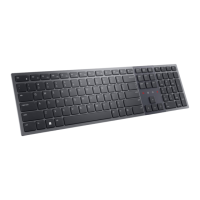
The Axim™ Executive Keyboard is a small, foldaway, full-size QWERTY keyboard designed for use with Pocket PC devices. It connects wirelessly via Bluetooth® technology, providing a convenient input method for tasks such as typing, navigating applications, and editing text. The keyboard does not draw power from the Pocket PC device, relying instead on its own AAA batteries. It features user-programmable shortcut keys for faster access to applications and supports on-screen menu and toolbar navigation.

Important Technical Specifications

  • Dimensions Open:
    • Without stand: 10.28"W x 0.59"H x 3.86"D (261mm x 15mm x 98mm)
    • With stand: 10.28"W x 2.05"H x 6.97"D (261mm x 52mm x 177mm)
  • Dimensions Closed: 5.47"W x 0.79"H x 3.86"D (139mm x 20mm x 98mm)
  • Weight (including batteries): 6.42 ounces (182 grams)
  • Operating Temperature Range: 32° to 120°F (0° to 49°C)
  • Typical Battery Life:
    • Continuous Operation: ~120 hours
    • Typical usage: ~3 months
    • Standby: ~10000 hours
  • RF Technical Specifications:
    • RF output power: Class 2, Maximum output power is 2.5mW (4 dBm).
    • Protocol: Bluetooth specification v. 1.1 compliant. Bluetooth HID Profile v. 1.0 compliant.
    • Frequency range: 2.4 – 2.4835GHz
    • Type of Modulation: GFSK (Gaussian Frequency Shift Keying).
    • Signal Type: FHSS (Frequency Hopping Spread Spectrum).
  • Keyboard Driver: Stowaway 3.02

Usage Features

The keyboard offers several features to enhance usability:

  • Installation and Configuration: The manual provides detailed steps for installing the software, inserting batteries, and configuring the keyboard to a Pocket PC device. This includes disabling other keyboard applications, ensuring sufficient memory, and selecting the Bluetooth wireless keyboard option during setup.
  • Connection Modes: Supports both secure and unsecured Bluetooth connections. Secure connections require a passkey for authentication and provide encrypted data transmission. Unsecured connections are vulnerable to eavesdropping but can be reconnected with a single key press if configured correctly in the Bluetooth Settings applet (allowing connection from "All devices").
  • Reconnection: The keyboard is designed to reconnect automatically when powered on and within range of a previously bonded Pocket PC device. If the connection is lost due to the keyboard cover being closed, idle period, Pocket PC being turned off, or moving out of range, it will switch to waiting mode and can be reestablished by tapping any key. Breaking the bond (by pressing Left Right for about 1 second) should be avoided during normal operation unless pairing with a new device.
  • Keyboard Status Light: An LED light indicates the keyboard's status:
    • Fast green flash (~1 second): Discovery mode (ready to be detected).
    • Slow green flash (~4 seconds): Connected and available for use.
    • Solid red for 5 seconds after power on: Batteries need replacement.
    • Dark: Not connected or connection broken.
  • Customization: The keyboard software allows customization through the Input Method Toolbar and Keyboard Control Panel.
    • Input Method Toolbar: Displays Bluetooth connection status (active, waiting for reconnect, not set up), allows toggling keyboard clicking sounds, accessing the Keyboard Control Panel, and viewing help topics.
    • Keyboard Control Panel (Config tab): Enables/disables the keyboard, shows CapsLock/NumLock notifications, controls the keyboard icon on the Today screen, adjusts key repeat rate and delay, and verifies language layout.
    • Keyboard Control Panel (Hot-Key tab): Allows assigning up to 10 applications to key combinations for quick launch.
    • Keyboard Control Panel (BT tab): Provides access to all Bluetooth-related functions and displays battery information (Normal, Low, Critical).
    • Keyboard Control Panel (About tab): Shows the keyboard software version.
  • Navigation and Editing Shortcuts: Comprehensive key combinations are provided for:
    • Moving the cursor and highlighting text (e.g., -<<> for moving left one word, -<> for selecting next character to the left, -<> for beginning of the line).
    • On-screen button and editing shortcuts (e.g., - for OK, - for Cut, - for Select all).
    • Launching and navigating applications (e.g., - for Programs screen, -<;> for Internet Explorer, = to toggle open programs).
    • Menu and Toolbar Navigation (e.g., +<⇨> for menu bar, - for toolbar).
  • International and Extended Character Set: A detailed table lists key combinations for various international characters and symbols (e.g., acute accents, dieresis accents, tilde accents, currency symbols).
  • Rubber Grip Pads: Prevent the keyboard from slipping during use.
  • Detachable Device Stand: Provides support for the Pocket PC device.

Maintenance Features

  • Battery Management:
    • Uses 2 AAA batteries.
    • The Bluetooth Status Page displays battery information (Normal, Low, Critical). Low or critical battery states trigger on-screen messages.
    • Important Battery Information: Keep batteries away from children, do not mix types, replace old batteries promptly, clean the compartment, remove batteries if inactive for over a month, do not open/puncture/damage, and do not dispose of in fire.
  • Troubleshooting: The manual addresses common issues such as:
    • Keyboard not reconnecting: Check Bluetooth Accessibility settings (Paired devices only vs. All devices) or reestablish a secure connection.
    • Keyboard not responding: Check Pocket PC batteries, keyboard power, software installation, and ensure the Axim™ Wireless keyboard is enabled and selected in the Keyboard Control Panel.
    • Bluetooth radio turning back on automatically: Disable the Axim™ Wireless keyboard first to turn off the Bluetooth radio.
    • Keyboard driver not finding supported Bluetooth component: Check Bluetooth stack version (Widcomm BTW-CE ≥1.4.x, Drakar, Microsoft) and consider upgrades or selecting a different Bluetooth component if multiple are found.
    • Connection lost after idle period: Refer to the "Reconnecting the Axim™ Wireless keyboard" section.
  • Uninstallation: Instructions are provided to uninstall the keyboard driver via Start=>Settings=>System tab=>Remove Programs.
  • Comfortable Typing: Recommendations are given to reduce the risk of repetitive motion injuries, including regular breaks, varied tasks, gentle typing, relaxed posture, and proper wrist positioning.
  • Regulatory Notices: Includes information on Electromagnetic Interference (EMI) and Electromagnetic Compatibility (EMC), FCC Notices (Class B digital devices), IC Notice (Canada Only), and CE Notice (European Union) with country-specific declarations and frequency band restrictions for France.
  • Bluetooth Device Safety: The keyboard emits RF energy when the green LED flashes. Caution is advised around medical devices. The keyboard should not be used on aircraft; close the keyboard or remove batteries to stop RF transmission.

Dell Axim Specifications

General IconGeneral
BrandDell
ModelAxim
CategoryKeyboard
LanguageEnglish

Related product manuals