88 | Operating the monitor
Setting the KVM USB Switch
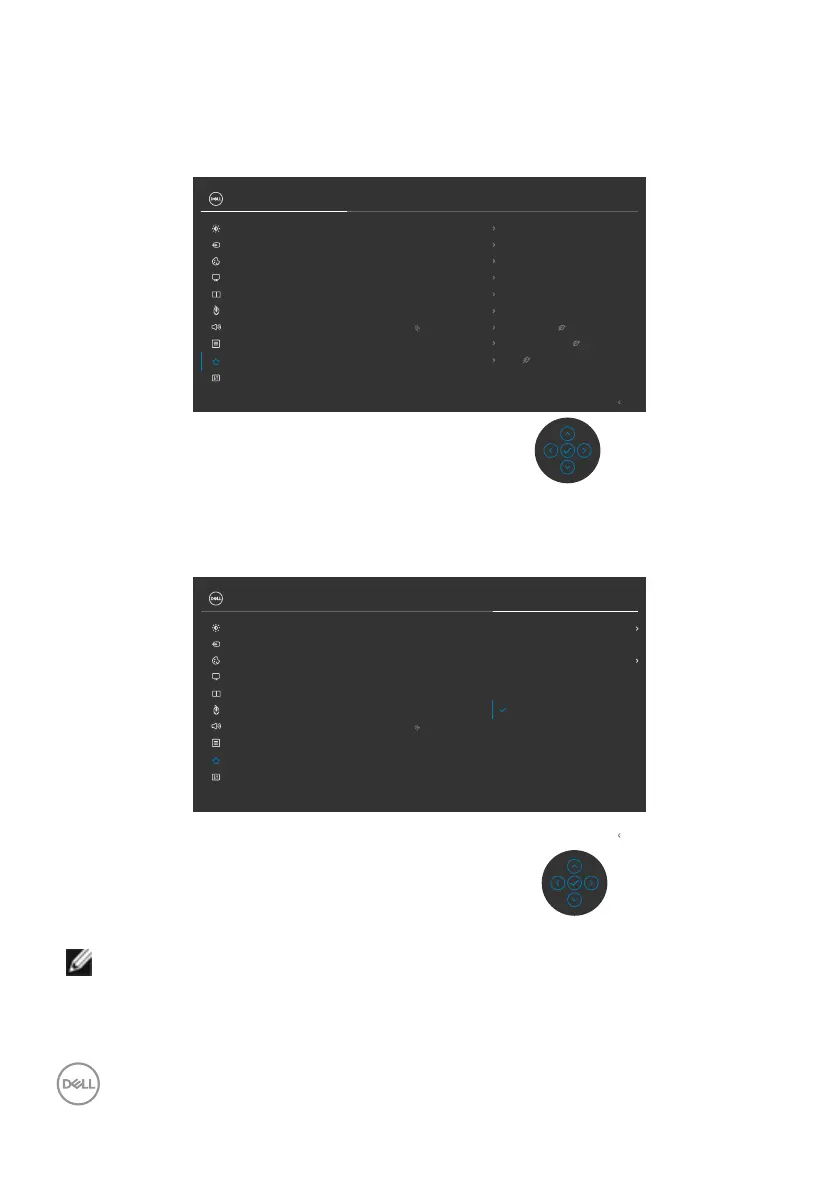
To set the KVM USB Switch as Shortcut Key for the monitor:
1. Press the joystick button to launch the OSD main menu.
2. Move the joystick to select Personalize.
Exit
24/27/34 Monitor
Input Source
Color
Brightness/Contrast
Display
PIP/PBP
Personalize
Others
Menu
USB
Audio
Shortcut Key 1
Aspect Ratio
Shortcut Key 2
Input Source
Shortcut Key 3
Preset Modes
Reset Personalization
Power Button LED
On in On Mode
Fast Wakeup
O
Other USB Charging
O in Standby Mode
USB-C Charging 90W
O in O Mode
Shortcut Key 4
Brightness/Contrast
Shortcut Key 5
Display Info
3. Move the joystick right to activate the highlighted option.
4. Move the joystick right to activate the Shortcut Key 1 option.
5. Move the joystick up or down to select USB Switch.
Exit
Dell 24/27/34 Monitor
Aspect Ratio
Preset Modes
Brightness/Contrast
Input Source
PIP/PBP Mode
Video Swap
Display Info
USB Switch
Input Source
Color
Brightness/Contrast
Display
PIP/PBP
Personalize
Others
Menu
USB
Audio
Shortcut Key 1
Shortcut Key 2
Shortcut Key 3
Reset Personalization
Power Button LED
Fast Wakeup
Other USB Charging
USB-C Charging 90W
Shortcut Key 4
Shortcut Key 5
6. Press the joystick to confirm selection.
NOTE: KVM USB Switch function only work under PBP Mode (Only for
C3422WE).


 To Next Page