again.
You can set the response time to:
l Normal
l Overdrive (default).
Resets the monitor's display settings to the factory defaults.
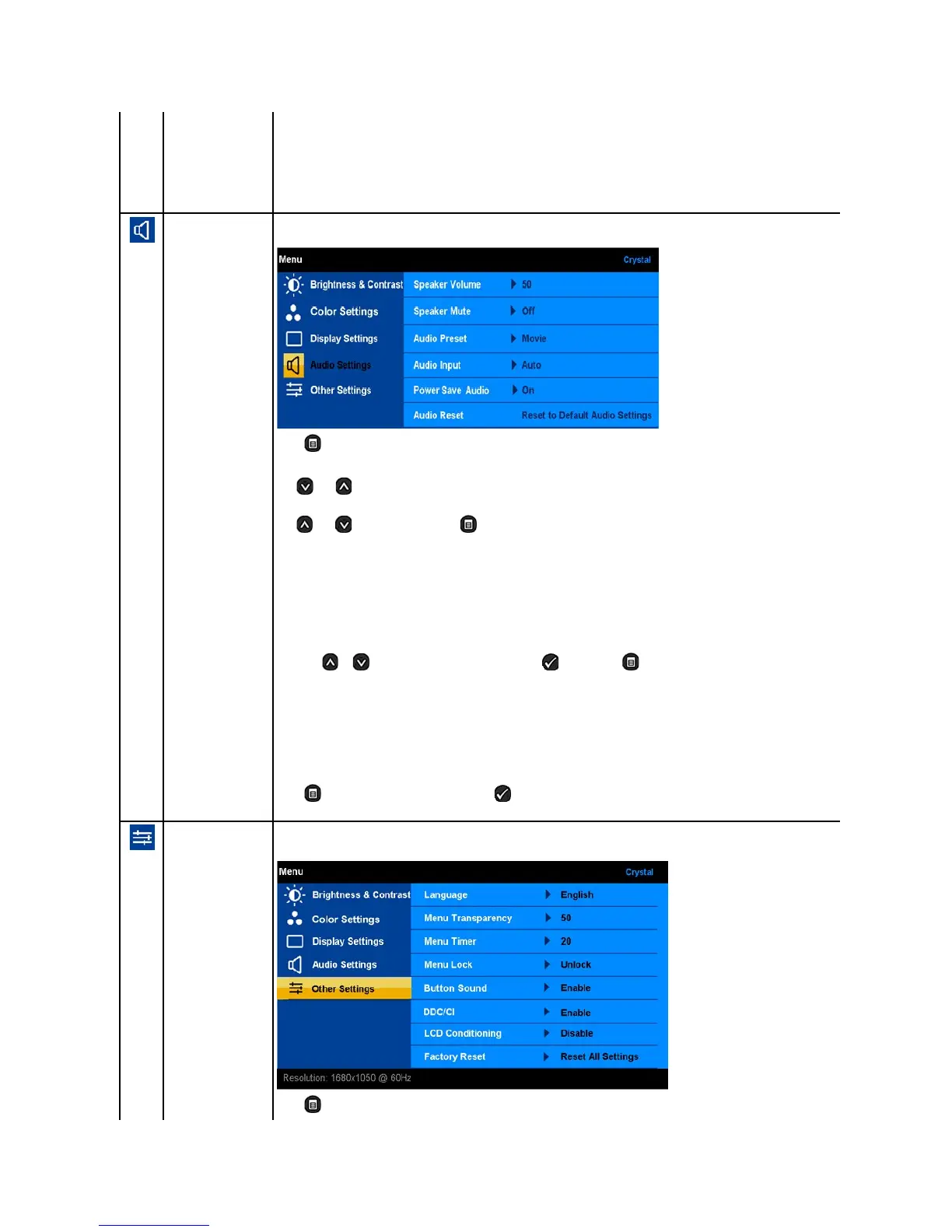
Use the Audio Settings to adjust the audio settings of your built-in speakers.
Audio Setting mode
submenu
Press to go back to the main menu.
Allows you to increase the speaker volume.
Use and buttons to adjust the speaker volume from '0' to '100'.
Allows you to mute/un-mute the speaker.
Use and buttons to browse and to set Speaker Mute to On or Off.
Allows you to set the audio mode to:
l Movie — suitable for movie playback.
l Game — suitable for game applications.
l Music — suitable for music scene.
l Custom — allows you to manually adjust the Treble and Bass.
Allows you to select an audio input signal as an audio source. You can set the Audio Input to Auto/HDMI/USB.
Press the or button to choose among the options. to select and to cancel.
NOTE: Your monitor supports audio input signals from HDMI and USB interfaces only.
Allows you to turn on or off the audio power during power save mode.
Default is "On". Select "Off" to disable this feature.
On — Turn off audio power during power save mode.
Off — Turn on audio power during power save mode.
Resets your monitor audio settings to the factory defaults.
Press toexittheOSDmainmenuandpress to accept changes.
Press to go back to the main menu.






 To Next Page