10 Setting Up the Monitor
Connecting Your Monitor
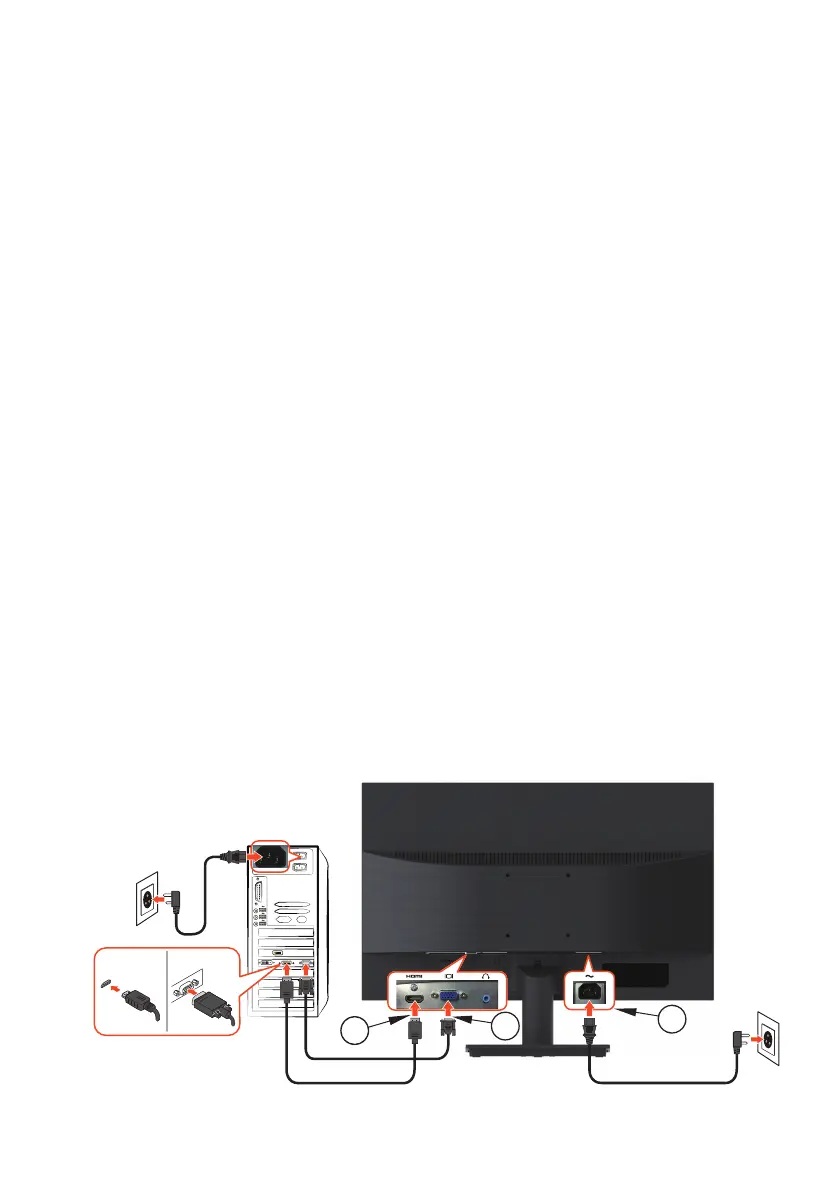
1. Connect the video cable
Ensure both monitor and computer are turned off. Connect one end of the
HDMI or VGA cable to the computer, and then connect the other end to the
respective port on the monitor.
2. Connect the earphone
Connect the earphone to the earphone output terminal of the monitor.
(Earphone not supplied).
3. Connect the power cord
Connect the power cord to a properly-grounded AC outlet, and then to the
monitor.
4. Turn on the monitor
Press the power button to turn on the monitor.
5. Set the resolution and refresh rate in Microsoft Windows
• Windows 7
i) Right-click on the desktop, and then click
Screen resolution
>
Resolution
.
ii) Set the appropriate resolution.
• Windows 8 or Windows 8.1
i) Select the desktop tile to switch to classic desktop mode.
ii) Right-click on the desktop, and then click
Screen resolution
>
Resolution
.
iii) Set the appropriate resolution.
• Windows 10
i) Right-click on the desktop, and then click Display settings > Advanced
display settings > Resolution.
ii) Set the appropriate resolution.
3
2
1
HDMI VGA



 To Next Page