EasyManua.ls Logo

Dell D2020H - User Manual

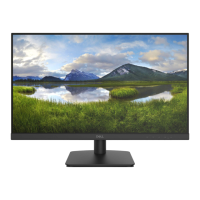
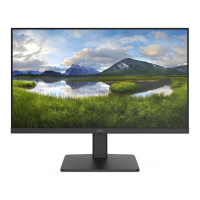
Dell D2020H
46 pages
Print Icon
To Next Page IconTo Next Page
Loading...
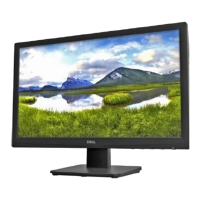
Dell D2020H
User’s Guide
Monitor Model: D2020H
Regulatory model: D2020Hf

Other manuals for Dell D2020H

Questions and Answers

  • S
    smithjustinAug 21, 2025
    How to fix brightness problems on a Dell D2020H Monitor?
    • T
      Tina ThomasAug 21, 2025
      To resolve brightness issues on your Dell monitor, reset the monitor to its factory settings. You can also adjust the brightness and contrast controls via the On-Screen Display (OSD).
  • D
    Deanna StoneAug 25, 2025
    What to do if the picture doesn't fill the entire screen on my Dell Monitor?
    • C
      Carly HallAug 25, 2025
      If the picture on your Dell monitor does not fill the entire screen, check the Aspect Ratio setting in the Display settings OSD. Also, try resetting the monitor to its Factory Settings (Factory Reset).
  • S
    Stephanie BlairAug 26, 2025
    What to do if my Dell Monitor has no video or power LED?
    • S
      ssullivanAug 26, 2025
      If your Dell monitor shows no video and the power LED is off, ensure the video cable connecting the monitor and the computer is properly connected and secure. Also, verify that the power outlet is functioning properly by testing it with other electrical equipment. Make sure the power button is pressed and that the correct input source is selected via the Input Source menu.
  • D
    Debra MeyerAug 28, 2025
    How to fix a Dell D2020H Monitor with poor focus?
    • E
      Evelyn LarsonAug 28, 2025
      To correct poor focus on your Dell monitor, try the following: increase the brightness and contrast controls using the On-Screen Display (OSD). Perform a monitor self-test feature check and check the video cable connector for bent or broken pins. Run the built-in diagnostics. Ensure that the correct input source is selected via the Input Source menu. Eliminate video extension cables. Reset the monitor to Factory Settings (Factory Reset). Change the video resolution to the correct aspect ratio.
  • A
    Andrew MontoyaAug 30, 2025
    What to do if my Dell Monitor has intermittent problems?
    • J
      jeremy66Aug 30, 2025
      If you are experiencing intermittent problems with your Dell monitor, ensure that the video cable connecting the monitor to the computer is properly connected and secure. You can also try resetting the monitor to its factory settings. Additionally, perform a monitor self-test feature check to see if the issue occurs in self-test mode.
  • A
    Ann AdamsSep 1, 2025
    How do I fix geometric distortion on my Dell D2020H Monitor?
    • J
      Jim HickmanSep 1, 2025
      To correct geometric distortion on your Dell monitor, reset the monitor to its factory settings. You can also adjust the horizontal and vertical controls via the On-Screen Display (OSD).
  • V
    vleonardSep 3, 2025
    What causes missing color on a Dell Monitor and how to fix it?
    • P
      Perry LopezSep 3, 2025
      If your Dell monitor is displaying missing colors, perform a monitor self-test feature check. Also, ensure that the video cable connecting the monitor to the computer is properly connected and secure. Check the video cable connector for bent or broken pins.
  • C
    clarkchristopherSep 5, 2025
    How to correct wrong colors on a Dell D2020H Monitor?
    • J
      Jesus PageSep 5, 2025
      To correct the wrong colors on your Dell monitor, change the Color Setting Mode in the Color Settings OSD to either Graphics or Video, depending on the application you are using. You can also adjust the R/G/B value in Custom Color in the Color settings OSD. Another option is to change the Input Color Format to RGB or YPbPr in the Color settings OSD. Finally, run the built-in diagnostics.
  • J
    Jennifer FlowersSep 7, 2025
    Why does my Dell Monitor have horizontal or vertical lines and how to fix it?
    • S
      Stephanie GutierrezSep 8, 2025
      If your Dell monitor is displaying horizontal or vertical lines, reset the monitor to its factory settings. Perform a monitor self-test feature check to determine if these lines are also present in self-test mode. Check the video cable connector for bent or broken pins. Run the built-in diagnostics.
  • H
    Hannah JamesSep 9, 2025
    How do I resolve synchronization problems on my Dell D2020H Monitor?
    • B
      Blake ScottSep 9, 2025
      To resolve synchronization problems on your Dell monitor, reset the monitor to factory settings. Perform a monitor self-test feature check to see if the scrambled screen appears in self-test mode. Check the video cable connector for bent or broken pins. Restart the computer in safe mode.

Summary

About Your Monitor

Product Features

Details the technical features and capabilities of the Dell D2020H monitor.

Identifying Features and Controls

Identifies the front view components of the monitor and their functions.

Monitor Specifications

Lists detailed technical specifications including screen type, resolution, and connectivity.

Setting Up Your Monitor

Connecting the Stand

Step-by-step instructions for assembling and attaching the monitor stand.

Connecting Your Monitor

Instructions for connecting the monitor to a computer using VGA or HDMI cables.

Removing the Stand

Procedure for safely detaching the monitor stand from the monitor.

Operating Your Monitor

Front Panel Controls

Explains the function of the monitor's front panel control buttons.

Accessing the OSD Menu

Steps to display and navigate the main On-Screen Display (OSD) menu.

Brightness and Contrast Settings

How to adjust the monitor's brightness and contrast levels via the OSD.

Auto Adjust Function

Describes how to activate automatic setup and adjust the monitor's image.

Input Source Selection

How to switch between different video input sources like VGA, HDMI, and Auto Select.

Color Settings

Options for adjusting color settings, including preset modes and color format.

Aspect Ratio Adjustment

Adjusts the image ratio to Wide 16:9, 4:3, or 5:4 for proper display.

Personalization Options

Customizes shortcut keys, power LED, and resets personalization settings.

Setting Display Resolution

Guides on setting the display resolution to 1600 x 900 in Windows.

Setting Resolution on Non-Dell PCs

Instructions for setting display resolution on computers not manufactured by Dell.

Troubleshooting

Monitor Self-Test Procedure

Steps to perform a self-test to check monitor functionality without a computer.

Dell D2020H Specifications

General IconGeneral
Screen Size19.5 inches
Resolution1600 x 900
Panel TypeTN
Refresh Rate60 Hz
Aspect Ratio16:9
Brightness200 cd/m²
Response Time5 ms
Power Consumption14W (typical)
Contrast Ratio600:1
PortsVGA
Viewing Angle90° (H) / 65° (V)

Related product manuals