EasyManua.ls Logo

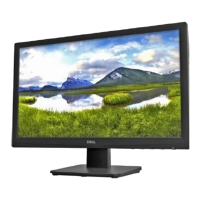
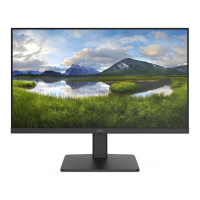
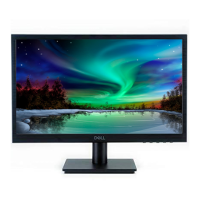
Dell D2421H - User Manual

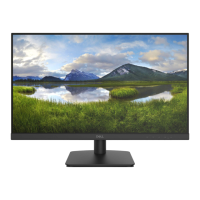
Dell D2421H
49 pages
Print Icon
To Next Page IconTo Next Page
Loading...
Monitor Model: D2421H/D2721H/D2421DS
Regulatory Model: D2421Ho/D2721Ho/D2421DSo
Dell Monitor
D2421H/D2721H/D2421DS
User’s Guide

Other manuals for Dell D2421H

Questions and Answers

  • J
    Jennifer CampbellAug 17, 2025
    Why is there no video on my Dell D2421H Monitor but the power LED is on?
    • T
      Taylor GonzalezAug 17, 2025
      If your Dell monitor's power LED is on but there's no video, try these steps: First, increase the brightness and contrast via the On-Screen Display (OSD). Second, perform a monitor self-test. Third, inspect the video cable connector for bent or broken pins. Finally, ensure the correct input source is selected in the Input Source select menu.
  • B
    Barbara SmallAug 19, 2025
    How to fix brightness problems on a Dell D2421H Monitor?
    • L
      Lindsay PotterAug 19, 2025
      To resolve brightness issues on your Dell monitor: First, reset the monitor to its factory settings. Second, use the Auto Adjust feature via the OSD. Finally, manually adjust the brightness and contrast controls within the OSD.
  • E
    Elizabeth ClarkAug 22, 2025
    What to do if my Dell monitor has no video and the power LED is off?
    • T
      Tyler CooperAug 22, 2025
      If your Dell monitor isn't displaying video and the power LED is off, check these items: Ensure the video cable connecting the monitor and computer is properly connected and secure. Verify the power outlet is functioning with other electrical equipment. Make sure the power button is fully depressed. Also, confirm the correct input source is selected using the Input Source select button.
  • M
    Melissa DavisAug 26, 2025
    How to troubleshoot intermittent problems with a Dell monitor?
    • B
      Bradley LewisAug 26, 2025
      To troubleshoot intermittent problems with your Dell monitor: First, ensure the video cable connecting the monitor to the computer is securely connected. Second, reset the monitor to its Factory Reset settings. Finally, perform the monitor's self-test feature check to see if the issue persists in self-test mode.
  • S
    Samantha TorresAug 28, 2025
    What to do if my Dell D2421H Monitor has missing color?
    • A
      Alexander Brown Jr.Aug 28, 2025
      If your Dell monitor is displaying missing color: First, perform a monitor self-test. Second, ensure the video cable connecting the monitor to the computer is properly connected and secure. Third, check the video cable connector for bent or broken pins.
  • T
    Thomas SalazarAug 30, 2025
    What to do if my Dell D2421H has wrong color?
    • G
      graycindyAug 30, 2025
      If your Dell monitor is showing the wrong colors: Try changing the Color Vision Mode in the Color Adjust OSD to either Graphics or Video, depending on what you're viewing. You can also experiment with different User Color settings in the Color Adjust OSD. If Color Vision Mode is off, adjust the R/G/B values in the User Color OSD.
  • R
    Robert GregorySep 2, 2025
    How to fix shaky or jittery video on a Dell D2421H Monitor?
    • L
      Lawrence WilliamsSep 2, 2025
      To correct shaky or jittery video on your Dell monitor: First, perform Auto Adjust via the OSD. Second, adjust the Phase and Pixel Clock controls via the OSD. Third, reset the monitor to Factory Reset. Check for any environmental factors that might be causing interference. As a last resort, relocate the monitor to another room to test.
  • M
    Michael DeleonSep 5, 2025
    How to resolve geometric distortion on a Dell monitor?
    • G
      gharrisSep 5, 2025
      To fix geometric distortion on your Dell monitor: Start by resetting the monitor to its factory defaults. Next, use the Auto Adjust function in the OSD. Then, fine-tune the display by adjusting the brightness and contrast controls, also found in the OSD.
  • M
    Michael CannonSep 8, 2025
    How to fix poor focus on a Dell monitor?
    • R
      Ryan WilsonSep 8, 2025
      To improve poor focus on your Dell monitor: Begin by performing Auto Adjust via the OSD. If that doesn't work, adjust the Phase and Pixel Clock controls, also through the OSD. Try eliminating any video extension cables. Reset the monitor to its Factory Reset settings. Lastly, ensure the video resolution is set to the correct aspect ratio (16:9).
  • L
    lmcfarlandSep 12, 2025
    How to fix horizontal or vertical lines on a Dell D2421H?
    • S
      Scott JohnsonSep 12, 2025
      If you're seeing horizontal or vertical lines on your Dell monitor: Try resetting the monitor to its factory settings. Then, perform Auto Adjust via the OSD. Adjust the Phase and Pixel Clock controls through the OSD. Run a monitor self-test to see if the lines appear in self-test mode. Check the video cable connector for bent or broken pins.

Summary

About Your Monitor

Monitor Specifications

Flat-Panel Specifications

Provides detailed technical specifications for the flat-panel display technology.

Resolution Specifications

Details scan ranges and preset display resolutions supported by the monitor.

Electrical Specifications

Lists electrical requirements, input signals, and current specifications for monitor operation.

Setting Up the Monitor

Connecting the Stand

Provides step-by-step instructions for attaching the monitor stand.

Connecting Video Cables

Details how to connect the monitor to a computer using various video cables.

Operating the Monitor

Power and Control Operations

Describes how to power on/off the monitor and use its front panel controls.

OSD Menu Navigation

Details how to access and navigate the monitor's OSD menu system.

Troubleshooting

Common Problems and Solutions

Provides solutions for common issues like no picture, poor focus, and jittery video.

Product-Specific Problems

Offers solutions for issues unique to specific monitor models or configurations.

Appendix and Maintenance

Setting Display Resolution

Guides on setting the recommended display resolution in Windows.

Dell D2421H Specifications

General IconGeneral
Screen Size23.8 inches
Resolution1920 x 1080 (Full HD)
Panel TypeIPS
Aspect Ratio16:9
Refresh Rate60 Hz
Brightness250 cd/m²
Contrast Ratio1000:1 (typical)
Color Support16.7 million colors
VESA Mount100 x 100 mm
Response Time5 ms
Viewing Angle178° (horizontal), 178° (vertical)
PortsHDMI, VGA

Related product manuals