
 Need help?
Do you have a question about the Dell KM632 and is the answer not in the manual?
Lists the system requirements for the Dell KM632 wireless keyboard and mouse.
Provides step-by-step instructions for setting up the Dell KM632 wireless keyboard.
Provides step-by-step instructions for setting up the Dell KM632 wireless mouse.
Explains the functions of the multimedia keys on the Dell KM632 Wireless Keyboard.
Provides steps to resolve common problems encountered with the Dell KM632 wireless keyboard.
Provides steps to resolve common problems encountered with the Dell KM632 wireless mouse.
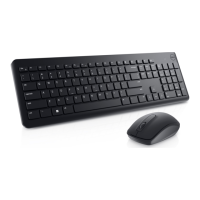
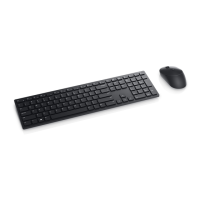
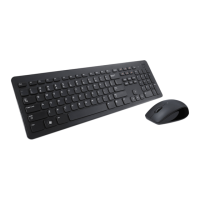
The Dell KM632 Desktop Wireless Keyboard and Mouse is a peripheral set designed for seamless integration with various computer systems, offering a wireless solution for input. This document serves as a comprehensive guide for setting up, using, and troubleshooting the keyboard and mouse.
The Dell KM632 Wireless Keyboard is a full-sized input device designed for general computer use. It features a standard QWERTY layout with additional multimedia and application keys to enhance user productivity and convenience. The keyboard operates wirelessly, connecting to the computer via a USB receiver, eliminating the need for cables and providing a clutter-free workspace. Its primary function is to allow users to input text, commands, and control various software applications on their computer.
The keyboard includes several features to improve the user experience. It has a dedicated "Sleep" key, which, when pressed, puts the computer into standby mode. To wake the computer, any key on the keyboard can be pressed. This feature is useful for conserving power and quickly resuming work. For multimedia control, the keyboard is equipped with specific function keys that allow users to manage audio and video playback directly from the keyboard. These include keys for Mute, Volume Up, Volume Down, Play/Pause, Skip Forward, and Skip Backward. These controls provide quick access to media functions without needing to navigate through software interfaces. The keyboard also integrates several "Application Keys and Windows Keys" that streamline common tasks. An "Application key" provides the same shortcut menu as right-clicking the desktop. The "Windows key" opens the Start Menu. Combinations like "Windows key + E" open Windows Explorer, "Windows key + F" finds documents, and "Windows key + M" minimizes all open windows. "Windows key + R" displays the Run Dialog box, "Windows key + F1" opens the Help Menu, "Windows key + TAB" activates the next taskbar button, and "Windows key + Ctrl + F" finds a computer. Additionally, "Windows key + Shift + M" undoes minimize all, and "Windows key + Pause/Break" performs a system function. These shortcuts significantly enhance navigation and efficiency within the Windows operating system. An "On-Screen Display" feature provides visual feedback for the "Caps Lock" status. When "Caps Lock" is active, an "ABC" icon appears on the screen, indicating that all typed letters will be in uppercase. Conversely, when "Caps Lock" is off, an "abc" icon is displayed. This on-screen indicator is particularly helpful as the physical keyboard itself does not have a dedicated Caps Lock LED. If the on-screen indicator does not appear, users are advised to download the necessary driver from the Dell support website.
Maintenance for the keyboard primarily involves ensuring proper battery installation and connection. The keyboard requires two AA alkaline batteries for operation. A "Battery Indicator" on the keyboard provides visual cues regarding battery status: a green-colored light indicates power, while an amber-colored light signals a low battery, prompting the user to replace the batteries. The keyboard also features an "On/Off Switch" located on the back, allowing users to conserve battery life when the keyboard is not in use.
The Dell KM632 Wireless Mouse is an optical input device designed to provide precise cursor control and navigation on a computer screen. Like the keyboard, it operates wirelessly, connecting to the computer via the same USB receiver, offering freedom of movement and reducing desktop clutter. Its primary function is to allow users to interact with graphical user interfaces, select items, and perform various actions through point-and-click operations.
The mouse features a standard three-button layout: a "Left Mouse Click" button for primary selections and actions, a "Right Mouse Click" button for context-sensitive menus, and a "Scroll Wheel" located between the two buttons for vertical scrolling through documents and web pages. The scroll wheel also typically functions as a middle-click button for additional actions, depending on the software application. Similar to the keyboard, the mouse includes a "Green-colored Power Indicator" and an "Amber-colored Low Battery Indicator" to keep users informed about its operational status and battery level.
Maintenance for the mouse focuses on battery management and ensuring a clear optical sensor. The mouse requires two AA alkaline batteries for operation. An "On/Off Switch" is located on the mouse, allowing users to turn it off when not in use to extend battery life. The "Optical Sensor" on the underside of the mouse is crucial for tracking movement. Users should ensure this sensor remains clean and unobstructed for optimal performance.
The setup process for both the keyboard and mouse is straightforward. Users need to insert the batteries into both devices and then connect the single USB receiver to an available USB port on their computer. The system requirements include one USB port and compatibility with Microsoft Windows 7/Vista/XP, Media Center Edition, and Linux Ubuntu. Troubleshooting steps for both devices are similar. If either the keyboard or mouse is not working, users should first verify that the batteries are correctly placed and that the On/Off switch is in the "on" position. After installing batteries, a green power indicator should briefly appear on both devices, fading after about 15 seconds. If issues persist, users are advised to remove and reinsert the USB receiver, restart their computer, or try connecting the USB receiver to a different USB connector on the computer.
The Dell KM632 Desktop Wireless Keyboard and Mouse bundle provides a reliable and convenient wireless input solution, designed for ease of use and basic troubleshooting by the end-user.
 General
| Keyboard Layout | QWERTY |
|---|---|
| Mouse Type | Optical |
| Number of Keys | 104 |
| Mouse Included | Yes |
| Mouse Buttons | 3 |
| Color | Black |
| Mouse DPI | 1000 |
| Connectivity | Wireless |
| Compatibility | Windows |
| Keyboard Language | English |
| Type | Wireless Keyboard and Mouse Combo |



 To Next Page
