36 Using the Keyboard and Touch Pad
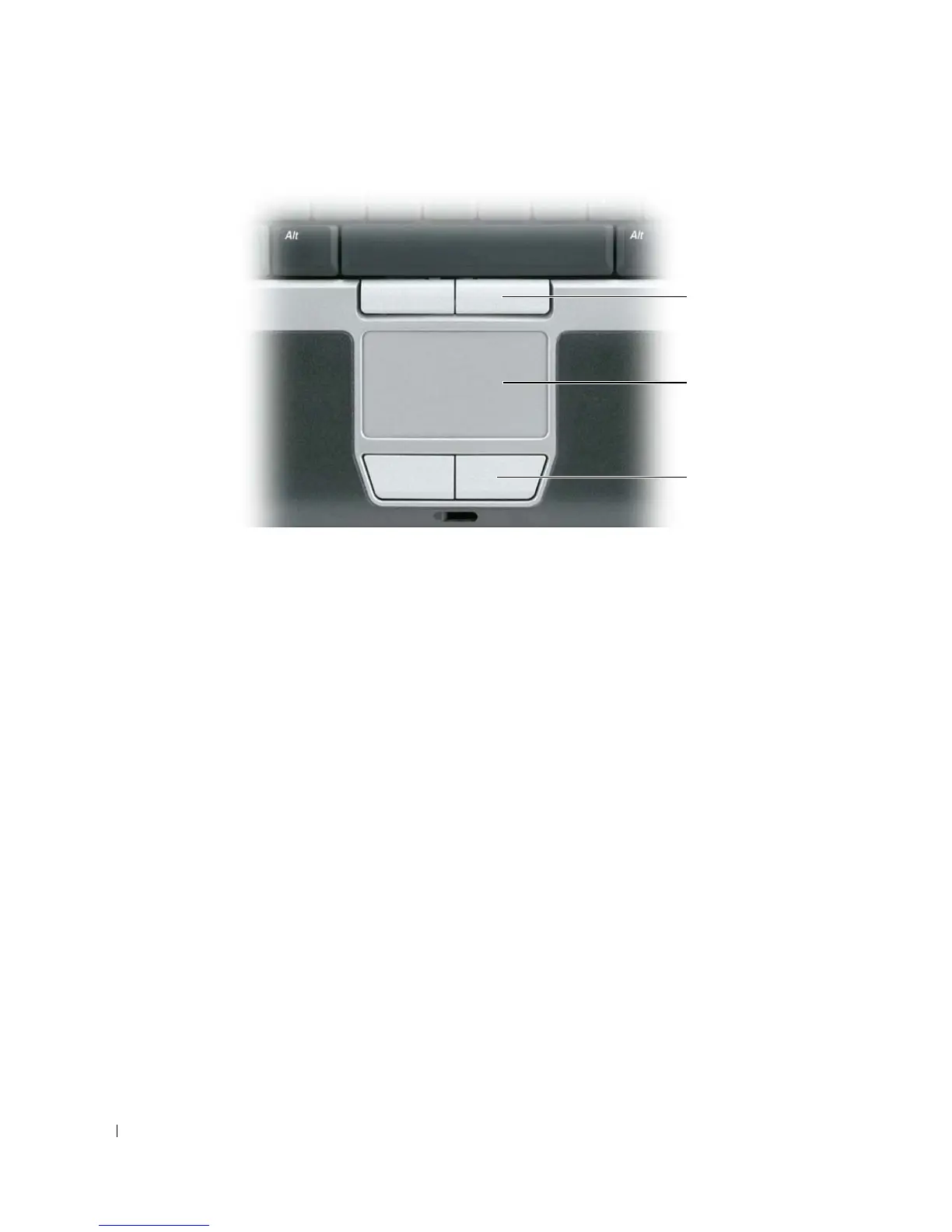
TRACK STICK BUTTONS — Provide the functionality of a mouse.
TOUCH PAD — Provides the functionality of a mouse.
TOUCH PAD BUTTONS — Provide the functionality of a mouse.
• To move the cursor, lightly slide your finger over the touch pad.
• To select an object, lightly tap once on the surface of the touch pad or use your thumb to press the left
touch-pad button.
• To select and move (or drag) an object, position the cursor on the object and tap twice on the touch
pad. On the second tap, leave your finger on the touch pad and move the selected object by sliding
your finger over the surface.
• To double-click an object, position the cursor on the object and tap twice on the touch pad or use your
thumb to press the left touch-pad button twice.
You can also use the track stick to move the cursor. Press the track stick left, right, up, or down to change
the direction of the cursor on the display. Use the track stick and track stick buttons as you would use a
mouse.
1 track stick buttons 2 touch pad 3 touch pad buttons
1
2
3





 To Next Page