Steps
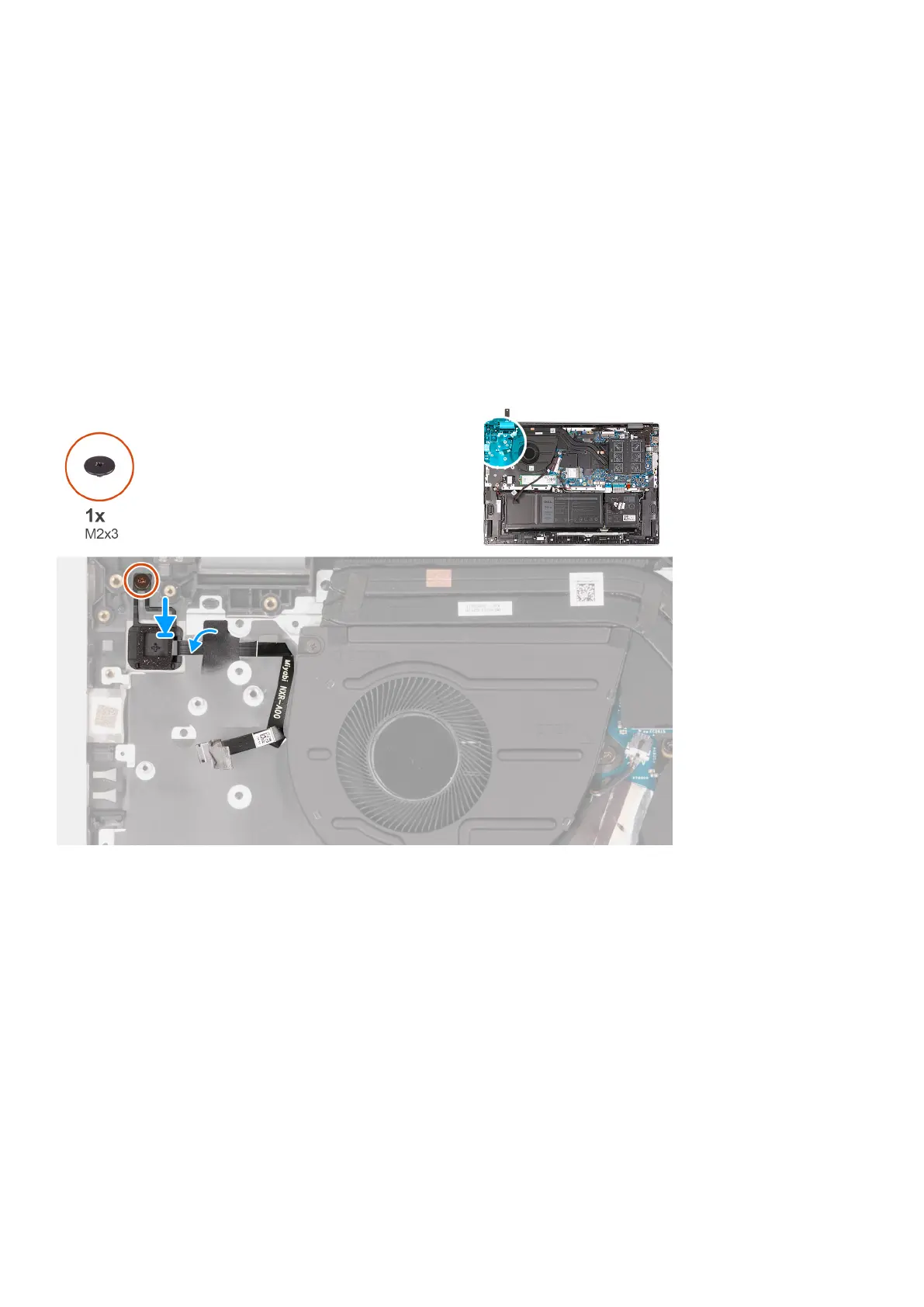
1. Peel the adhesive tape that secures the power-button cable.
2. Remove the screw (M2x3) that secures the power button to the palm-rest and keyboard assembly.
3. Lift the power button from the palm-rest and keyboard assembly.
Installing the power button with optional fingerprint reader
Prerequisites
If you are replacing a component, remove the existing component before performing the installation process.
About this task
The following image(s) indicate the location of the power button and provides a visual representation of the installation
procedure.
Steps
1. Align the screw hole on the power button with the screw hole on the palm-rest and keyboard assembly.
2. Place the power button on the palm-rest and keyboard assembly.
3. Replace the screw (M2x3) that secures the power button to the palm-rest and keyboard assembly.
4. Replace the adhesive tape that secures the power-button cable to the palm-rest and keyboard assembly.
Next steps
1. Install the base cover.
2. Follow the procedure in After working inside your computer.
52
Removing and installing components



 To Next Page