Saturation
This feature can adjust the color saturation of the video
image. Use or to adjust the saturation from ‘0’ to ‘100’.
Press to increase the monochrome appearance of the
video image.Press to increase the colorful appearance of
the video image.
NOTE: Saturation adjustment is available only when you
select Movie or Game preset mode.
Image
Enhance
Makes upsized images higher quality by removing image
fading and roughnessof edge.
NOTE: Image Enhance is avaliable only when you select
Standard, Multimedia, Movie, or Game preset mode.
Reset Color
Settings
Resets your monitor's color settings to the factory defaults.
Display
Settings
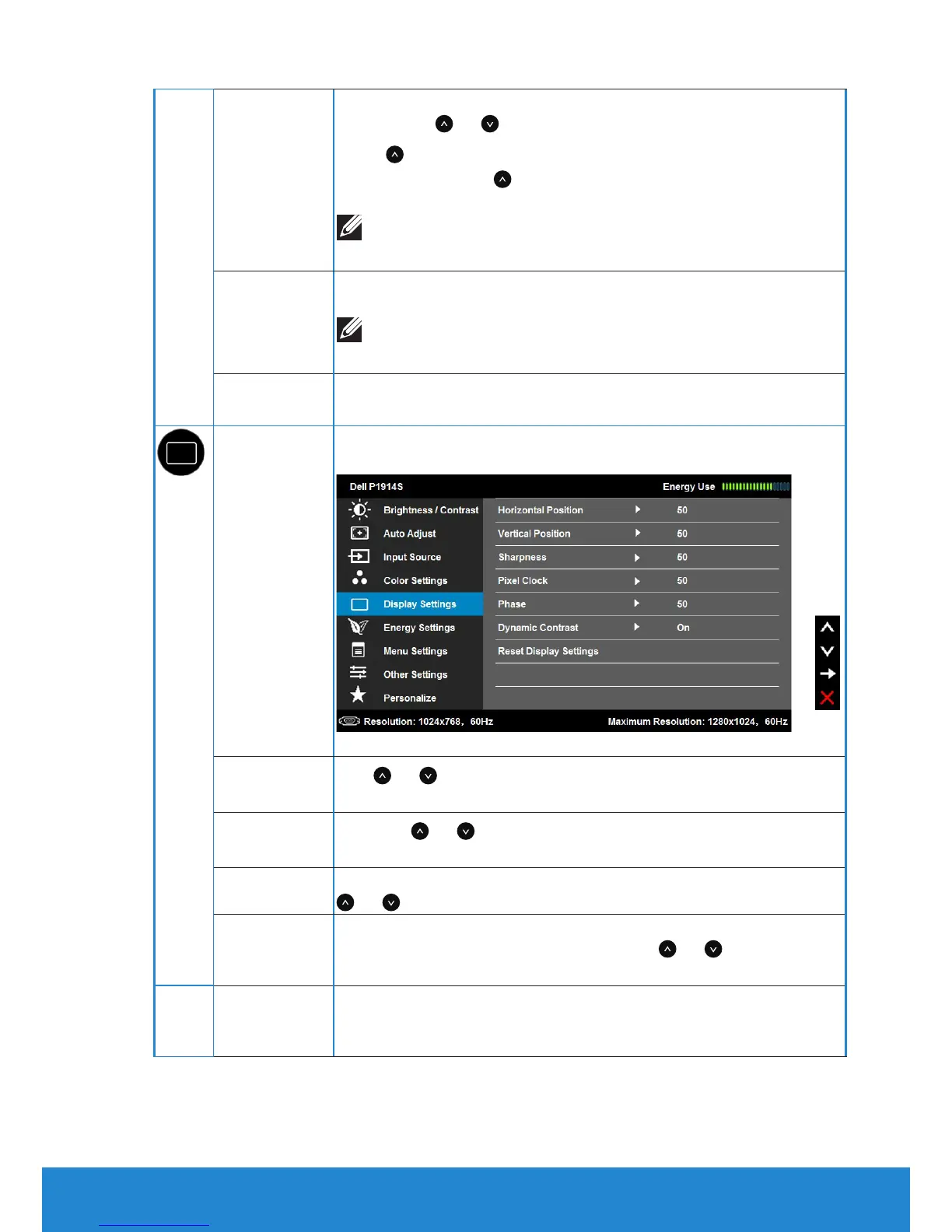
Use the Displays Settings menu to adjust the monitor's
display settings.
Horizontal
Position
Use or the buttons to adjust image left and right.
Minimum is '0' (-). Maximum is '100' (+).
Vertical
Position
Use the or buttons to adjust image up and down.
Minimum is '0' (-). Maximum is '100' (+).
Sharpness
This feature can make the image look sharper or softer. Use
or to adjust the sharpness from '0' to '100'.
Pixel Clock
The Phase and Pixel Clock adjustments allow you to adjust
your monitor to your preference. Use or buttons to
adjust for best image quality.
Phase
If satisfactory results are not obtained using the Phase
adjustment, use the Pixel Clock (coarse) adjustment and
then use Phase (fine), again.
Operating the Monitor 39



 To Next Page