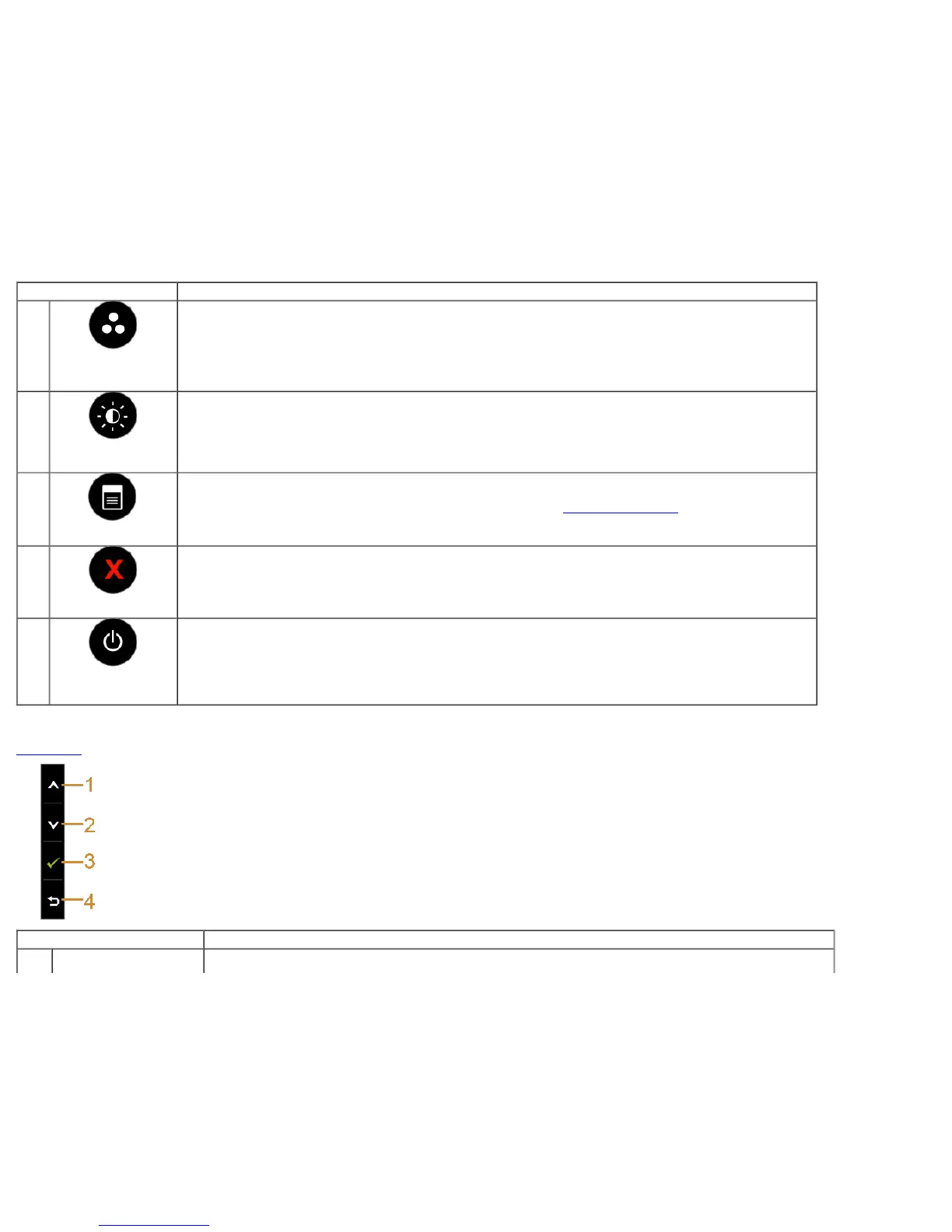
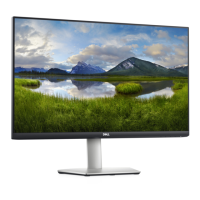
The following table describes the front panel buttons:
Front Panel Button Description
1
Shortcut key/
Preset Modes
Use this button to choose from a list of preset color modes.
2
Shortcut key/
Brightness/Contrast
Use this button to directly access the "Brightness/Contrast" menu.
3
Menu
Use the MENU button to launch the On-Screen Display (OSD) and select the OSD Menu. See Accessing the Menu System
.
4
Exit
Use this button to go back to the main menu or exit the OSD main menu.
5
Power
(with power light
indicator)
Use the Power button to turn the monitor On and Off.
The white light indicates the monitor is On and fully functional. An amber light indicates the power save mode.
Front Panel Button
Use the buttons on the front of the monitor to adjust the image settings.
Front Panel Button Description



 To Next Page