74 Internet
5 View the most popular trending topics at the moment.
• Touch the Current, Daily, and Weekly tabs to view the lists of current,
daily, and weekly trending topics.
• Touch a trending topic to view the tweets related to that topic.
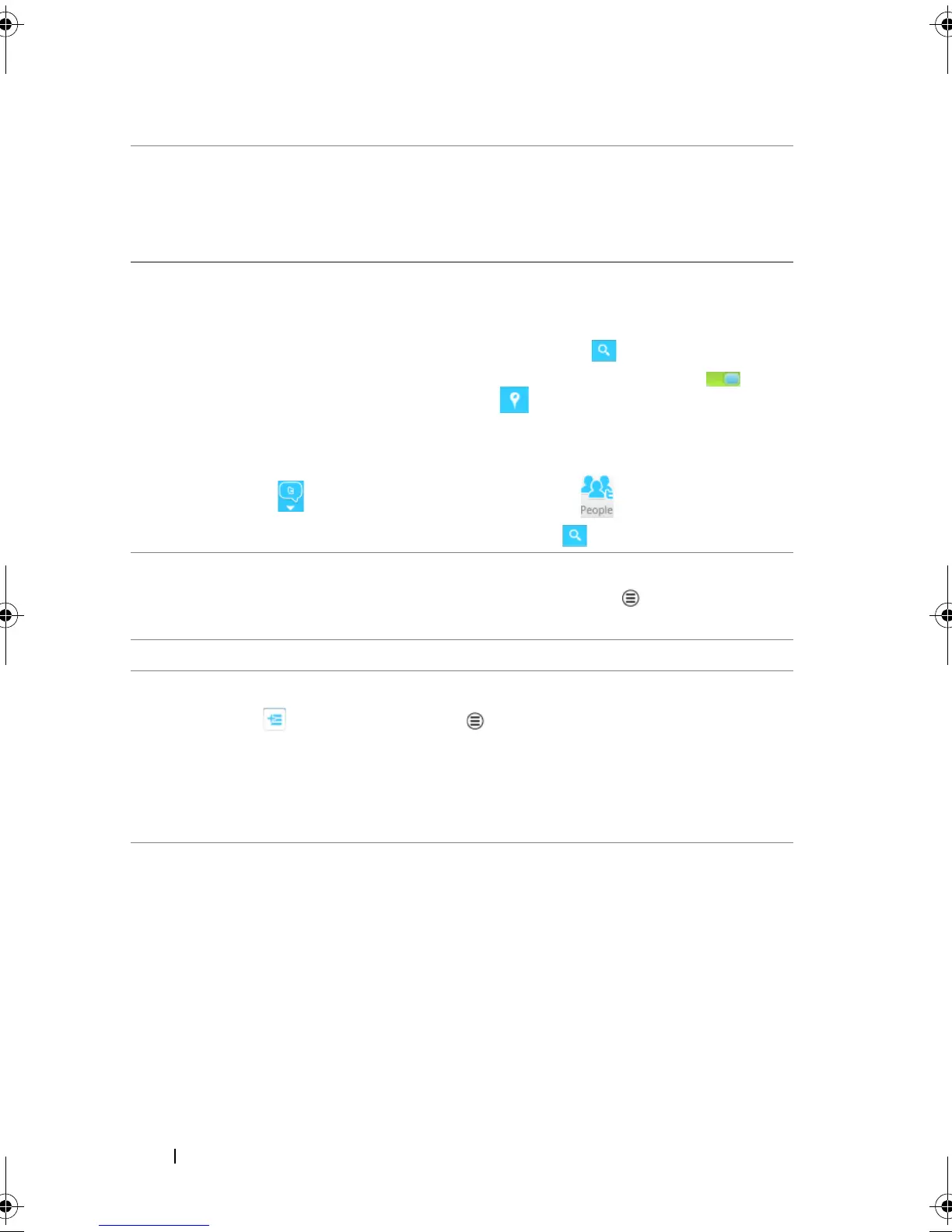
6 • Touch to search for tweets about a desired topic, or tweets sent by
authors around your location.
–To search for tweets about a topic, type the topic or keyword into
the Search Tweets text box and then touch .
–To search for tweets around your location, touch or drag to
turn Location on and then touch to display available tweets
around.
• Touch to find people who use Twitter.
–Touch . From the pop-up menu, touch . Type a name in the
Search people text box, and then touch .
7 Touch to view your profile and the tweets you posted. To post your
profile picture onto Twitter, touch the Menu button
Change
profile photo, and then select a desired picture from Gallery.
8 Touch to read the tweets forwarded by you or by the people you follow.
9 Organize users you follow into listed groups. To create a list:
1 Touch or the Menu button Create list.
2 Give the list a name and description.
3 Choose to make the list public (everyone can see it) or private (only
you can see it).
4 Touch the Create list button to create the list.
LG7_bk0.book Page 74 Thursday, January 27, 2011 2:16 PM


 To Next Page