Back to Contents Page
Coin-Cell Battery
Removing the Coin-Cell Battery
Replacing the Coin-Cell Battery
Removing the Coin-Cell Battery
1. Follow the procedures in Before You Begin.
2. Remove the system board (see Removing the System Board).
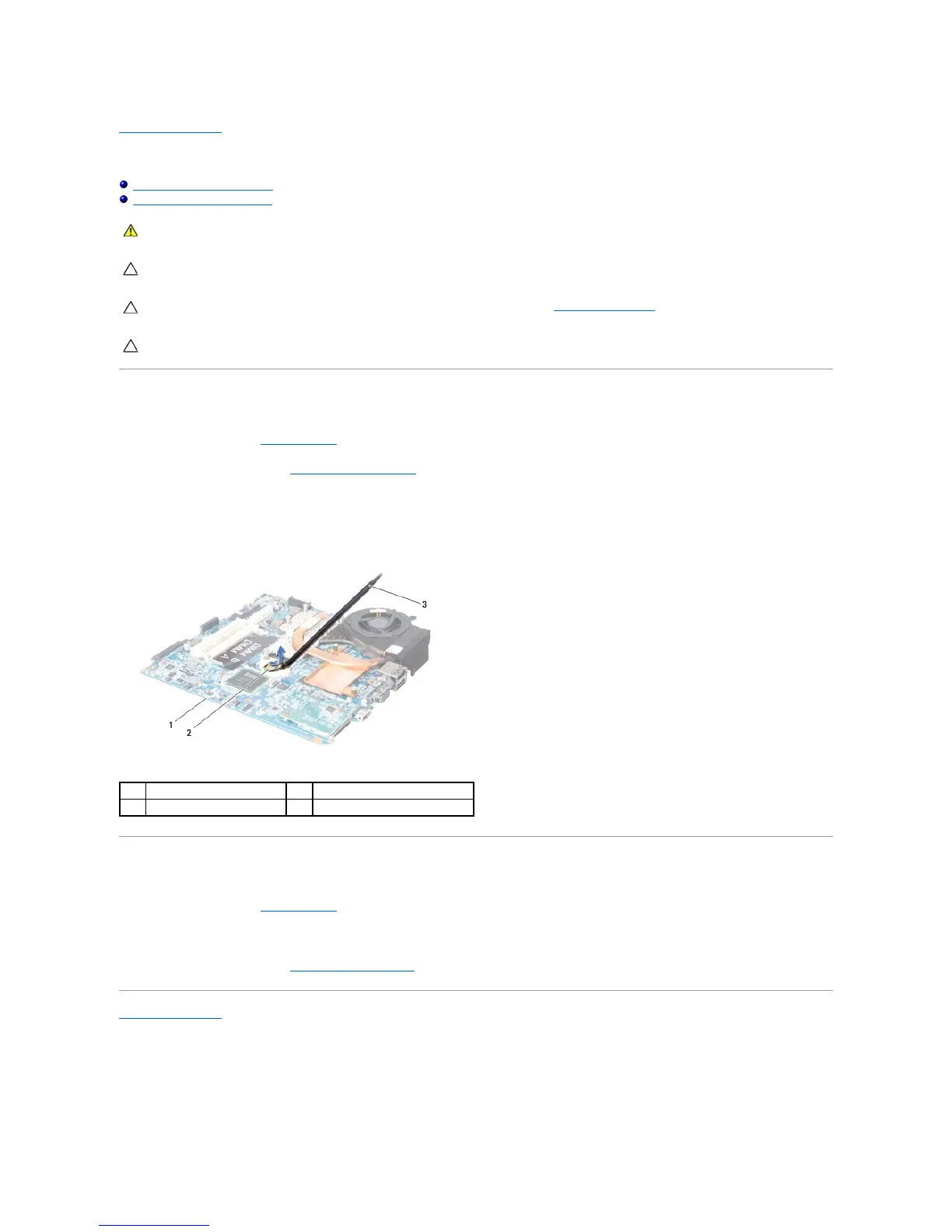
3. Turn the system board over.
4. Use a plastic scribe to push the coin-cell battery upward to release it from the slot.
Replacing the Coin-Cell Battery
1. Follow the procedures in Before You Begin.
2. Replace the coin-cell battery with the positive (+) side facing upwards.
3. Replace the system board (see Replacing the System Board).
Back to Contents Page
WARNING: Before working inside your computer, read the safety information that shipped with your computer. For additional safety best
practices information, see the Regulatory Compliance Homepage at www.dell.com/regulatory_compliance.
CAUTION: To avoid electrostatic discharge, ground yourself by using a wrist grounding strap or by periodically touching an unpainted metal
surface (such as a connector on your computer).
CAUTION: Onlyacertifiedservicetechnicianshouldperformrepairsonyourcomputer.DamageduetoservicingthatisnotauthorizedbyDell™
is not covered by your warranty.




 To Next Page