Back to Contents Page
Palm Rest
Removing the Palm Rest
Replacing the Palm Rest
Removing the Palm Rest
1. Follow the instructions in Before You Begin.
2. Remove any installed cards from the ExpressCard slot or the 8-in-1 Media Card Reader.
3. Remove the battery (see Removing the Battery).
4. Remove the base cover (see Removing the Base Cover).
5. Remove the hard drive (see Removing the Hard Drive).
6. Remove any installed Mini-Cards (see Removing the Mini-Card).
7. Remove the memory modules (see Removing the Memory Module(s)).
8. Remove the keyboard (see Removing the Keyboard).
9. Turn the computer over.
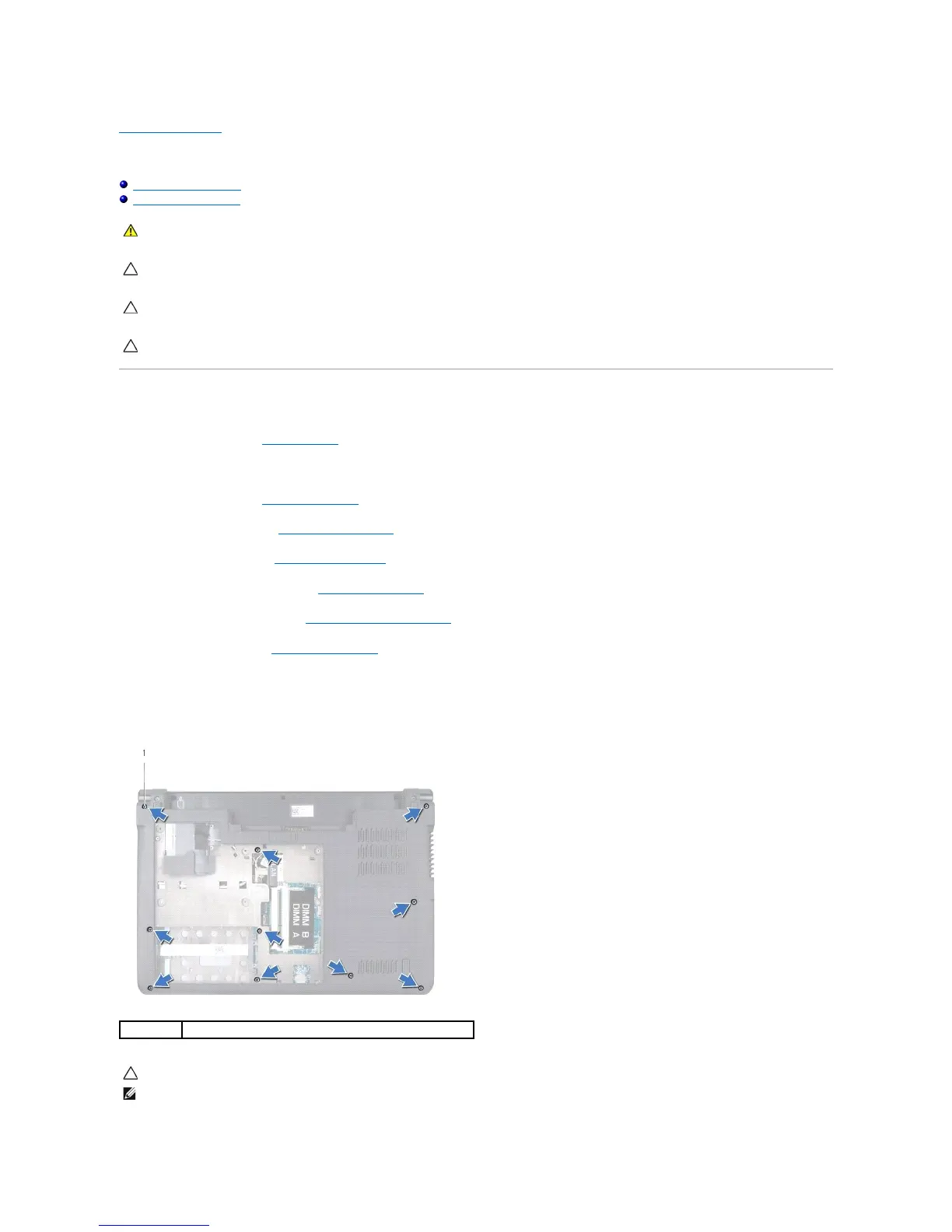
10. Remove the ten screws from the base of the computer.
WARNING: Before working inside your computer, read the safety information that shipped with your computer. For additional safety best
practices information, see the Regulatory Compliance Homepage at www.dell.com/regulatory_compliance.
CAUTION: To avoid electrostatic discharge, ground yourself by using a wrist grounding strap or by periodically touching an unpainted metal
surface (such as a connector on your computer).
CAUTION: Onlyacertifiedservicetechnicianshouldperformrepairsonyourcomputer.DamageduetoservicingthatisnotauthorizedbyDell™
is not covered by your warranty.
CAUTION: To help prevent damage to the system board, you must remove the battery from the battery bay before you begin working inside the
computer.
CAUTION: Pull on the plastic tab on top of the connectors to avoid damaging the connectors.
NOTE: Make note of the cable routing before disconnecting the cables.




 To Next Page