34 Quick Reference Guide
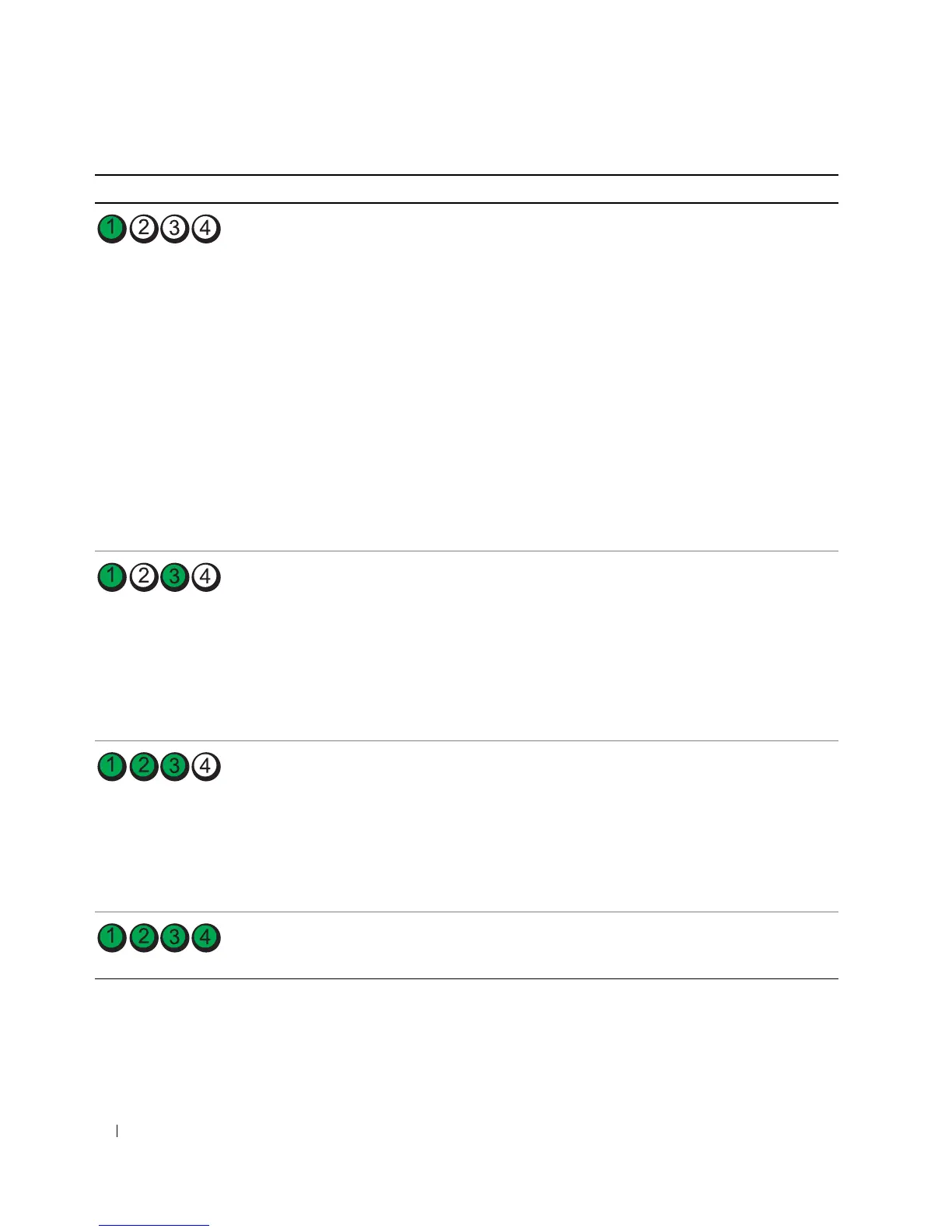
No memory modules are detected.
• If you have one memory module installed,
reinstall it and restart the computer. For
information on reinstalling memory
modules, see your online
User’s Guide
.
• If you have two or more memory modules
installed, remove the modules, reinstall one
module, and then restart the computer. If
the computer starts normally, reinstall an
additional module. Continue until you
have identified a faulty module or
reinstalled all modules without error.
• If available, install properly working
memory of the same type into your
computer.
• If the problem persists,
contact Dell
. For
information on contacting Dell, see your
online
User’s Guide
.
Memory modules are detected, but a memory
configuration or compatibility error exists.
• Ensure that no
special memory
module/memory connector placement
requirements
exist.
• Verify that the
memory modules
that you
are installing are compatible with your
computer.
• If the problem persists,
contact Dell
. For
information on contacting Dell, see your
online
User’s Guide
.
A failure has occurred.
This pattern also displays when you enter
system setup and may not indicate a
problem.
• Ensure that the cables are properly
connected to the system board from the
hard drive, CD drive, and DVD drive.
• Check the computer message that appears
on your monitor screen.
• If the problem persists,
contact Dell
. For
information on contacting Dell, see your
online
User’s Guide
.
After POST is complete, all four diagnostic
lights turn green briefly before turning off to
indicate a normal operating condition.
None.
Light Pattern Problem Description Suggested Resolution




 To Next Page