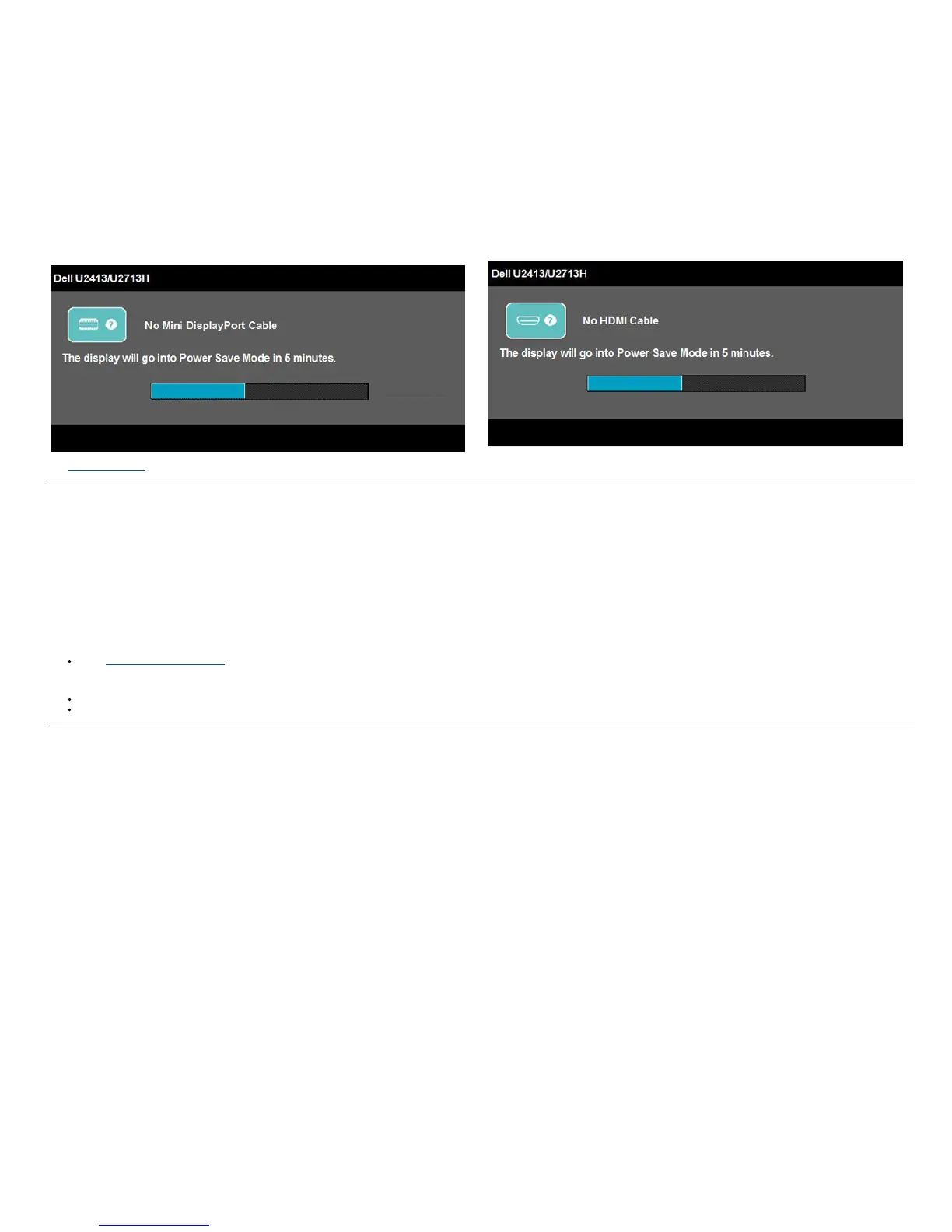
or
See Solving Problems
for more information.
Setting the Maximum Resolution
To set the maximum resolution for the monitor:
In Windows Vista
®
, Windows
®
7 , Windows
®
8:
1. For Windows® 8 only, select the Desktop tile to switch to classic desktop.
2. Right-click on the desktop and click Screen resolution.
3. Click the Dropdown list of the Screen resolution and select 1920 x 1200 (U2413) or 2560 x 1440 (U2713H).
4. Click OK.
If you do not see the recommended resolution as an option, you may need to update your graphics driver. Depending on your computer, complete one of the following procedures:
If you have a Dell desktop or portable computer:
Go to http://support.dell.com, enter your service tag, and download the latest driver for your graphics card.
If you are using a non-Dell computer (portable or desktop):
Go to the support site for your computer and download the latest graphic drivers.
Go to your graphics card website and download the latest graphic drivers.





 To Next Page