36 | Operating the Monitor
Front Panel Button
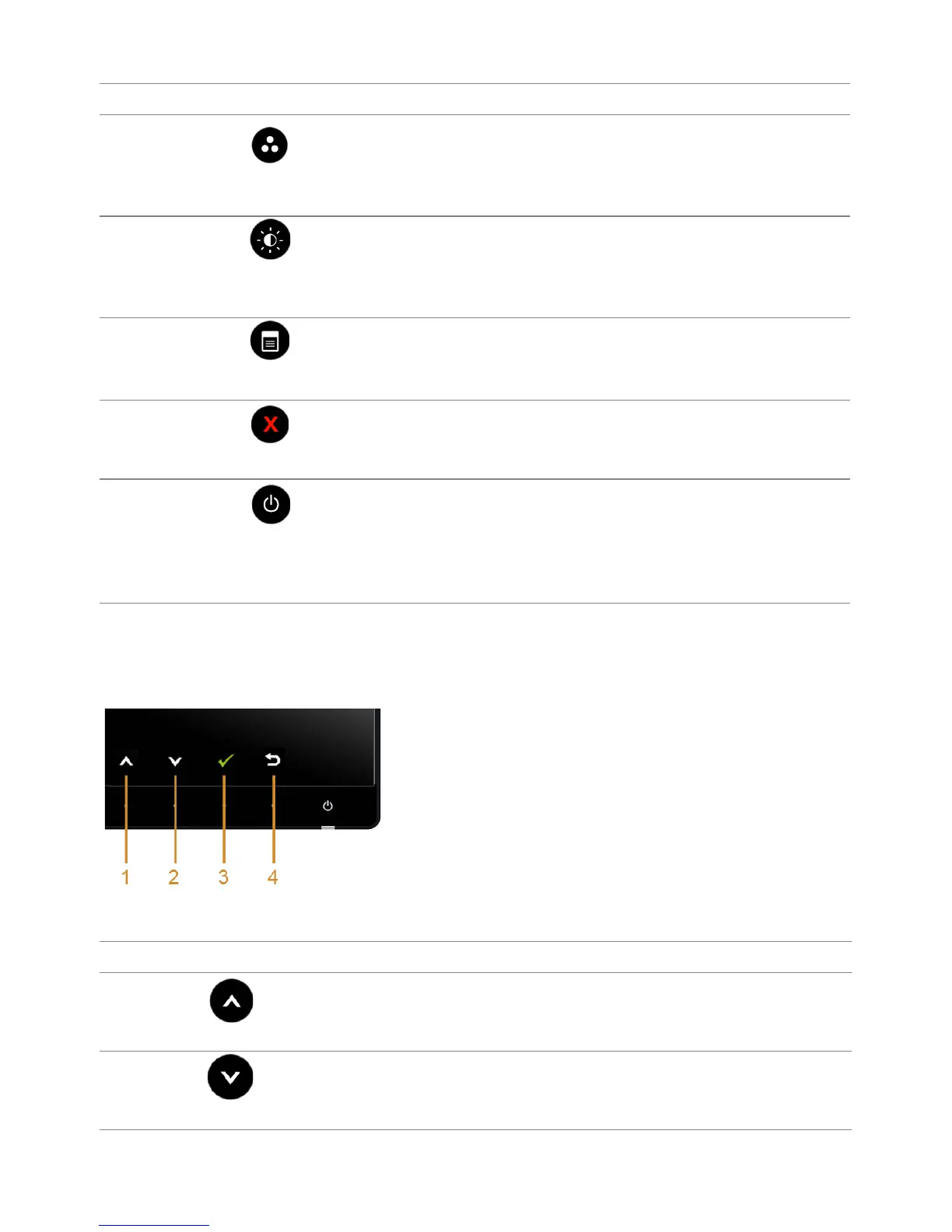
Use the buttons on the front of the monitor to adjust the image settings.
Front Panel Button Description
1
Shortcut key/
Preset Modes
Use this button to choose from a list of preset color modes.
2
Shortcut key/
Brightness/Contrast
Use this button to directly access the Brightness/Contrast
menu.
3
Menu
Use the MENU button to launch the On-Screen Display
(OSD) and select the OSD Menu. See
Accessing the Menu
System.
4
Exit
Use this button to go back to the main menu or exit the OSD
main menu.
5
Power
(with power light
indicator)
Use the Power button to turn the monitor On and Off.
The white light indicates the monitor is On and fully
functional. A glowing white light indicates the power save
mode.
Front Panel Button Description
1
Up
Use the Up button to adjust (increase ranges) items in the OSD menu.
2
Down
Use the Down button to adjust (decrease ranges) items in the OSD
menu.





 To Next Page