OSD Menu
16
OSD Menu
Hearing Impaired: You can switch on the hearing impaired feature, this provides additional
information and subtitles
CI Info: Pay per view services require a “smartcard” to be inserted into the
Timer: Set up Menu for Timer, please see the “EPG” .
TV.
If you subscribe to a pay per view service the provider will issue you with a ‘CAM’ and a
“smartcard”. The CAM can then be inserted into the COMMON INTERFACE PORT
(CI Card In).
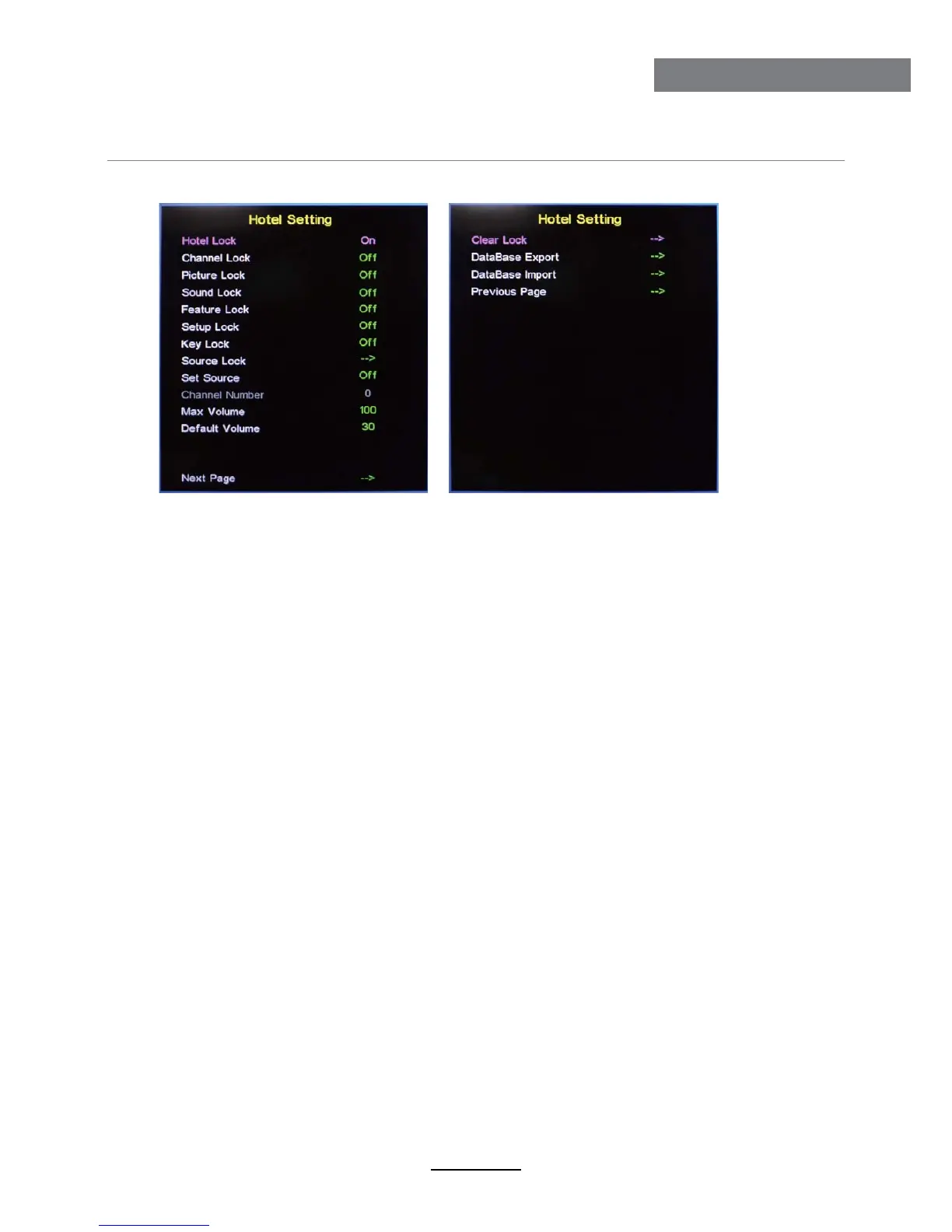
Hotel Mode - Enter the Hotel Setting menu.
Language: Lets you adjust the different language options available.
Clock: Allows you to set the clock (as default the information is taken automatically from the
digital signal).
Sleep Timer: Lets you set the sleep timer so the television automatically switches off after a
certain amount of time.
Auto Power Off: The TV will switch off itself automatically if no change in status within the
time you select. You can choose 1H, 2H, 4H or off.
Hotel Lock: Turn on/off the Hotel Lock function.
Channel Lock: Disable the Channel menu in OSD.
Picture Lock: Disable the Picture menu in OSD.
Sound Lock: Disable the Sound menu in OSD.
Feature Lock: Disable the Feature menu in OSD.
Setup Lock: Disable the Setup menu in OSD.
Key Lock: Disable the buttons on the TV set.
Source Lock: Disable the input source you desired.
Set Source: Select the default source when you turn on the TV.
Channel Number: Select the default channel number when you
turn on the TV.
Max Volume: Set the Max volume for the TV.
Default Volume: Set the default volume when the program is on.
Clear Lock: Clear all the locks above, it means set all the locks to
OFF and max volume to 100.
Database Export: Export all Hotel Settings to the USB device.
Database Import: Import all Hotel Settings from the USB device.
Previous Page: Select Previous Page items, press the ok button to return to the previous page.



 To Next Page