- 26 -
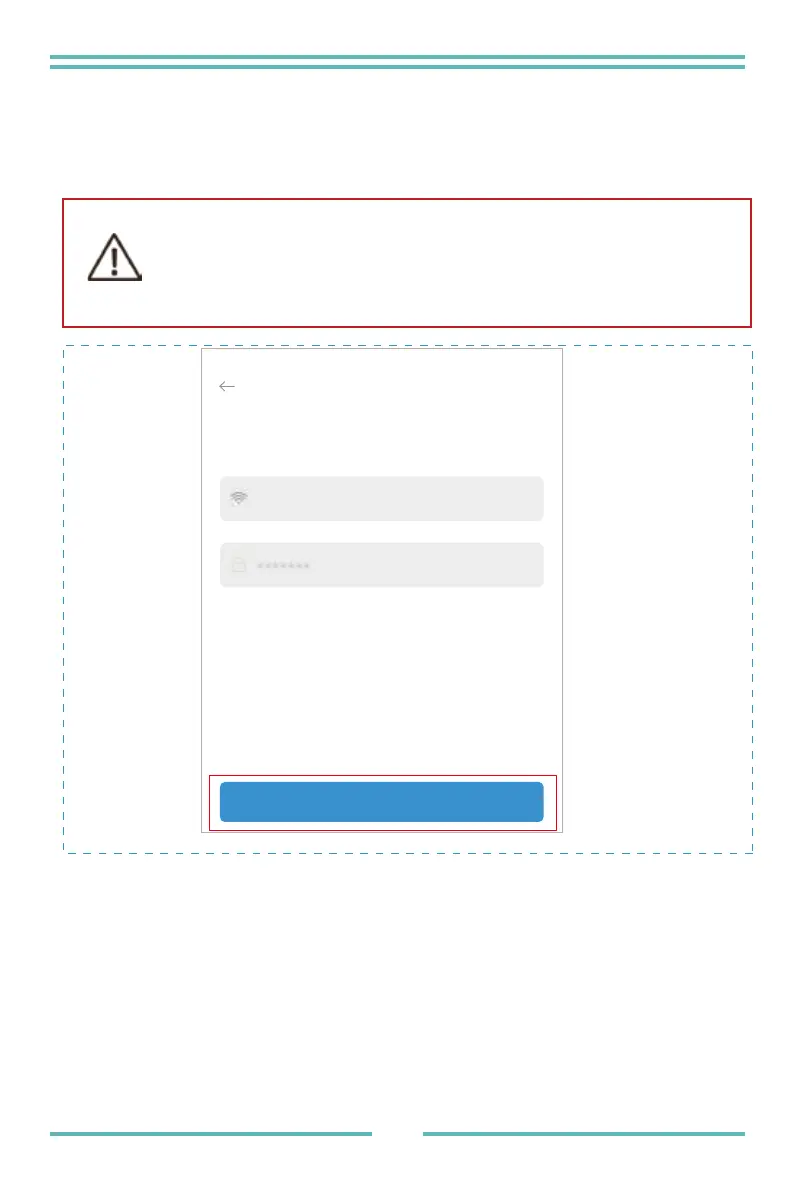
Step 1:Confirm Wi-Fi Info
Please make sure your phone has connected to the right WiFi network. And click "Start
to configure".
Notice:
5G WiFi is not supported .
Special characters (e.g. ,;‘’ =” ” `) in router name
and password are not supported.
Step 2:Connect to AP network
Click " Go to connect" and find the right "AP_XXXXXXXXXX" network (XXXXXXXXXX
refers to logger SN).
The password is required, please input "12345678".
Go back to SOLARMAN Smart APP after connecting to AP network.
SN:2312423
Password
App_only
5G frequency band is not supprted.
Please connect to 2.4G frequency band.
Change network
Start to configure


 To Next Page