Menus (Cont.)
Figures and numbers
•Pressthe“123”button.Youcanthenpressthe“~\{”buttonformorechoices.
Frequently used symbols
•Pressandholdthesymbolbuttontoenteranalternatesymbol,whichwillbedisplayed
in blue above it.
•Toselectthespecialcharactersshowningreyinthetoprightcornerofletters,press
the shift key and click the letter key.
Mouse/trackpad
This allows you adjust the pointer speed of any attached mouse or trackpad device.
System settings
Date and time
When the internet is connected, turn on “Automatic date & time”, the device can obtain
the real date and time from the internet.
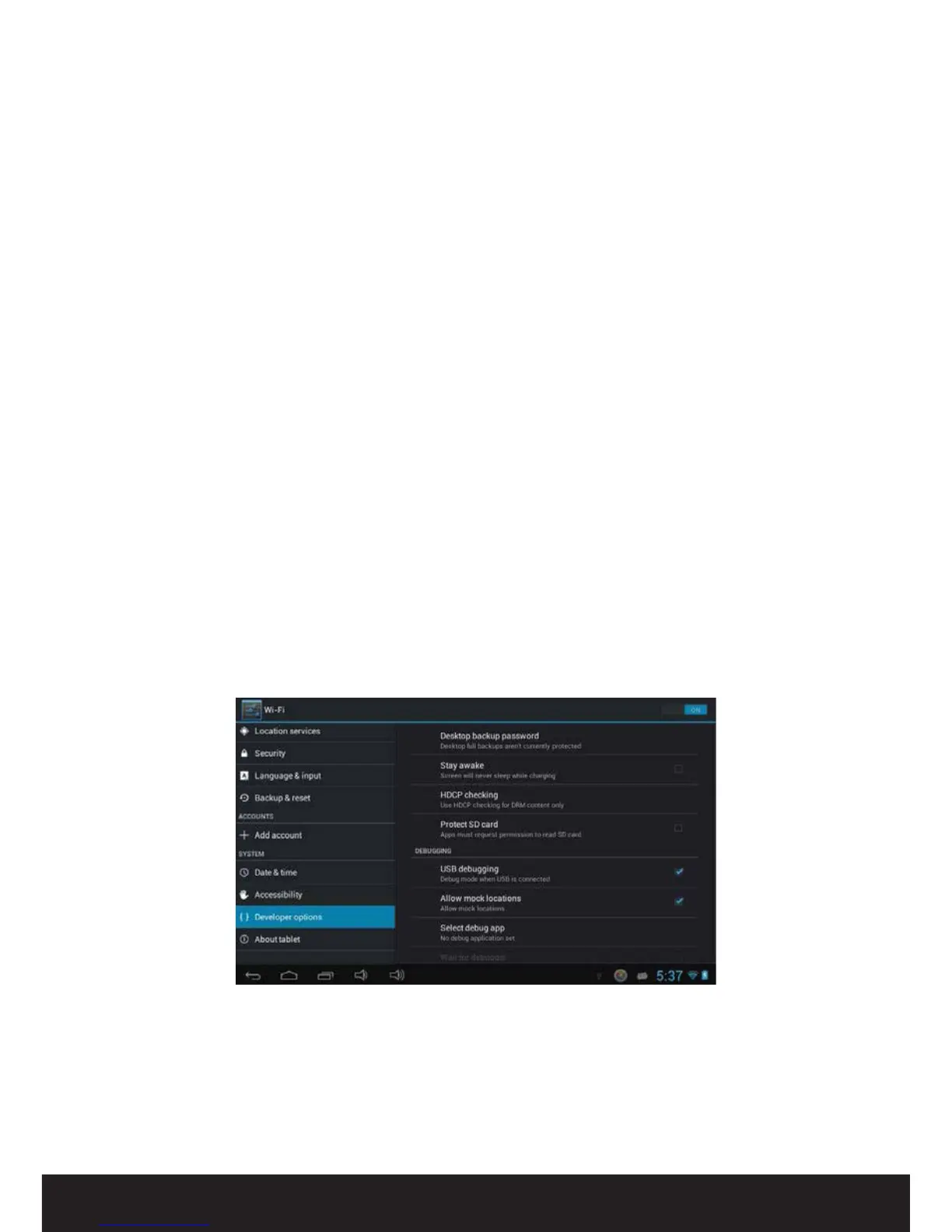
Developer options
NOTE: This section contains settings for advanced Android users only, such as
application developers. By default all settings in this area are set to “O”.


 To Next Page