Page 40
Settings Menu
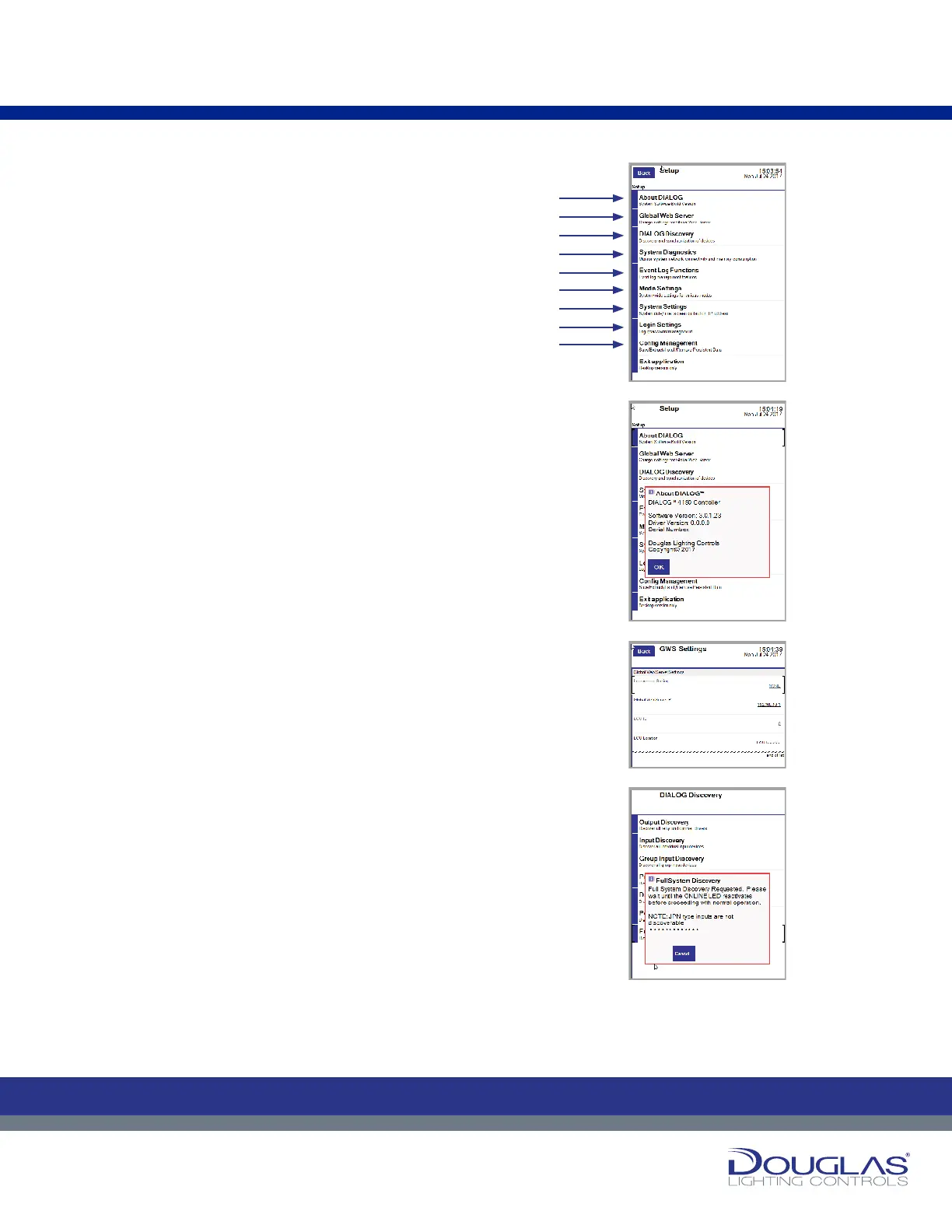
The Settings menu has ten submenus. You access the conguration
for each of these submenus by selecting the corresponding button:
1. Settings > About DIALOG
®
2. Settings > Global Web Server*
BACnet Settings*
3. Settings > DIALOG
®
Discovery
4. Settings > System Diagnostics
5. Settings > Event Log Functions
6. Settings > Mode Settings
7. Settings > System Settings
8. Settings > Login Settings
9. Settings > Cong Management
1. The About DIALOG
®
screen provides information about the
system software including version number, driver version,
serial number for the LCU, and system startup.
2. The Global Web Server screen allows you to change global
web server settings. These settings should be changed only
by the system technician.
The BACnet settings allow for conguration of the WLC-4150
on the BACnet IP Bus. This includes the BACnet Device
ID (default: 4150) & BACnet Port (default: 47808). BACnet
interfacing give the BMS team the ability to turn lights ON/
OFF/DIM via Groups, Presets, and Individual.*
3. The DIALOG
®
Discovery allows the user to direct the LCU
to perform a discovery check to locate and list all input
and output devices connected to the network. The LCU
automatically performs this type of check when the system is
started. If any devices are added after the initial startup, this
functionality is used to discover the new devices. You can
specify to discover only certain types of devices or perform
a full-system discovery.
*Only applies to the WLC-4150-C
Schedules
39
Dialog® Lighting Control System
The Settings menu has ten submenus. You access the conguration for each of
these submenus by selecting the corresponding button:
1. Settings > About DIALOG
®
2. Settings > Global Web Server
3. Settings > DIALOG
®
Discovery
4. Settings > System Diagnostics
5. Settings > Event Log Functions
6. Settings > Mode Settings
7. Settings > System Settings
8. Settings > Login Settings
9.
10. Settings > Exit Application
1. The About DIALOG
®
screen provides information about the system software
including version number, driver version, serial number for the LCU, and
system startup.
2. The Global Web Server screen allows you to change global web server
settings. These settings should be changed only by the system technician.
3. The DIALOG
®
Discovery allows the user to direct the LCU to perform a
discovery check to locate and list all input and output devices connected
to the network. The LCU automatically performs this type of check when
the system is started. If any devices are added after the initial startup, this
functionality is used to discover the new devices. You can specify to discover
only certain types of devices or perform a full-system discovery.
Settings
Settings Menu
C
M
Y
CM
MY
CY
CMY
K
39
Dialog® Lighting Control System
The Settings menu has ten submenus. You access the conguration for each of
these submenus by selecting the corresponding button:
1. Settings > About DIALOG
®
2. Settings > Global Web Server
3. Settings > DIALOG
®
Discovery
4. Settings > System Diagnostics
5. Settings > Event Log Functions
6. Settings > Mode Settings
7. Settings > System Settings
8. Settings > Login Settings
9.
10. Settings > Exit Application
1. The About DIALOG
®
screen provides information about the system software
including version number, driver version, serial number for the LCU, and
system startup.
2. The Global Web Server screen allows you to change global web server
settings. These settings should be changed only by the system technician.
3. The DIALOG
®
Discovery allows the user to direct the LCU to perform a
discovery check to locate and list all input and output devices connected
to the network. The LCU automatically performs this type of check when
the system is started. If any devices are added after the initial startup, this
functionality is used to discover the new devices. You can specify to discover
only certain types of devices or perform a full-system discovery.
Settings
Settings Menu
C
M
Y
CM
MY
CY
CMY
K
39
Dialog® Lighting Control System
The Settings menu has ten submenus. You access the conguration for each of
these submenus by selecting the corresponding button:
1. Settings > About DIALOG
®
2. Settings > Global Web Server
3. Settings > DIALOG
®
Discovery
4. Settings > System Diagnostics
5. Settings > Event Log Functions
6. Settings > Mode Settings
7. Settings > System Settings
8. Settings > Login Settings
9.
10. Settings > Exit Application
1. The About DIALOG
®
screen provides information about the system software
including version number, driver version, serial number for the LCU, and
system startup.
2. The Global Web Server screen allows you to change global web server
settings. These settings should be changed only by the system technician.
3. The DIALOG
®
Discovery allows the user to direct the LCU to perform a
discovery check to locate and list all input and output devices connected
to the network. The LCU automatically performs this type of check when
the system is started. If any devices are added after the initial startup, this
functionality is used to discover the new devices. You can specify to discover
only certain types of devices or perform a full-system discovery.
Settings
Settings Menu
C
M
Y
CM
MY
CY
CMY
K
39
Dialog® Lighting Control System
The Settings menu has ten submenus. You access the conguration for each of
these submenus by selecting the corresponding button:
1. Settings > About DIALOG
®
2. Settings > Global Web Server
3. Settings > DIALOG
®
Discovery
4. Settings > System Diagnostics
5. Settings > Event Log Functions
6. Settings > Mode Settings
7. Settings > System Settings
8. Settings > Login Settings
9.
10. Settings > Exit Application
1. The About DIALOG
®
screen provides information about the system software
including version number, driver version, serial number for the LCU, and
system startup.
2. The Global Web Server screen allows you to change global web server
settings. These settings should be changed only by the system technician.
3. The DIALOG
®
Discovery allows the user to direct the LCU to perform a
discovery check to locate and list all input and output devices connected
to the network. The LCU automatically performs this type of check when
the system is started. If any devices are added after the initial startup, this
functionality is used to discover the new devices. You can specify to discover
only certain types of devices or perform a full-system discovery.
Settings
Settings Menu
C
M
Y
CM
MY
CY
CMY
K
Settings Menu:
1.
2.
3.
4.
5.
6.
7.
8.
9.


 To Next Page
 Loading...