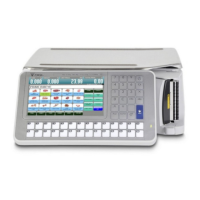
4. Insert a new label/receipt roll and then setting cassette For SM5300P
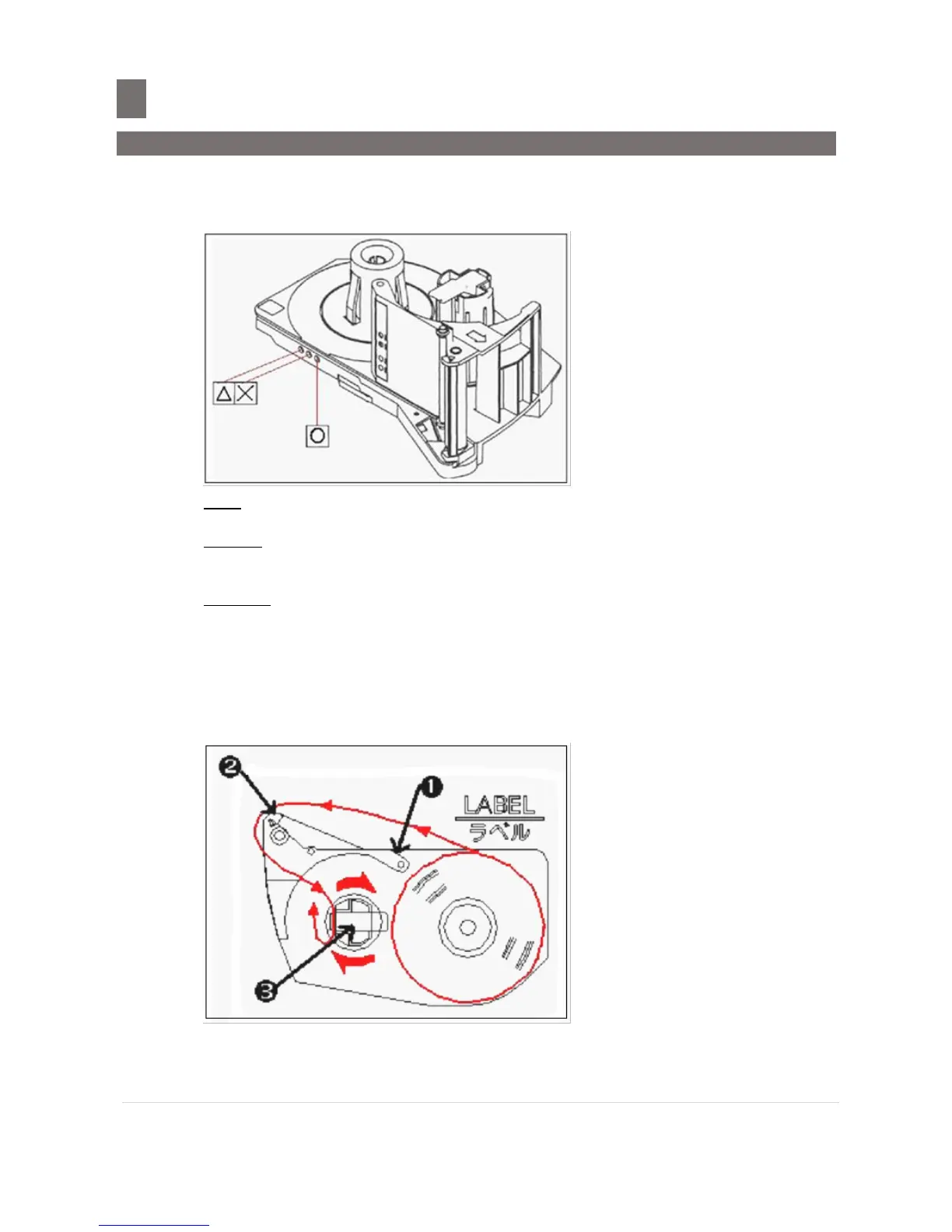
a. Set the cassette a label, receipt or linerless as per diagram below:
Note: Can skip this step if have set the cassette
Label: (∆ ×)
This sticker is paste and set as the default factory setting.
Receipt: (O)
This sticker is given together with the accessory items, for customer to set as an option.
Paste the sticker to the third hole without removing the original label sticker.
Linerless: (∆ O)
This sticker (O) is given together with the accessory items, for customer to set as an
option. Paste the sticker to the ∆ third hole and remove the middle (×, original) label
sticker.
b. For label, take the end of the label and run it across guide [1] and above dispenser [2]
and set back paper in reel [3], and turn the reel clockwise direction to tighten the label
paper tension. Refer to the diagram below:



 To Next Page
 Loading...