12
Removing the driver under Windows XP and
Windows Server 2003
• Open the Windows Control Panel and double-click on the
Add/Remove Software icon.
• Select Digigram HR Runtime …, and Change/Remove.
• Select Remove in the “HR Runtime” window.
• Follow the instructions to finish the driver removal.
Removing the driver under Windows Vista, Windows
Server 2008, and Windows 7
• Open the Windows Control Panel and double-click on the
Programs and Features icon.
• Select “Digigram HR Runtime for Vista…”, and Change/Remove.
• Select Remove in the HR Runtime window.
• Follow the instructions to finish removing the driver.
How to check the installation
Once the cards and the driver have been installed according to the procedure
described in this manual, you can verify that the card is properly installed and
works fine as follows:
• Menu <Start> <Settings> <Control panel>, <Sound and
Multimedia>, tab “Audio”, Default device (Playback device,
Recording device). The card’s channels can be selected. The card can
be used with any DirectSound application.
• The card is also visible via the np interface: go to <Start>
<Programs> <Digigram> and select <Digigram Control Center>.
• In the “Digigram drivers” window, select the ‘General
Information’ tab.
In the “Modules Information” window, you can see the HR
Runtime modules that have been installed, and their versions.
• In the “Digigram drivers” window, select the ‘Diagnostics’
tab.
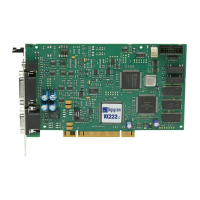
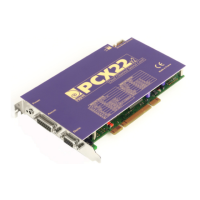
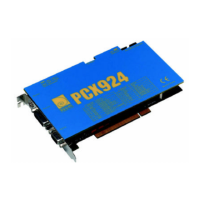
You should see here the icons of the cards you have installed.


 To Next Page