4. Accessing the local web setup interface
Connecting to the encoder’s local web
setup interface
There are two different ways to access the local web interface:
1. Using an automatic Wi-Fi hotspot that is created on new encoders that
have no configuration
(useful for setting up and configuring new units quickly)
2. Connecting a PC directly to one of the encoder’s LAN ports
(the normal method for configuring an encoder)
4.1.1 Option 1: Using a laptop via the on-board Wi-Fi hotspot
A new unit with no configuration (or a factory-reset unit) will create a temporary Wi-Fi Access Point when it
is powered up for the first time. The purpose of this Wi-Fi network is to allow Wi-Fi enabled computers to
connect to the encoder and configure the device.
(This hotspot will remain active for 30 minutes.)
1. On a PC, search for a Wi-Fi Access Point Name in the form XXX-YYYYYYYYY
(where X equals the model number, and YYYYYYYYY matches the first part of the encoder’s serial
number)
2. Connect to the network, using password as the Wi-Fi password
3. Open a web browser on the setup laptop/PC and enter the following URL: http://192.168.100.1.
4.1.2 Option 2: Using a laptop via a LAN interface
To access the local web interface, ensure that the setup laptop/PC can connect to the device:
1. Connect your PC to one of the network ports on the encoder (or via a supported USB to Ethernet
adapter). IP Address of the selected port:
IP200: LAN – 192.168.10.1 USB Ethernet – 192.168.12.1
2. On the PC open the IPv4 network configuration page for the PC’s Ethernet port.
(If necessary refer to these instructions: http://alturl.com/m7zr7)
3. Select the Use the following IP address radio button and enter these settings in the following
two fields:
IP address: 192.168.X.2 (where X is taken from the IP Address of the selected port in Step
1)
Subnet mask: 255.255.255.0 and then
click OK to apply.
4. Open a web browser on the setup laptop/PC and
enter the following URL: http://192.168.X.1
(where X is the same as the IP Address of the
selected port in Step 1 – e.g. 192.168.10.1)
4.1.3 Logging into the setup web interface
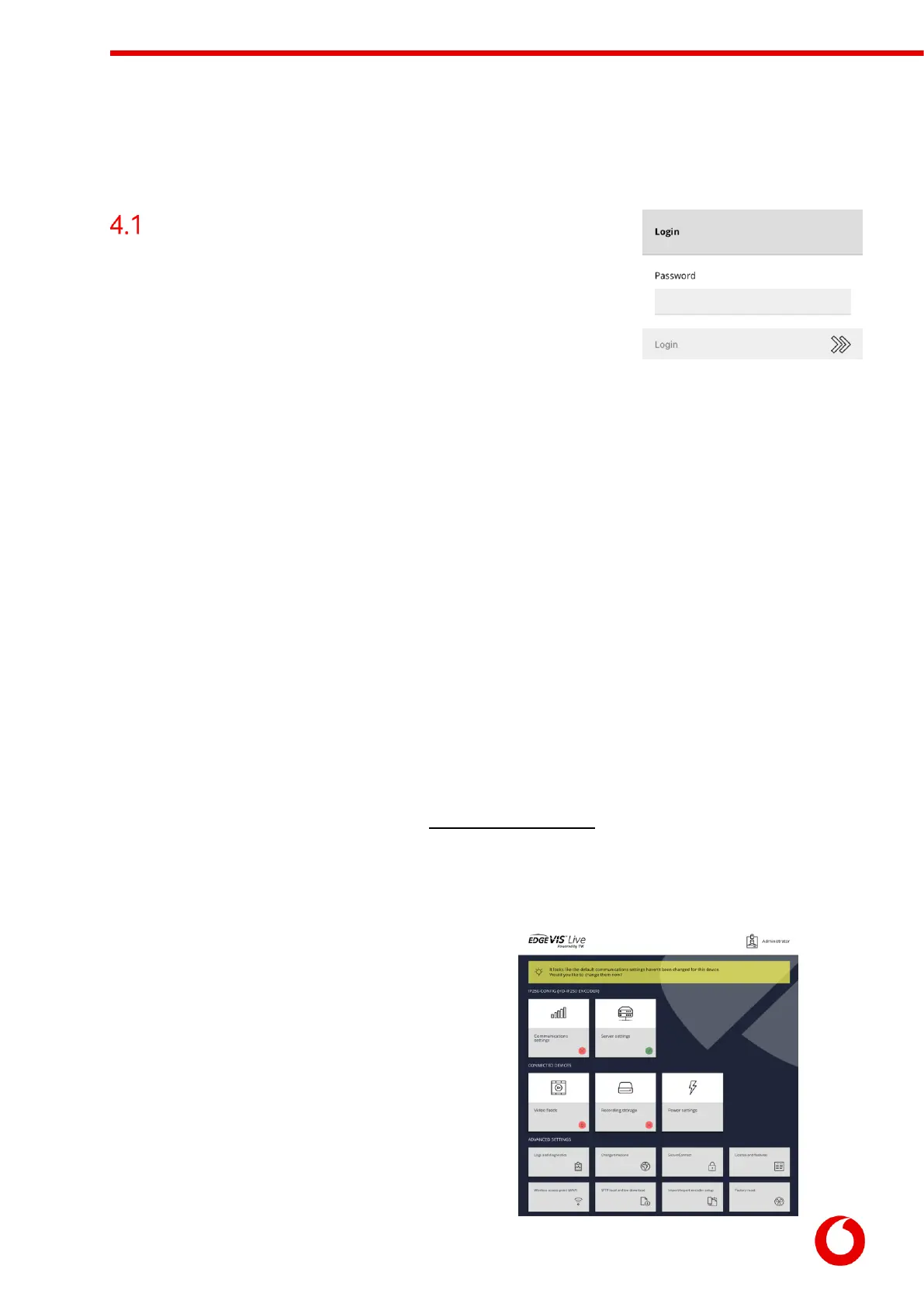
Regardless of the method used, the web browser should
now show the login screen for the encoder .



 To Next Page