EasyManua.ls Logo

Digital Barriers EDGEVIS HD-IP150 - User Manual

Digital Barriers EDGEVIS HD-IP150
14 pages
Print Icon
To Next Page IconTo Next Page
Loading...
ã Copyright 2020 Digital Barriers plc
EDGEVIS HD-IP150
HARDWARE INSTALLATION GUIDE
VERSION 8.0 NOVEMBER 20
Thank you for purchasing the EdgeVis HD-IP150. This document explains how to physically configure the HD-IP150. As
well as identifying the available connectors and status indicators on the device, it also details how to add your desired
SIM card to it. This document should be read in conjunction with the IP Series, HD-Q800, 4K-R800 - Setup Guide,
which covers the web-based setup interface for all devices in the IP Series range, including the HD-IP150.
Question and Answer IconNeed help?

Do you have a question about the Digital Barriers EDGEVIS HD-IP150 and is the answer not in the manual?

Overview

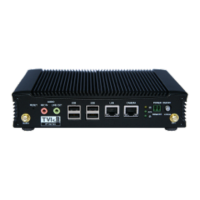
The EdgeVis HD-IP150 is a compact and robust device designed for fixed installations, primarily for recording and live streaming video from a single IP camera. It features integral TVI streaming capabilities, utilizing an internal 4G modem, an external Wi-Fi adapter, or a wired LAN connection. The device also supports archiving onto a built-in SSD/HDD.

Function Description

The primary function of the HD-IP150 is to act as an encoder, capturing video from an IP camera and streaming it to an EdgeVis Server, which then makes it available to EdgeVis Clients. It supports continuous recording or recording triggered by an alarm. The unit can be configured to automatically overwrite old recordings or stop when the storage is full.

Important Technical Specifications

Power and Environment:

  • Power Supply: Designed to operate from a 12V DC supply. An AC/DC adapter is supplied for mains power connection.
  • Operating Temperature: 0°C to +55°C.
  • Mounting Restrictions: Should not be mounted within explosive zones, within 0.5m of a powered transmitter/receiver antenna, within a vehicle's engine bay/compartment, or within 1m of a vehicle fuel fill point (direct line of sight).
  • Power Precautions: Do not connect directly to mains supply. Ensure supply is within specified voltage range with suitable filtering for voltage spikes. Do not reverse DC power supply polarity. Always provide a common ground between the unit and connected equipment.

Video and Recording:

  • Camera Support: Supports up to two cameras for recording, and can transmit video from one of those cameras.
  • Recording Performance: Achieves 25/30 fps of 1080p quality recording while simultaneously streaming one 1080p quality video at 10 fps.
  • Storage: Supports an internal Solid State Disk (SSD) or Hard Disk Drive (HDD). SSD is recommended for vehicle-based applications due to greater reliability. The disk can only be removed when the unit is powered off. External USB disks can also be used for storage.
  • Indicative Recording Times (Two Cameras, Typical Settings):
    • 480GB SSD:
      • 1 fps (1.4 Mbps): 16 days
      • 6.25 fps (3 Mbps): 8 days
      • 12.5 fps (5 Mbps): 4 days
      • 25 fps (7 Mbps): 3 days
    • 960GB SDD:
      • 1 fps (1.4 Mbps): 32 days
      • 6.25 fps (3 Mbps): 16 days
      • 12.5 fps (5 Mbps): 8 days
      • 25 fps (7 Mbps): 6 days
    • SD Cameras (Two Cameras, Typical Settings):
    • 480GB SSD:
      • 1 fps (100Kbps): 200 days
      • 6.25 fps (250 Kbps): 80 days
      • 12.5 fps (500 Kbps): 40 days
      • 25 fps (1 Mbps): 20 days
    • 960GB SDD:
      • 1 fps (100Kbps): 100 days
      • 6.25 fps (250 Kbps): 40 days
      • 12.5 fps (500 Kbps): 20 days
      • 25 fps (1 Mbps): 10 days

Connectivity:

  • LAN Ports: Two LAN ports (LAN1 and LAN2) for connecting IP cameras and wired server connections. Default IP addresses are pre-configured (LAN1: 192.168.10.1, LAN2: 192.168.11.1, USB Ethernet: 192.168.12.1, all with subnet mask 255.255.255.0).
  • Cellular: Inbuilt 4G/LTE cellular modem with a 3G/4G antenna connector on the front. Requires a valid mobile SIM card.
  • Wi-Fi: Supports Wi-Fi communication via an external USB Wi-Fi Dongle (supplied).
  • USB Ports: One USB 3.0 port (recommended for external disk) and two USB 2.0 ports (for keyboard, mouse, etc.).
  • Video Output: HDMI video connector and VGA video connector on the rear panel.
  • Audio: Microphone input connector and Audio Line output connector on the front panel.
  • Serial Ports: Two RS232 ports (COM1 and COM2) on the rear panel.
  • Digital I/O: Digital I/O connector on the rear panel.
  • GPS: GPS antenna connector on the front panel.

Physical Dimensions:

  • Width: 198mm
  • Depth: 144.8mm
  • Height: 42mm (excluding feet, 6mm for feet)

Compliance:

  • FCC Compliance: Class B digital device, Part 15 of FCC Rules. Contains FCC Approved radio modules (FCC ID: RI7UC864G and ZCN722MV1) for fixed and mobile applications.
  • CE Compliance: Complies with European Union Directives: Low Voltage Directive 2006/95/EEC, Directive 89/336/EEC for EMC conformity. Radio module complies with R&TTE Directive 99/05/EC.

Usage Features

Initial Setup:

  • Package Contents: EdgeVis HD-IP150 encoder, AC/DC 12V power supply, mains power lead, 2 × 3G/4G antennas, GPS antenna, USB Wi-Fi adapter, and a Quick Start Guide.
  • Architecture: Requires access to an EdgeVis Server with an account created for the encoder.
  • SIM Card Insertion: Involves removing four fixing screws from the bottom plate, lifting the plate, removing a thermal pad, detaching the modem card by removing two screw fixings, pushing the SIM card holder frame, placing the SIM card, closing and locking the holder, reinstalling the modem and thermal pad, and closing the unit. ESD precautions are recommended.
  • Antenna Connection: Connect 3G/4G cellular and GPS antennas to the front of the unit.
  • Powering On/Off: Connect the AC/DC adapter output to the DC input connector on the back. The unit can be remotely powered on/off using a switch connected to the Remote Power Switch Connector.

Configuration:

  • Web Interface: Communication methods (cellular, Wi-Fi, wired LAN) are set up using the HD-IP150 web-interface "Comms Settings" page.
  • IP Camera Connection: Connect IP cameras to the LAN ports using standard Ethernet cables. Cameras should have their own power supply.
  • Network Settings: Network settings for SIM card Mobile Network Service Provider are entered during device setup.
  • Firmware Updates: Firmware can be updated remotely via the EdgeVis Server web interface, locally via the encoder's web interface, or by copying firmware to a USB flash drive and inserting it into a USB port on the front of the unit.

Status Indicators:

  • LEDs: Status LEDs on the top left of the front panel provide visual feedback:
    • Storage: Inactive (off), reading/writing (flashing), N/A (on).
    • 3G/4G: Modem not powered (off), modem powered/connected/transferring data (flashing), modem powered but not transferring data (on).
    • Power: System off (off), N/A (flashing), System on (on).

Maintenance Features

Software Updates:

  • Firmware: New software releases are available for download from the EdgeVis support site.
  • Update Methods:
    • Remote: Upload firmware to the "Firmware" tab in the EdgeVis Server web interface, then select "Upgrade Firmware" from the "Select Action" menu on the desired encoder.
    • Local Web Interface: Use the "Upgrade Firmware" option when logged into the encoder's local web interface.
    • USB Flash Drive: Copy firmware to a USB flash drive, insert it into a USB port (can be done while running or before power-up). The update takes ~10 seconds, followed by four beeps. If the update fails, the encoder will beep continually.

Troubleshooting:

  • Appendix A provides troubleshooting and frequently asked questions, addressing potential hardware issues.
  • The support site (tvi-support.digitalbarriers.com) is available for further assistance and registration.

Digital Barriers EDGEVIS HD-IP150 Specifications

General IconGeneral
BrandDigital Barriers
ModelEDGEVIS HD-IP150
CategoryMedia Converter
LanguageEnglish

Related product manuals