to search for the next valid frequency/
station.
However, before pressing the TUNE
button to search for the next incremental
frequency/station, it is recommended that
you consider setting the current station
as a PRESET. Refer to the sections on
Storing A Preset and Tuning to a
Station Using A Stored Preset.
RDS (Radio Data System Operation
RDS is digital data embedded within the analog
FM radio broadcast. This data may include Genre,
Artist, Time, Station ID, etc. When tuned to a
station containing RDS data, the DRR-103 will
automatically display the relevant information
on the front panel LCD. Note: Broadcasting RDS
data is an option that radio stations may or may
not transmit.
Presets
A Preset for the DRR-103 is defined as an individual
DAB or FM station which is stored for quick and
later recall. Presets are assigned by the user and
are recalled by way of the numeric buttons on the
remote control unit or front panel controls.
Storing A Preset (DAB)
There are two ways to store a DAB Preset using
the Remote Control Unit or front panel controls.
To store a DAB Preset using the Remote Control
Unit or Front Panel controls do the following:
1. Press the Ç or È navigation buttons to
select the station that you want to store as
a Preset.
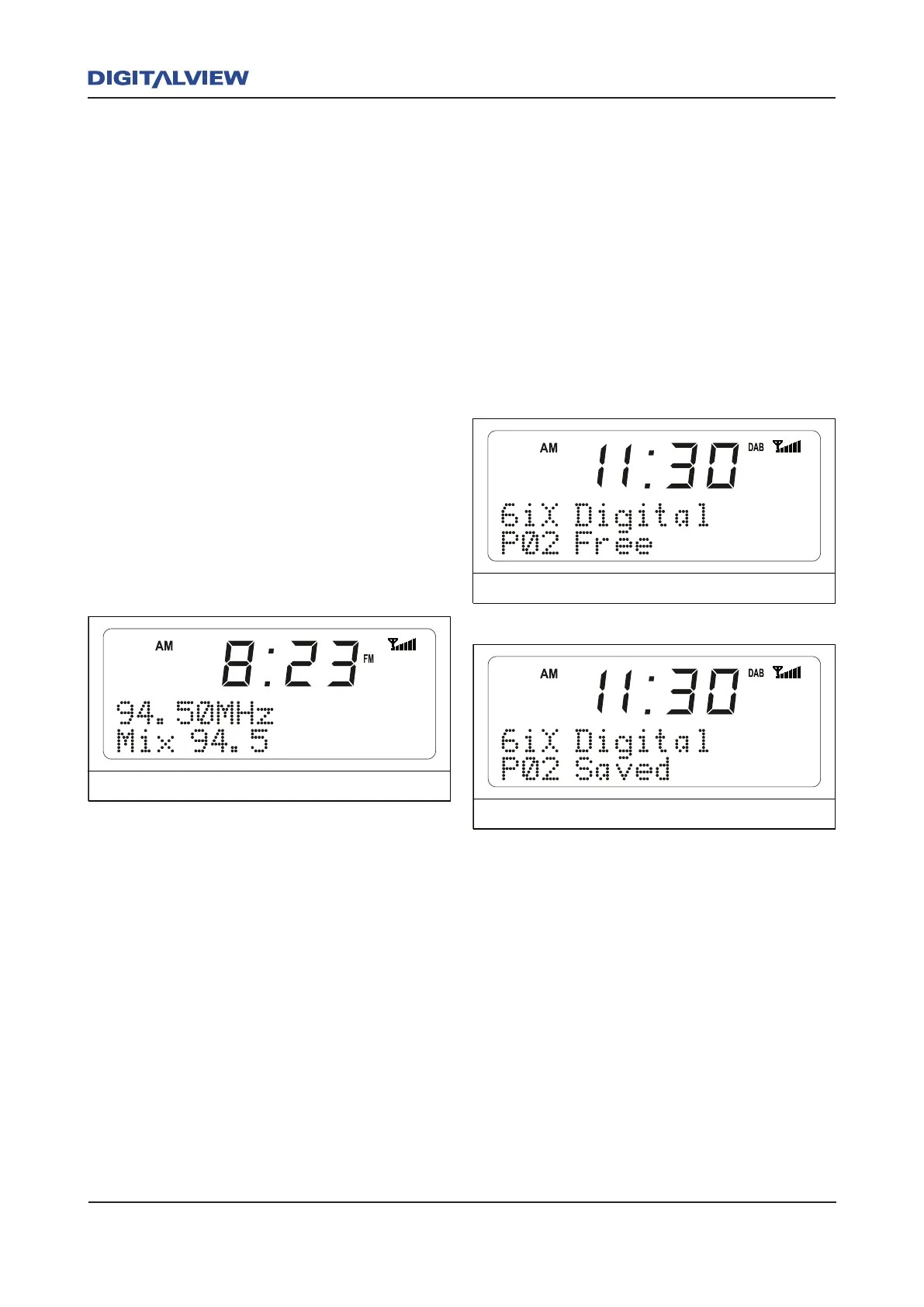
2. Press the Å or Æ to select one of twenty
preset locations displayed. If the Preset
is not programmed, the display shows
"Pxx FREE", (xx is the Preset Number).
While the "Pxx FREE" is flashing, press the
ENTER button to store it as a Preset. The
message "Pxx SAVED" is displayed.
Use any FREE Preset to save up to one of twenty
DAB stations. If the currently selected Preset is
already allocated, but is no longer required, it can
be “overwritten” with a new Preset.
An alternative means of storing a Preset and
using the Remote Control Unit only, uses the
following method. Note that the Preset number
is not displayed before you store a Preset
1. For Preset locations between 1 and 10
– Press and hold the appropriate number
between 1 and 0 (i.e. 1,2,3,4,5,6,7,8,9 0.
0 is Preset 10). These are the first preset
group of ten locations where Presets can
be stored. For Preset Locations between
11 and 20 - Press the 10+ button to
select locations 11-20, as shown on
the front panel LCD. This is the second
preset group of ten locations where
Presets can be stored. Next, press the



 To Next Page