© 2020 Digitrax, Inc. www.digitrax.com
24
24
before the display turns OFF for maximum power save and battery life. Higher
numbers increase LCD brightness and delays.
Option ID8 “Enc=> LCD wake” and ID9 “FnKey=>LCD wake” allow you
customize which input actions will restore LCD display, whilst these actions
still control your locomotives with the LCD OFF.
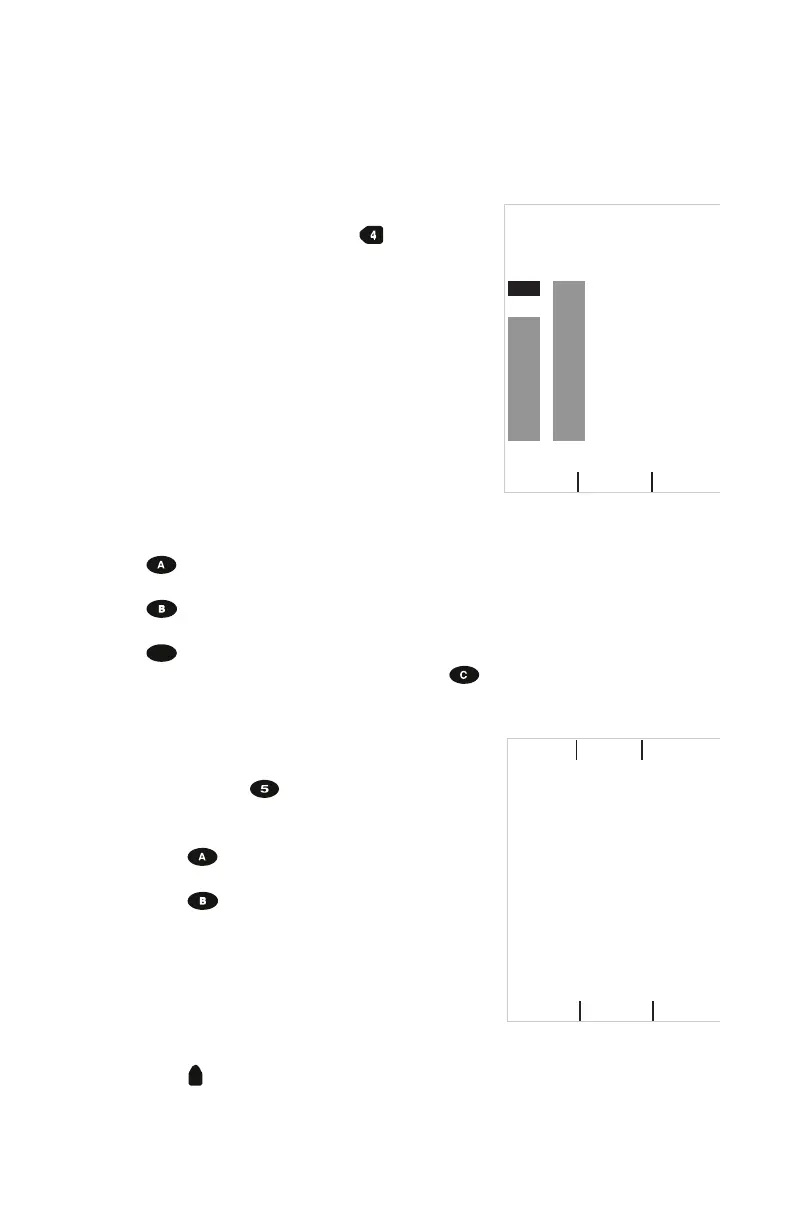
7.3.4 Route Editor
In the Utility Task screen press the key to enter
the Route Editor screen. If your command station
supports LocoNet system routes and these are
enabled you will see the Route Edit screen.
1. The left knob scrolls through each available
Route. The display will show all the route’s
available switch entry numbers and settings in
table form.
2. The right knob scrolls through the Entries of the
selected route and highlights by reversal the cur-
rent entry to edit.
3. The numeric keys allow setting the switch
address for the highlighted entry. Note entry 1 is the “TOP” switch and is
the switch number and direction that triggers this route.
4. The key will toggle the highlighted entries’ switch direction between
Thrown to Closed.
5. The key will ADD a new entry at the current highlighted entry posi-
tion, and push down the following entries.
6. The
Delete key can be used to remove the highlighted entry
7. When the route edit is complete press the key to “Save” it back to the
system. To keep any changes press “Save” before changing Route#.
7.3.5 Duplex RF Scan (DT602D)
While NOT plugged into LocoNet, in the Utility
Task screen press the key to enter the Duplex
Scan screen.
1. Press the key to scan All Duplex channels
(each channel takes about 1 sec to scan),
2. Press the key to scan just the Current duplex
channel,
3. The Duplex networks seen will display, with
highest ten showing: Bars of signal strength,
channel number, and Net name. A following
letter K indicates you will need the 4 digit key to
join that network,
4. Use the encoder knobs to highlight the line with the desired network,
5. Press the
or “Join Net soft key to Join the selected network.
6. Use the number keys to enter the KEY code, if required
EDITING Route# 01 of 64
Entry# TOP of 16
0100c
0224t
Thrown
Add Save
Delete
Bars,Chnl, Name,Scan Ch: 11
86 11 Club_Net K
55 12 My_Net K
34 20 Dtx_4321
ExitCurrentScan All
Join Net


 To Next Page