To program your remote control:
1. See “Programming Your Remote Control” on
page 72.
To place batteries in your remote control:
1. Slide the battery compartment cover
downward to remove it.
2. Insert 2 AA batteries, matching the positive (+)
and negative (–) marks in the compartment.
3. Slide the cover back on.
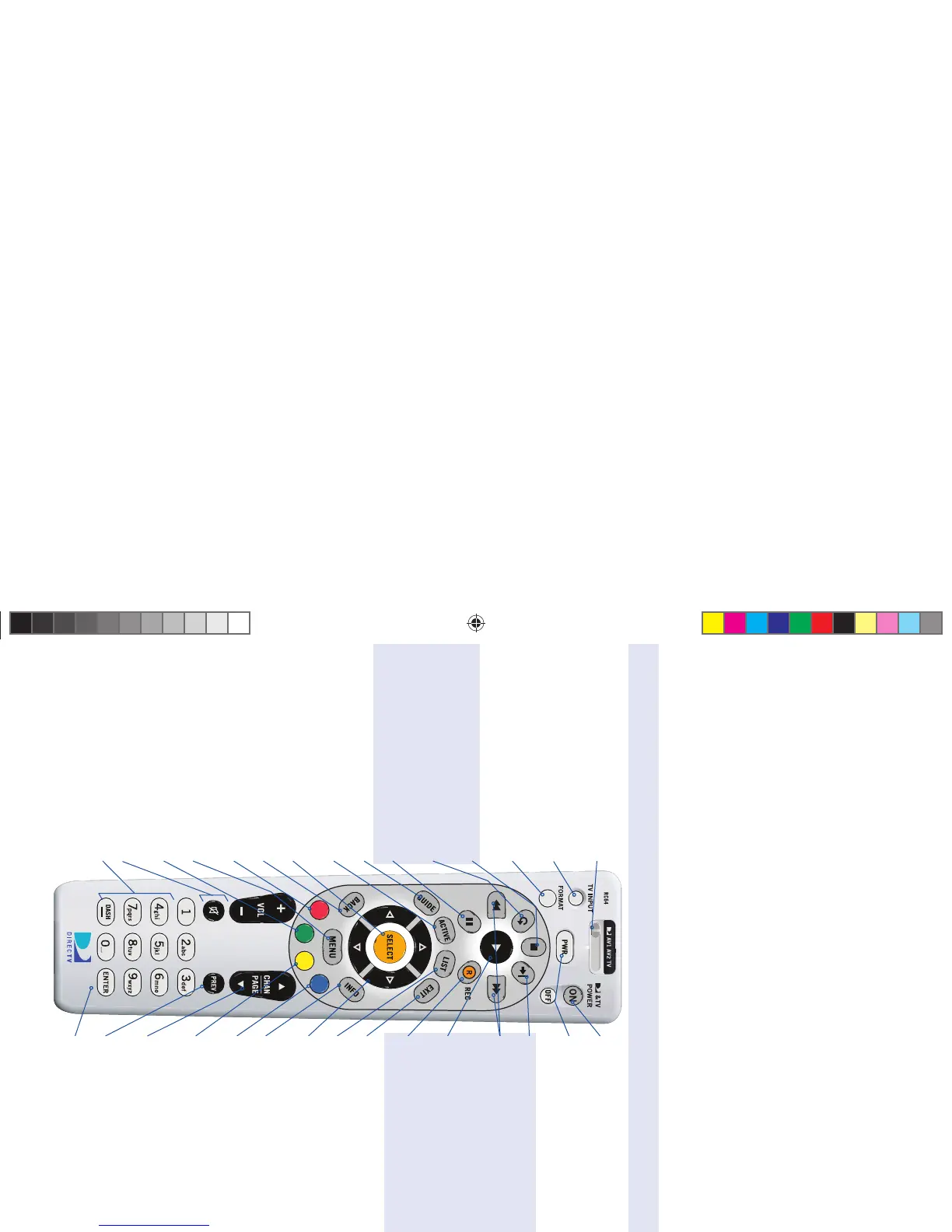
DIRECTV Remote Control Layout
A good way to begin learning about your DIRECTV
®
System is to familiarize yourself with the
remote control. You’ll fi nd further details throughout the User Guide relating to specifi c functions.
Navigating 101
You’ll fi nd you can get around nearly all onscreen menus the same simple way.
Highlight… a menu or button by using the ARROW keys (up, down, left and right). •
Choose it… by pressing SELECT while the item is highlighted.•
Note: Don’t worry about getting stuck in a menu. You can always press EXIT to return to video.
MODE SWITCH
Changes remote to control other equipment, for
example, a DVD
TV INPUT
Changes the “source” — the piece of equipment
whose signal is displayed on your TV
FORMAT
Cycles through HD resolution and screen format
options (not used with DIRECTV Plus DVR)
STOP
In recorded TV, stops playback and displays the
My Playlist™ tab in the Playlist
REPLAY
Jumps back 6 seconds and plays video from that
location
PAUSE
Pauses current video
GUIDE
Displays the onscreen program Guide
ACTIVE
Access the DIRECTV Active™ Channel — local
weather and more!
SELECT
Selects any highlighted item
BACK
Takes you to the screen you visited previously
RED
In Guide, jumps 12 hours back; other functions
vary — look for onscreen hints
MENU
Displays a compact menu of settings and services
GREEN
In Guide, jumps 12 hours forward; other functions
vary — look for hints onscreen
VOLUME & MUTE
NUMBER KEYS & DASH
Tune to a channel directly; also input numbers
when needed in onscreen menus;
Press DASH twice to delete a show in the Playlist
DIRECTV & T V POWER ON/OFF
Turns your TV and DIRECTV Plus DVR on and off
POWER
Turns your DIRECTV Plus DVR and other equipment
on and off, as selected with MODE switch
ADVANCE
Jumps ahead in a recording
FFWD & REWIND
Press up to four times to fast forward or rewind at
increasing speeds (recorded or live-stored video
only); press PLAY to return to normal play
PLAY
Play current video; press and hold for slow motion
RECORD
In Live TV, records current program; in the Guide,
sets one-touch record for highlighted program
EXIT
Exits any menu and returns to last channel viewed
LIST
Displays the My Playlist screen
ARROWS
Move highlight to items in whatever direction
needed
INFO
Displays info for a highlighted or fullscreen program
BLUE
In live TV, displays the Mini Guide; other functions
vary — look for onscreen hints
YELLOW
In fullscreen TV, cycles through alternate audio
tracks; other functions vary — look for onscreen
hints
CHAN/PAGE
In live TV, changes channel up or down; in a menu,
such as the Guide, scrolls page up or down
PREV
Tunes to last channel viewed
ENTER
Activates channel number entries quickly
Keys in the shaded areas below operate your DIRECTV Plus DVR, or can be programmed to function with
your VCR, DVD player or stand-alone DVR unit.
R16 UG Book.indb BackCvrlxxxR16 UG Book.indb BackCvrlxxx 10/29/07 3:05:20 PM10/29/07 3:05:20 PM



 To Previous Page