4-f. Metronome sound type display:
❺
Click and select DEFAULT/
USER → USER kit content display: Click it to add a new USER drum kit picture.
SET LIST → SET LIST kit content display: Click it to add a new SET LIST drum kit picture .
Set List allows you to quickly display your favorite " ★ " drum kits. When you come across a drum kit you like in Default or User, you can click the " ★ " button on
the current drum kit to add it to the Set List. On the Set List page, you can click " ↑↓ " to see your Set List in order, and use " " to adjust the order of your
Set List.
Rapid kit display (picture):
3. Instrument Drum Kit Adjustment and Save Settings
❽
8-a. INSTRUMENT drum kit adjustment
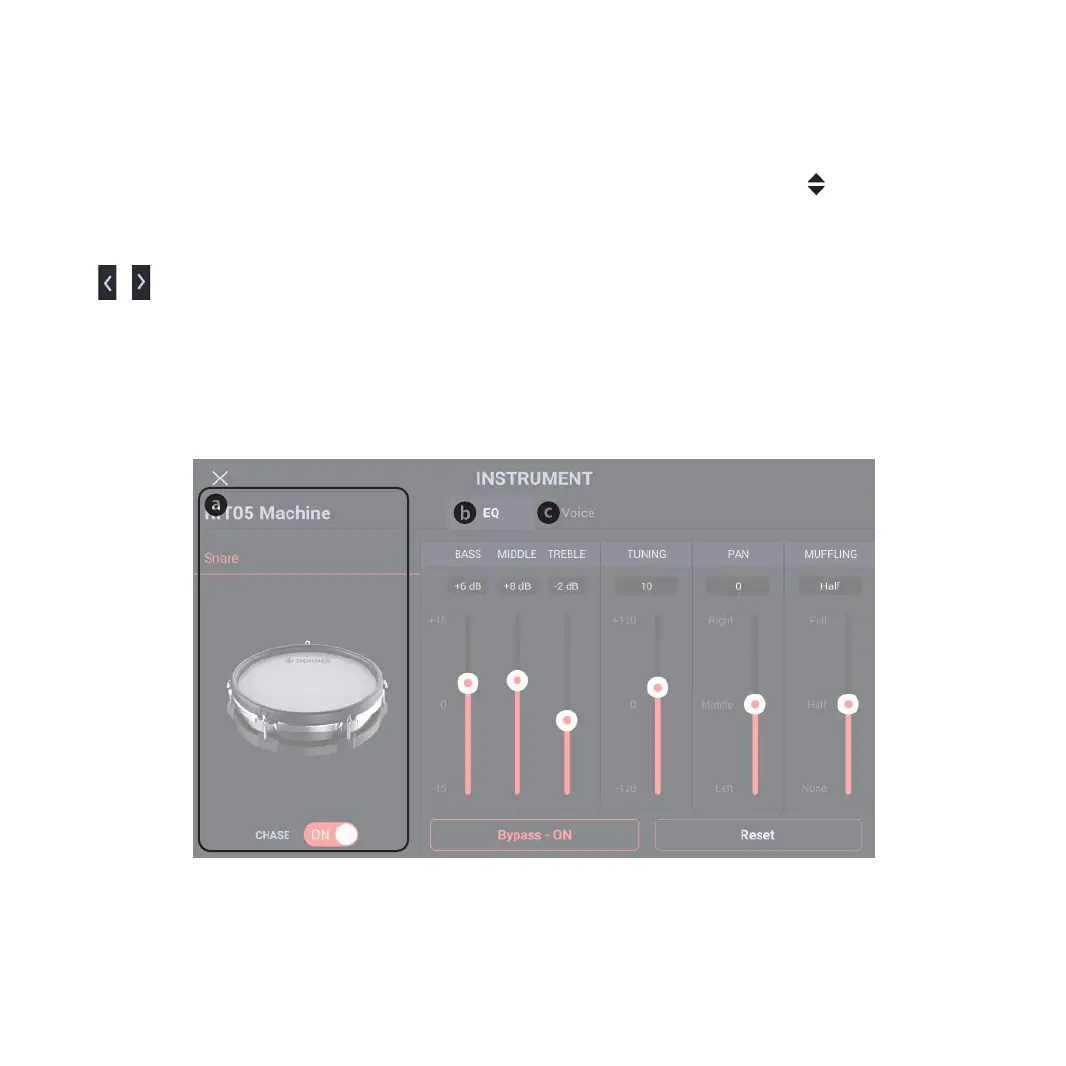
The INSTRUMENT interface is the adjustment for drum kit. The EQ, tone, and LED of current drum kit can be combined and saved as User’s drum kit.
Drum Selection:
Current drum kit and current drum are displayed; the default CHASE status is on; at this moment, you may use a drumstick to knock on any drum to select one to
be changed; when CHASE status is OFF, the drum knock function is disabled, and you may click the drop-down list of the drum information bar to manually select
a drum to change its parameters.
❼
Drum kit text information (picture)
Click (Change Text Icon) pop-up window to change current name and add the drum kit to the USER kit (Note: The name of the DEFAULT kit cannot be changed)
❻
Drum kit picture display (picture)
Click ( / of the drum kit picture) or rotate the encoder when other options are not selected to switch drum kit.
07



 To Next Page