English
depending on Internet connection. We recommend that you always update
your device to the latest software version to get optimal performance and
the latest enhancements. You need to have a working data connection to
be able to perform the update with the firmware over-the-air (FOTA) serv-
ice. See Data service, p.42 on how to activate a data connection.
1. Press Menu Settings Software update.
2. Press Check for update? Yes to check if there’s a software update
available.
3. Press for software update settings:
• Check again to re-check for update packages to be downloaded.
• Version Info to see software version information.
• Release notes to see information about the software update
package.
4. If there is a an update available, you will be asked if you want to
download it. Press Yes to download the software update.
5. When download has finished, press Yes to install the software update.
IMPORTANT!
During an update your phone will be temporarily out of service,
even for emergency calls. All contacts, photos, settings, etc. will
remain safely stored in the phone. Do not interrupt the update
process.
6. When the software update installation is complete, the phone will au-
tomatically restart and you will possibly need to enter your PIN code
and/or phone code.
7. Press to complete the software update.
Additional functions
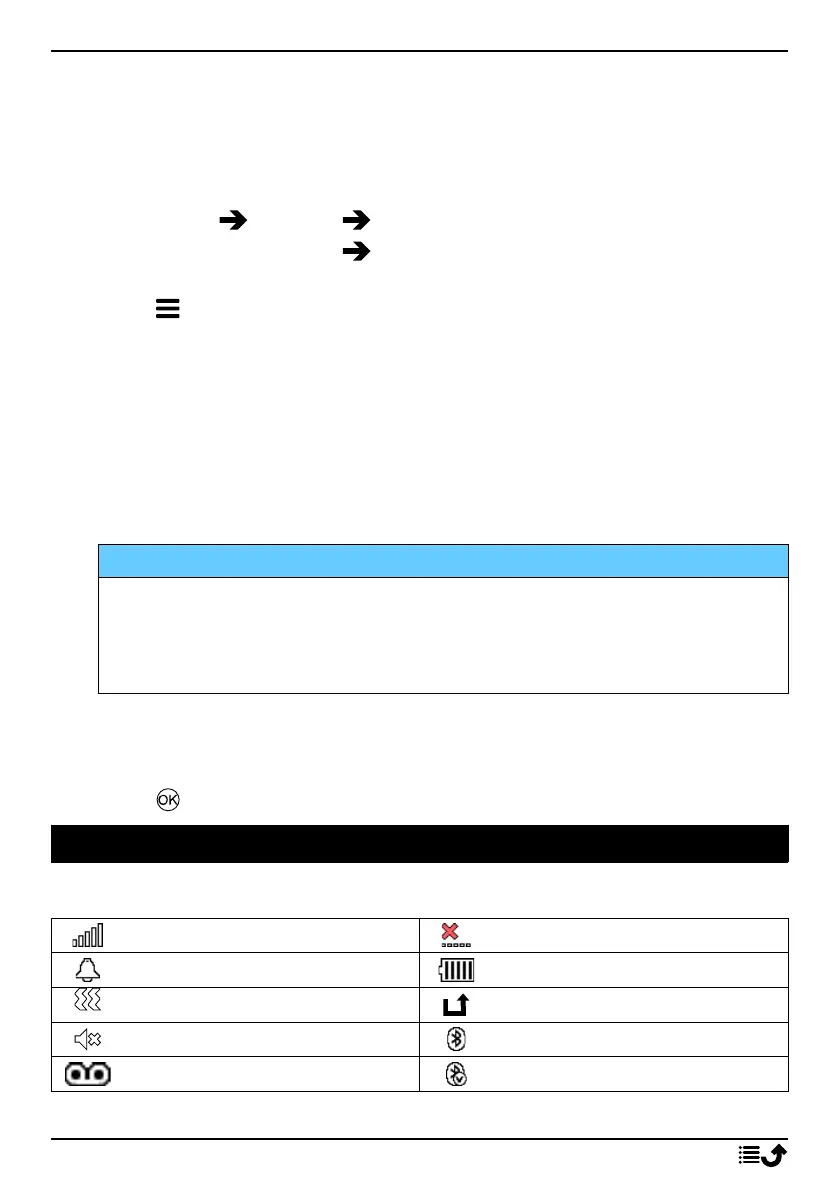
Display status symbols
Signal strength
No network coverage
Alarm active
Battery level
Vibration only
Call divert activated
Silent
Bluetooth on
Voicemail message received
Bluetooth connected
48



 To Next Page