English
To connect a remote support session
1. From the Home screen, tap Set An assistance option
The remote help.
2. To use the remote help app you have to agree to Teamviewer’s terms
and conditions. Browse through a short introduction.
3. Share Your ID with your personal tech support to allow remote con-
trol. Tap Send my ID... to select how to share your ID.
4. Follow the on-screen instructions to allow the remote help session.
5. To quit TeamViewer, open the Notification panel, swipe the status bar
down. Click QuickSupport and tap in the upper right corner.
6. Confirm with Close to close the remote help session.
Note! All TeamViewer connections are highly encrypted and are thus
protected from being accessed by third parties. For detailed technical
information regarding connections, security and data privacy in
TeamViewer, see the security statement at
http://www.teamviewer.com/en/products/security.
Google search
IMPORTANT!
You need an Internet connection to use this service. It is recommended
to use Wi-Fi connections when available to reduce costs for data traffic.
Contact your service provider for detailed subscription costs before
activating.
Note! The available options may vary depending on your device settings.
To use the web browser
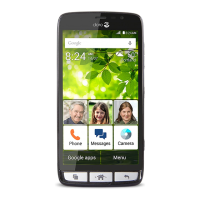
1. From the Home screen, tap the Google
™
search field .
Note! The first time you are asked if you want to Sign in with your
Google account.
2. Tap next to
to search the Internet, to search you type words, or
you can paste text, copied by you.
3. When you start a search on Google, you can find information faster by
looking at search predictions. Search predictions are possible search
57



 To Next Page