EasyManua.ls Logo

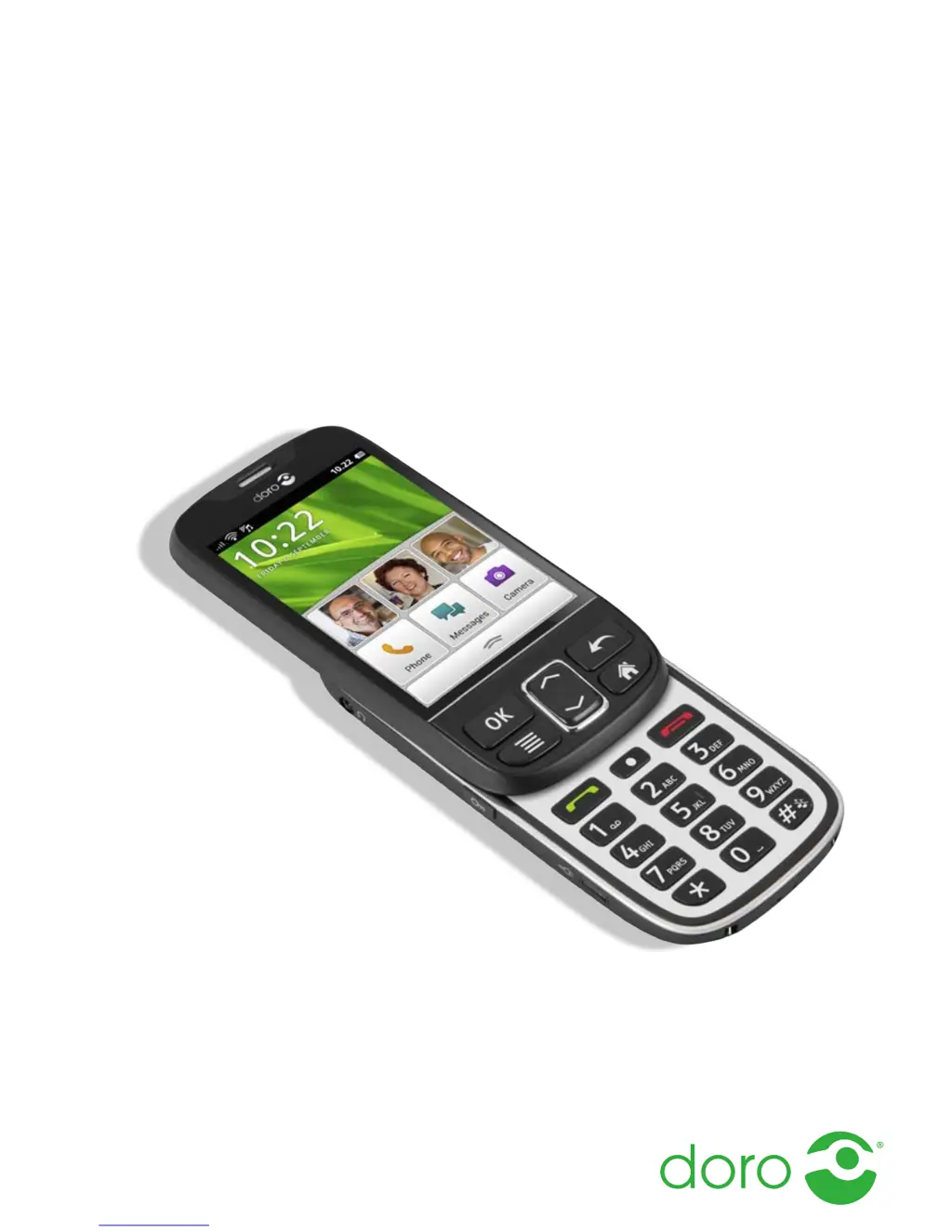
Doro phoneeasy 745 - User Manual

Doro phoneeasy 745
44 pages
Print Icon
To Next Page IconTo Next Page
Loading...
English
Doro PhoneEasy
®
745

Questions and Answers

  • K
    kellysmithAug 15, 2025
    What to do if my Doro phoneeasy 745 Cell Phone won't turn on?
    • E
      elliottmirandaAug 15, 2025
      If your Doro Cell Phone won't turn on, the battery charge may be low. Connect the power adapter and charge the battery for 5 hours. Note that full battery capacity is reached after the battery has been charged 3–4 times. Also, check the installation of the battery to ensure it is correctly installed.
  • Q
    quinnaustinAug 18, 2025
    Why can't I add a contact on my Doro phoneeasy 745 Cell Phone?
    • M
      Margaret WagnerAug 18, 2025
      If you're unable to add a contact on your Doro Cell Phone, the phonebook memory may be full. Delete existing contacts to free up memory.
  • S
    Sarah MartinezAug 21, 2025
    What to do if my Doro phoneeasy 745 Cell Phone displays a SIM card error?
    • J
      Joseph ThompsonAug 21, 2025
      If your Doro Cell Phone shows a SIM card error, check the condition of the SIM card. If it appears damaged, contact your service provider. Also, ensure the SIM card is correctly installed by removing it and reinstalling it. Finally, wipe the contact surfaces of the SIM card with a clean cloth to remove any dirt or dampness.
  • N
    Nicole SantiagoAug 25, 2025
    Why can't I place or receive calls on my Doro phoneeasy 745?
    • D
      Dakota NguyenAug 25, 2025
      If you're unable to place or receive calls on your Doro Cell Phone, call barring might be activated. Deactivate call barring in your phone's settings. If the problem persists, contact your service provider for further assistance.
  • S
    Sandra SmithAug 28, 2025
    Why does my Doro Cell Phone battery drain so fast?
    • B
      brownbrookeAug 28, 2025
      The battery may be draining quickly on your Doro Cell Phone because its charge capacity is too low, indicating it's time for a new battery. Alternatively, if you are too far from a base station, your phone constantly searches for a signal, which consumes battery power. Try moving to a location with a stronger signal or temporarily turning off the phone to conserve battery.
  • K
    Kimberly DominguezAug 31, 2025
    What to do if my Doro Cell Phone fails to charge?
    • J
      Jimmy LopezAug 31, 2025
      If your Doro Cell Phone isn't charging, check the battery and charger for any damage. Ensure that you are charging the battery in temperatures between 0 °C and 40 °C, and verify that the charger is correctly connected to both the phone and the power socket.
  • B
    Brian WillisSep 3, 2025
    What to do if my Doro phoneeasy 745 Cell Phone has a weak signal?
    • T
      Tracy LeeSep 3, 2025
      If your Doro Cell Phone has a weak signal, try again from another location, as you may be too far from the base station. Alternatively, network congestion could be the issue, so try calling at a later time.
  • H
    Heather ReynoldsSep 7, 2025
    What to do if my Doro Cell Phone doesn't accept the PIN code?
    • J
      Jennifer DrakeSep 7, 2025
      If your Doro Cell Phone doesn't accept the PIN code, it's possible that the wrong PIN code was entered too many times. In this case, enter the PUK code to change the PIN code, or contact your service provider for assistance.
  • W
    William ThompsonSep 12, 2025
    Why does my Doro phoneeasy 745 have echo or noise during calls?
    • A
      aadamsSep 12, 2025
      The echo or noise during calls on your Doro Cell Phone might be due to a regional problem from a bad network relay. Try hanging up and redialing; this may switch you to another network relay.

Summary

Getting started

Inserting SIM card, memory card, and battery

How to insert SIM, memory card, and battery into the phone.

Charging

Instructions on how to charge the phone's battery.

Turning the phone on and off

Steps to power the phone on and off.

PIN and PUK codes

PIN and PUK codes

Information about PIN and PUK codes for SIM card security.

Startup guide

Startup guide

Initial setup process for personalizing the phone.

Get to know your phone

Navigation

How to navigate the phone's interface using touchscreen and keys.

Entering text

Methods for inputting text using phone keys or virtual keyboard.

Doro Experience

Basic phone settings

PIN code

Setting and managing the phone's PIN code.

Contacts

Add new contact

Steps to add new contacts to the phonebook.

Assistance button

Activation

How to activate the Assistance button for emergency contacts.

Add assistance contacts

Adding up to five pre-determined contacts for assistance.

Make an assistance call

How to make an emergency assistance call using the button.

ICE (In Case of Emergency)

ICE (In Case of Emergency)

Storing emergency contact information for medical situations.

SOS calls

How to make an SOS call using the emergency number.

Doro Experience Setup

Create Doro Experience account

Steps to create a Doro Experience account.

Doro Experience Manager

Calling

Making a call

Instructions for dialling phone numbers.

Communication

Text messaging

Creating and sending text messages.

Camera

Take pictures

Instructions for using the phone's camera to capture photos.

Connectivity

Connecting the phone to a computer

Transferring files between the phone and a computer via USB.

Wireless networks

Connecting to Wi-Fi networks for data access.

World

Internet

Accessing the internet using the phone's web browser.

Remote help

Troubleshooting

Phone cannot be switched on

Solutions for issues where the phone does not power on.

Failure to charge the battery

Troubleshooting steps for battery charging problems.

Safety instructions

Areas with explosion risk

Warnings and precautions for areas with explosion hazards.

Protect your hearing

Emergency calls

Emergency calls

Information and important notes about making emergency calls.

Care and maintenance

Specific Absorption Rate (SAR)

Doro phoneeasy 745 Specifications

General IconGeneral
Network TechnologyGSM / HSPA
2G bandsGSM 850 / 900 / 1800 / 1900
3G bandsHSDPA 900 / 2100
GPRSYes
EDGEYes
Dimensions125 x 60 x 12.9 mm (4.92 x 2.36 x 0.51 in)
Weight130 g (4.59 oz)
SIMMini-SIM
Display TypeTFT, 256K colors
Card slotmicroSD, up to 32 GB
PhonebookYes
Call recordsYes
Internal Memory512MB 256MB RAM
VideoYes
LoudspeakerYes
3.5mm jackYes
WLANNo
RadioFM radio
USBmicroUSB 2.0
MessagingSMS, MMS, Email
BrowserWAP 2.0/xHTML
GamesYes
JavaNo
Talk timeUp to 10 h (2G) / Up to 6 h (3G)
ColorsBlack, White
NetworkGSM / HSPA
DisplayTFT, 256K colors
Alert typesVibration; MP3 ringtones
GPSYes
Stand-byUp to 380 h (2G) / Up to 380 h (3G)
Standby TimeUp to 380 h (2G) / Up to 380 h (3G)

Related product manuals